
NetBird for Omarchy
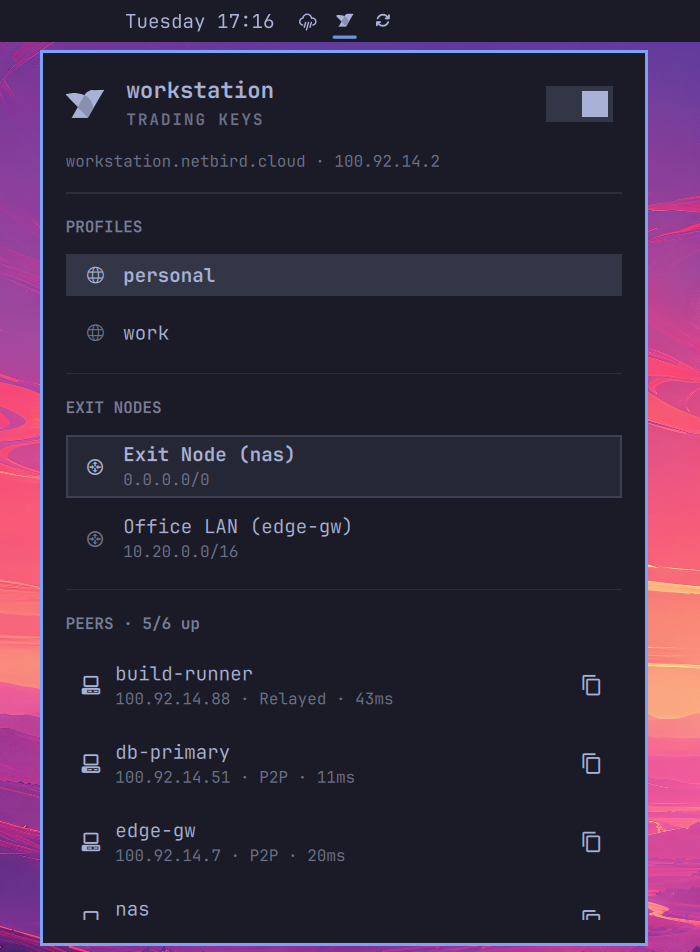
A NetBird bar widget for the Omarchy shell. It mirrors the built-in Tailscale widget: connection state at a glance, one-click toggling, peer browsing, exit node selection, and quick copy actions.
Features
- Status at a glance — daemon state, your own peer name and NetBird IP, and a connected/total peer count in the bar.
- Toggle the connection — bring NetBird up or down from the panel, with an optimistic UI so the icon reacts immediately instead of waiting for the next status poll.
- Login handling — when the daemon reports
NeedsLogin, the panel surfaces the authentication URL thatnetbird upprints. - Peer browsing — every peer with its status, connection type (P2P or relayed), and latency. Connected peers sort to the top.
- Exit nodes and networks — list advertised networks and select or deselect one without leaving the bar.
- Profile switching — see available NetBird profiles and switch the active one.
- Copy actions — copy a peer's NetBird IP or its short name.
- SSH into a peer — open a terminal running
netbird ssh <peer>straight from the peer row. Available for connected peers; if the peer's SSH server is disabled,netbirdreports that in the terminal. The username is remembered per peer, sincenetbird sshotherwise defaults to your local username and many peers run a different account.
Keyboard shortcuts
With the panel open: t toggle the connection, r refresh, and on the peer
under the cursor s SSH, S change that peer's SSH username, c copy IP,
n copy name, d copy FQDN.
SSH usernames
netbird ssh connects as your local username unless told otherwise, so a peer
whose account differs fails with User authentication failed right after the
SSO login succeeds. The username is therefore resolved as:
- the username remembered for that peer,
- the
sshUsersetting, - nothing —
netbirdfalls back to your local username.
The first time you SSH to a peer, the button asks for the username and
remembers it. Right-click the button (or press S) to change it later.
Remembered usernames live in ~/.local/state/omarchy/netbird-ssh-users.json,
outside the plugin directory, so they survive a plugin update.
Requirements
- Omarchy with the Omarchy shell (Quickshell) bar.
- The
netbirdCLI onPATH, plus a runningnetbirddaemon. On Arch:omarchy pkg aur add netbird(oryay -S netbird), thensudo systemctl enable --now netbird.
The widget shells out to the netbird binary only. It makes no network
requests of its own, bundles no binaries, and never invokes sudo or pkexec.
If netbird is not installed, the widget reports it and stays inert.
Installation
omarchy plugin add https://github.com/nico-kovacs/omarchy-plugin-netbird --enable
That clones the plugin into ~/.config/omarchy/plugins/ and adds the widget to
your bar. To install without enabling it immediately, drop --enable and then:
omarchy plugin enable io.github.nico-kovacs.netbird right
Configuration
Configurable from the bar widget settings UI, or in
~/.config/omarchy/shell.json:
| Setting | Type | Default | Range | Description |
|---|---|---|---|---|
refreshIntervalSec |
integer | 30 |
5–3600 | How often to poll netbird status |
sshUser |
string | "" |
— | Default SSH username; blank uses your local username |
Updating
omarchy plugin update io.github.nico-kovacs.netbird
Removal
omarchy plugin remove io.github.nico-kovacs.netbird --yes
That disables the widget, removes it from your bar layout, and deletes the plugin directory. To only hide it while keeping it installed:
omarchy plugin disable io.github.nico-kovacs.netbird
Development
omarchy plugin validate .
Model.js holds the parsing logic with no QML imports, so it can be exercised
directly under Node:
const M = require("./Model.js");
M.parseStatus(rawJsonFromNetbirdStatusJson);
License
MIT — see LICENSE.