
Linkding bookmark picker for Omarchy Quattro
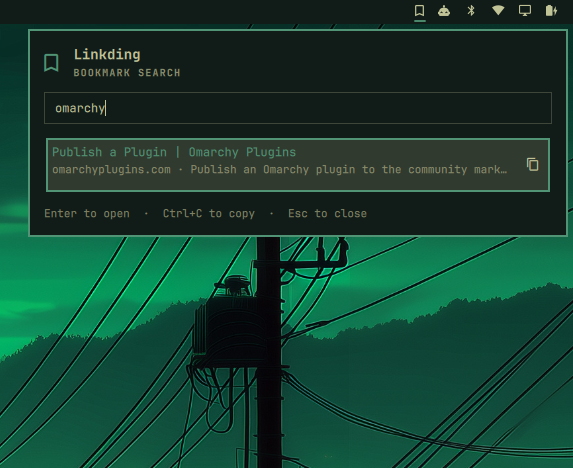
Search active and archived Linkding bookmarks from the Omarchy bar. Select a result to open it in the configured default browser, or copy its URL to the Wayland clipboard.
Compatibility and permissions
This plugin targets Omarchy Quattro with plugin schema 1. It is not tested or advertised as compatible with legacy Omarchy shells.
Plugins run unsandboxed inside the user's long-running Omarchy shell. This plugin can execute user-level processes, contact the configured Linkding server, launch the default browser, write the clipboard, and read and write its protected configuration file. Inspect the source before enabling it.
The host provides these runtime tools. The plugin does not install them:
- Omarchy Quattro and Quickshell
- Python 3 and standard shell utilities
curlwl-copyomarchy-launch-browser
Install and configure
Install the plugin from its public repository:
omarchy plugin add https://github.com/rafaelvzago/omarchy-linkding-plugin.git
omarchy plugin inspect io.github.rafaelvzago.linkding
omarchy plugin enable io.github.rafaelvzago.linkding
Configure the Linkding connection from a terminal. The setup helper requires an HTTPS Linkding URL, prompts for the token without echoing it, validates the token against /api/user/profile/, and saves the configuration atomically at ${XDG_CONFIG_HOME:-$HOME/.config}/linkding-search-plugin/config.json. HTTP URLs, including localhost and loopback addresses, are rejected before any request is made so the token and bookmark data are never sent in cleartext.
~/.config/omarchy/plugins/io.github.rafaelvzago.linkding/linkding-setup
The configuration directory is mode 0700 and the file is mode 0600. If you edit the file manually, preserve the JSON fields baseUrl and apiToken, use an https:// base URL, and keep these permissions. Existing HTTP configurations fail with https-required; enable TLS for Linkding and rerun linkding-setup. The token is never passed as a QML argument, put in a URL, shown in a notification, or written to logs.
Use the picker
Open the Linkding panel from the bar or its configured hotkey. Type to search. The panel searches active and archived bookmarks and loads more results when you reach the end of the list.
Type # to list existing Tags. Keep typing to filter by name prefix, then use Up and Down and press Enter (or click) to apply a Tag. That completes the current # token and searches bookmarks with Linkding’s #tag query. Unknown names only filter the list; the picker does not create Tags.
- Click a result to open its URL in the default browser.
- Click the copy button on a result to copy its URL.
- Use Up and Down to select a result, then press Enter to open it.
- Press Ctrl+C to copy the selected URL.
- Press Escape to close the panel.
- Press Tab, or Shift+Tab, to switch between bar panels.
Manual install and lifecycle
For a manual install, copy this directory to ~/.config/omarchy/plugins/io.github.rafaelvzago.linkding/, rescan the shell, and enable the plugin. Exact command names can vary with the installed Quattro release. Run omarchy plugin --help for the commands supported by your installation.
omarchy plugin list --json
omarchy plugin inspect io.github.rafaelvzago.linkding
omarchy plugin validate ~/.config/omarchy/plugins/io.github.rafaelvzago.linkding
omarchy-shell shell rescanPlugins
omarchy bar move io.github.rafaelvzago.linkding --section left   # or center/right
omarchy plugin update io.github.rafaelvzago.linkding
omarchy plugin disable io.github.rafaelvzago.linkding
omarchy plugin remove io.github.rafaelvzago.linkding
The plugin does not start a second Quickshell process and has no automatic install or secret-store lifecycle hooks. Setup is explicit and user-owned. Disabling or removing the plugin does not manage the separate Linkding configuration file.
Troubleshooting
If the bar reports missing or unsafe configuration, rerun linkding-setup and check the directory and file modes. The helper reports these connection states separately: authentication-failed, unreachable, timeout, rate-limited, server-failed, and invalid-response.
The bar health color checks unauthenticated /health; it never sends the API token. To inspect shell errors, run:
qs log -p "$OMARCHY_PATH/shell" --tail 100
Local validation
Run these checks from the repository root:
python3 -m unittest discover -s tests -v
qmllint -I /usr/share/omarchy/shell BarWidget.qml Panel.qml
python3 -m json.tool manifest.json >/dev/null
python3 -m py_compile linkding_helper.py
omarchy plugin validate .
Maintainers
Before submitting this plugin to the marketplace:
- Keep the code in a public GitHub repository.
- Keep a valid
manifest.jsonat the repository root. - Keep
README.mdand the MITLICENSEat the repository root. - Check that installation and removal are safe and do not require automatic secret-store lifecycle hooks.
- Run the local validation commands above, including
omarchy plugin validate .. - Submit the repository through the Omarchy plugin issue form.
- Use
Productivityas the suggested category. - Use these suggested tags:
Linkding,bookmarks,search,bar-widget.
The marketplace validates listings, not plugin security. Review the code and document any permissions before submitting.