
Floating Window Mode for Omarchy
Floating Mode adds a clean tiled ↔ floating toggle to the Omarchy bar. It is designed especially for large and ultrawide monitors, where a single maximized application wastes space and traditional tiling can feel too rigid.
One click turns the current desktop into a calm, free-form workspace. Windows keep a useful visual arrangement, newly opened applications appear centered with comfortable margins, and another click returns every window managed by the plugin to tiling.
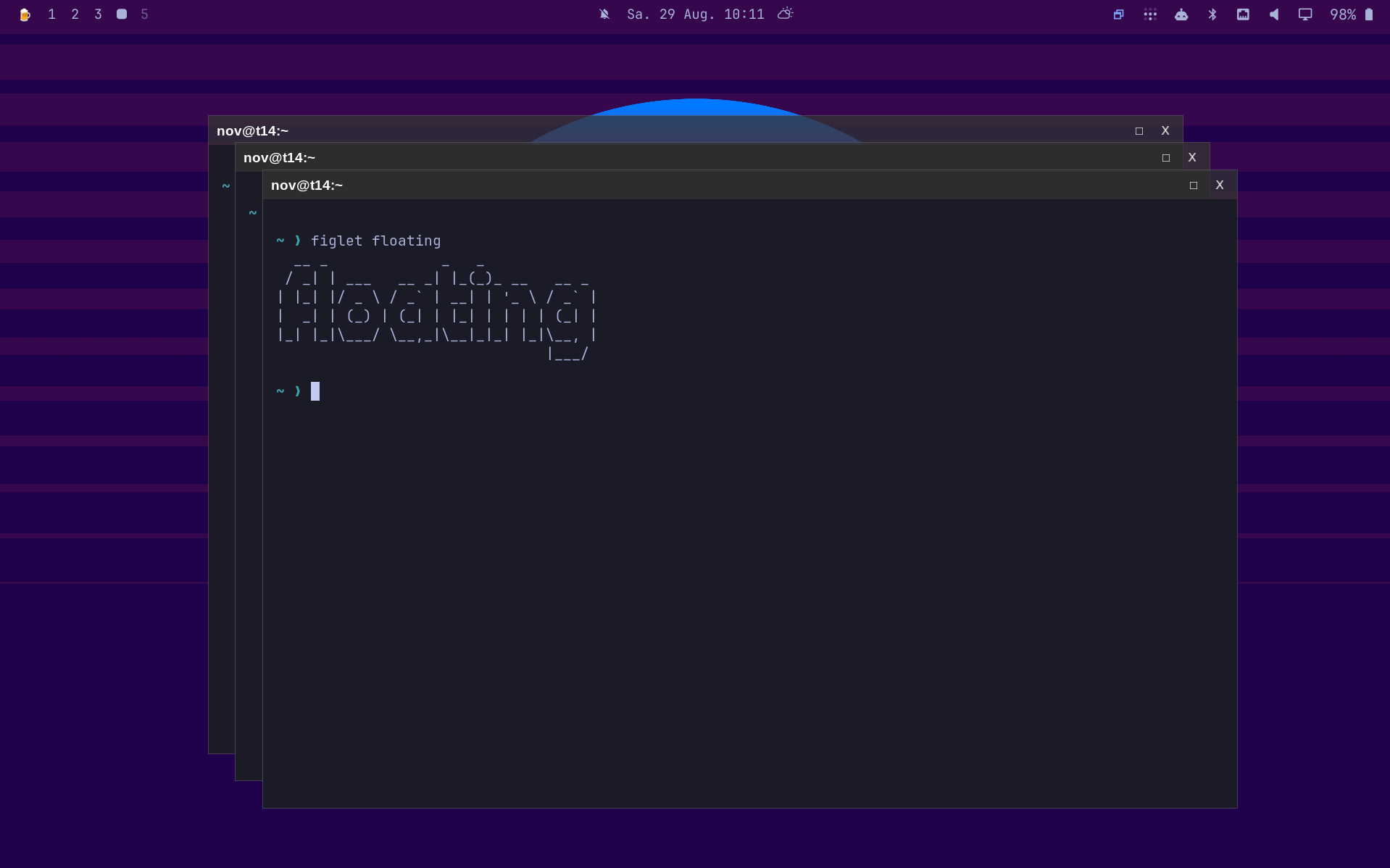
Screenshots
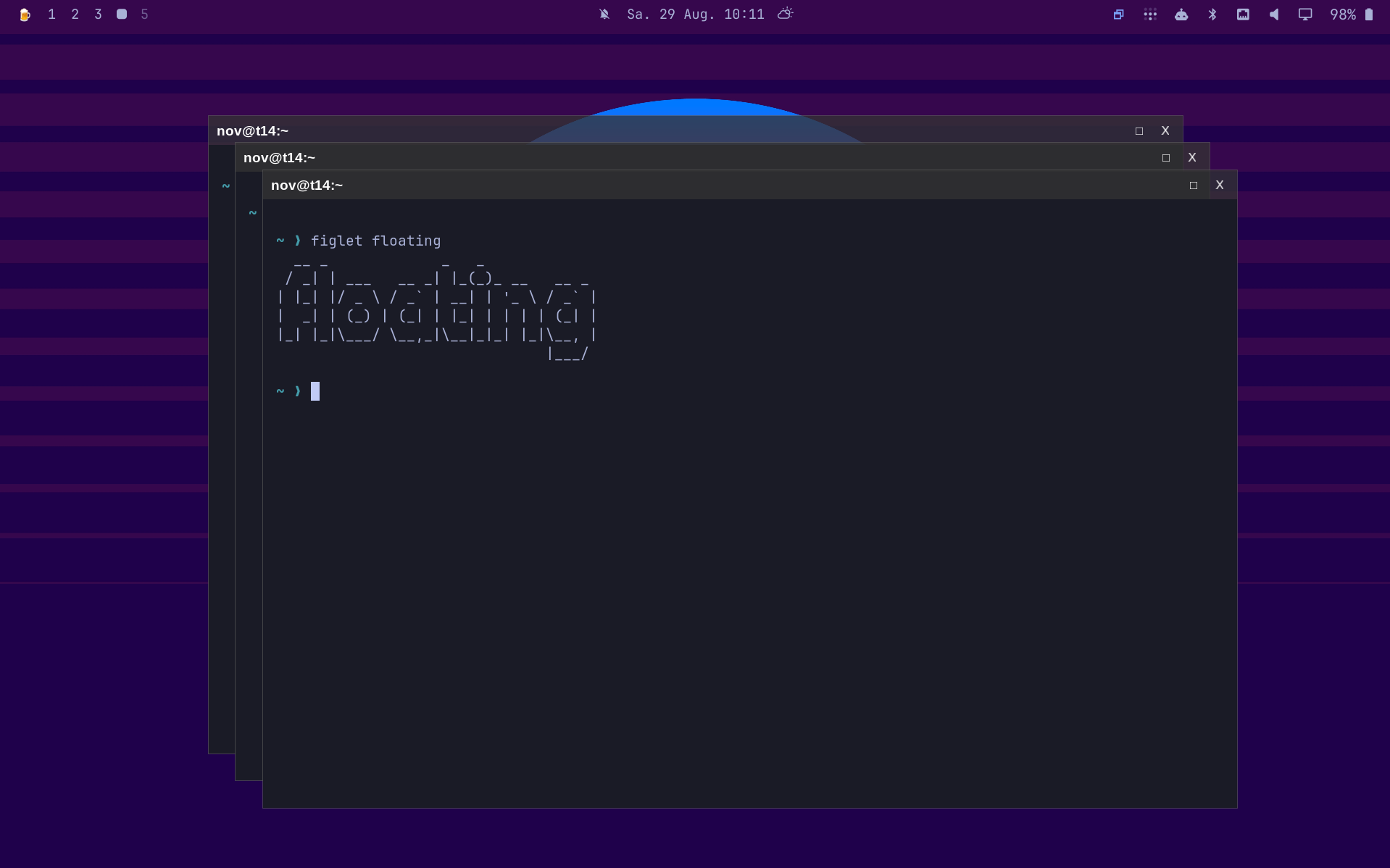
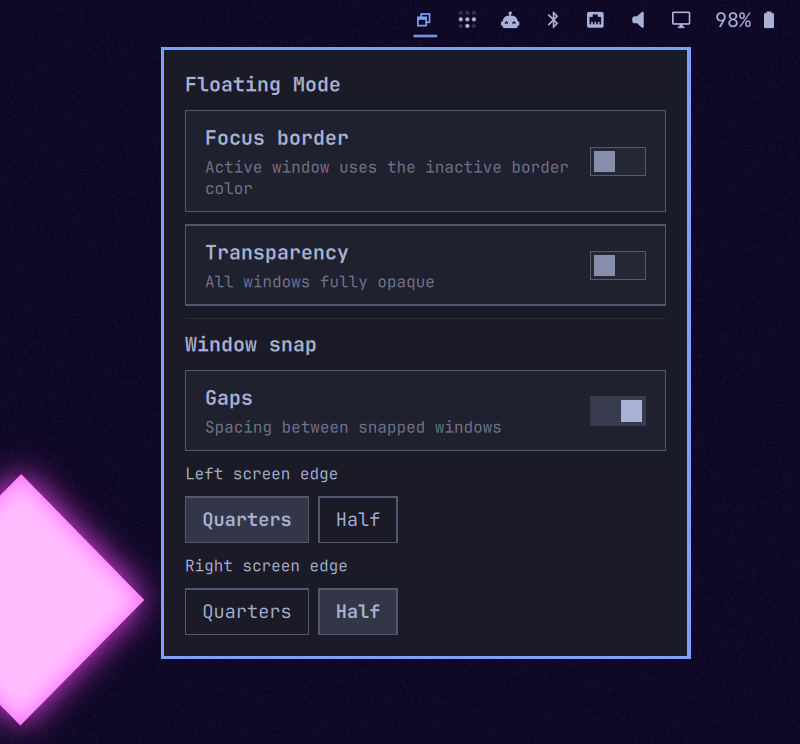
| Cascaded floating windows | Floating Mode settings |
|---|---|
 |
 |
What it does
- Toggles between tiled and floating workflows from one Omarchy bar button
- Floats existing tiled windows instantly, without distracting transition animations
- Automatically floats applications opened while Floating Mode is active
- Centers a lone or newly opened window at no more than 70% of the usable scaled screen area
- Never enlarges naturally smaller dialogs
- Preserves the overview on busy workspaces by keeping window positions and shrinking them only slightly
- Handles monitor scale, rotation, reserved bar space, and multi-monitor coordinates
- Returns managed windows on enabled workspaces to tiling, including windows that were already floating
- Exits maximized or fullscreen state before restoring managed windows to tiling
- Adds a compact native titlebar for dragging, maximizing, and closing windows
- Resizes floating windows from every side and corner with native directional mouse cursors
- Magnetically aligns freely placed windows with nearby windows and monitor edges
- Snaps dragged windows into full-height columns, corner quarters, or maximization with a live preview
- Restores a window's previous size when it is dragged away from a snap zone
- Adds focused-window keyboard snapping while Floating Mode is active
- Restores a keyboard-snapped window to its original position and size
- Checks setup automatically and opens an installer terminal only when integration is needed
The result is simple: tiling when you want structure, floating when you want space and context.
Requirements
Runtime
- Omarchy 4 (Quattro)
- Hyprland 0.56 or newer
- Omarchy Shell / Quickshell
hyprctljq,perl, andflock(util-linux)- Omarchy’s terminal launcher and a configured terminal
These runtime components are expected on a standard Omarchy 4 installation. Native modules must also match the installed Hyprland ABI; the pinned source is not guaranteed to compile against every newer Hyprland release.
One-time native integration build
The titlebar uses the official Hyprland hyprbars plugin with small bundled hover-background and disabled-input patches. Aero-style snap zones use the bundled MIT-licensed omarchy-windows-snap Hyprland plugin. The installer requires:
- Internet access to GitHub
- An interactive terminal
hyprpm,git,make,cmake,cpio,pkg-config,gcc, andg++sudopermission to replace the cachedhyprbars.so
The installer checks every required command before making changes. It builds both modules for the installed Hyprland ABI, verifies the snap geometry tests, saves the original hyprbars module, and restores it during uninstall. It also installs a lightweight Omarchy post-update hook. The hook compares Hyprland's complete ABI hash after system packages are updated and rebuilds the native integrations only when that hash changed. The upstream hyprbars source is pinned to reviewed commit 7644cecdb947060682891a0db2a0cdc5c0b9e704.
On a minimal Arch-based installation, missing build tools can be installed with:
sudo pacman -S --needed base-devel cmake cpio git jq pkgconf
See DEPENDENCIES.md for the complete audited dependency and privilege list.
Installation
Install and enable the plugin from the plugin website, or run:
omarchy plugin add https://github.com/jwm3000/omarchy-windows.git --enable --yes
The widget defaults to the right side of the bar; a separate omarchy bar move command is optional. On activation, the service checks the Lua integration, loaded native modules, and native build ABI. If setup is required, it opens contrib/install-hyprbars automatically in a terminal. Enter your sudo password there if requested and let setup finish. Already working installations do not rebuild.
A cancelled or failed setup does not repeatedly reopen a terminal on shell or login restarts. Right-click the widget and use Start / retry setup to try again. Missing build tools and compiler errors remain visible in the setup terminal. If the running Hyprland ABI differs from the installed package, log out and back in first.
You can still run setup manually:
"${XDG_CONFIG_HOME:-$HOME/.config}/omarchy/plugins/io.github.rawritude.floating-mode/contrib/install-hyprbars"
The automatic setup uses the plugin service's first-start check; Omarchy's package installer itself does not run a post-install hook. See contrib/install-hyprbars for the exact setup operations.
Troubleshooting initial setup
The native setup installs the Lua rules needed for switching window mode too. Finish the automatically opened terminal before using the toggle. If no terminal opens, use Start / retry setup in the widget settings.
If activation reports missing or incomplete integration, run these diagnostics in your Hyprland session:
hyprctl version
hyprctl configerrors
hyprctl eval 'return type(omarchy_floating_mode_opaque_rule)'
A nil result means the rule is not loaded. Run the integration installer shown in the error, and check its output for missing build tools, compilation failures, or configuration errors. Native module compatibility depends on the installed Hyprland ABI and the pinned upstream source; a newer version may need source changes.
Activation failures remove newly created enabled markers. Windows already changed before a failure may remain floating; their recovery ledger is retained for a subsequent successful activation and deactivation. Other enabled workspaces retain their status.
Usage
After setup completes, click the overlapping-windows icon in the Omarchy bar. While setup is incomplete, a left-click opens the settings and setup status instead of switching windows:
- Normal icon: tiled mode
- Highlighted icon: Floating Mode is active
- Click again: managed windows return directly to tiling
- Right-click: open the Floating Mode settings
The menu automatically follows the desktop locale: German for a de* locale, English otherwise.
The All workspaces / Alle Arbeitsflächen switch controls the scope of the main tiled ↔ floating button. It is enabled by default, preserving the original global behavior. Turn it off to control every workspace independently: any number of workspaces can remain in Floating Mode while the others stay tiled. When it is enabled again, the current workspace's tiled/floating state plus its focus-border, window-transparency, and titlebar-transparency preferences are applied to every workspace. Newly opened windows float only on enabled workspaces. The scope choice persists across restarts.
The Focus border / Fokusrahmen switch controls the active-window border while Floating Mode is on. Leave it enabled to keep the configured focus color, or disable it to give focused floating windows the same border color as inactive windows. Tiled workspaces always retain the normal focus border. The preference persists across shell and login restarts and, in current-workspace scope, is saved separately for every workspace.
The Transparency / Transparenz switch keeps Omarchy's normal tiling opacity by default. Turn it off to make active and inactive windows fully opaque while Floating Mode is active. The normal opacity is restored on leaving Floating Mode, and the preference persists across restarts. In current-workspace scope, this preference is saved separately for every workspace and affects only Floating Mode's managed windows there.
The Titlebar transparency / Titelleisten-Transparenz switch controls only the native titlebar. It is slightly transparent by default; turn the switch off for a fully opaque titlebar. In current-workspace scope, the preference is saved separately for every workspace and applies only to its Floating Mode windows. The preference applies immediately and persists across restarts.
The Resize windows with mouse / Fenstergröße mit Maus ändern switch controls border-drag resizing in tiled mode. Floating Mode keeps border resizing active so free-form windows remain usable; after returning to tiling, the saved preference is restored automatically.
Under Window snap / Fenster-Snap, the left and right screen edges can be configured independently:
- Quarters / Viertel keeps the upper and lower quarter zones on that side
- Half / Hälfte makes every edge and corner target on that side use the full-height half
For example, with the right side set to Half / Hälfte, dragging to the upper-right or lower-right corner selects the complete right half instead of a quarter. Both choices persist across restarts and apply from the next window drag.
The Gaps / Abstände switch is enabled by default. Turn it off to remove both inner spacing between snapped windows and outer spacing at the work-area edges for drag snapping and the left/right keyboard shortcuts. Reserved areas such as the bar remain untouched. The preference persists across restarts.
Keyboard snapping
While Floating Mode is active, the following shortcuts operate on the currently focused window:
Ctrl+Super+Left— snap to the full-height left halfCtrl+Super+Right— snap to the full-height right halfCtrl+Super+Up— maximizeCtrl+Super+Down— restore the position and size from before the first keyboard snap
The original geometry is retained while switching repeatedly between the left half, right half, and maximized state. Ctrl+Super+Down therefore returns the focused window to the same pre-snap geometry regardless of the intermediate sequence.
These bindings are registered only while Floating Mode is enabled and removed when it is disabled. The left and right keyboard shortcuts always select halves; the independent Quarters / Half menu choices affect mouse-drag snap zones only.
In Floating Mode, use either the native titlebar or Super+drag to move a window:
- Drag to the left or right edge for an outer full-height column, or the configured half
- In three-column mode, the bottom edge is split into equal left, center, and right full-height targets
- Drag to an upper corner or the upper/lower section of a side edge for a quarter-screen window
- Drag to the top center to maximize
- Move away from an edge before releasing to cancel the snap
- Drag a snapped window away to recover its pre-snap size
To resize a floating window, move the pointer to a border until the directional resize cursor appears, then drag. The left and right sides change only the width, the top and bottom sides change only the height, and corners change both dimensions together. A 12-pixel compositor-native grab area makes the thin visible border easy to target without adding an overlay window. The bundled native module passes the detected side or corner explicitly to Hyprland's drag controller, keeping the resize operation consistent with the cursor shown before the click.
Hyprland draws a blurred blue preview with a 200 ms transition between zones. The square titlebar button toggles maximization; the close button closes the window.
Full-height snapping uses columns = "auto" by default: monitors wider than 16:9 get three columns, while 16:9 and narrower monitors keep two. When a side is configured for quarters, its corner zones remain quarters in either layout. To force one layout on every monitor, add this after require("hypr.floating-mode") in ~/.config/hypr/hyprland.lua:
hl.config({ plugin = { omarchy_windows_snap = { columns = "2" } } }) -- or "3"
Hyprland's native magnetic snap is also enabled, so manually placed floating windows align to nearby windows and monitor edges without being resized.
Runtime state is kept in $XDG_RUNTIME_DIR/omarchy-floating-mode and disappears at logout. No window content is read or stored.
The runtime directory must be private and owned by the current user; unsafe directories, symlinks, and state files are rejected before use.
Updating
Update Floating Mode with Omarchy:
omarchy plugin update io.github.rawritude.floating-mode
Version 1.10.0 checks integration when its service starts. An already working installation with a matching ABI does not rebuild. If an automatic setup attempt previously failed or was cancelled, use Start / retry setup in the settings.
The setup check does not compare native source revisions. If a release changes contrib/hyprbars.lua, contrib/aero-snap/, or the bundled hyprbars patches while the ABI stays the same, run the installer manually:
~/.config/omarchy/plugins/io.github.rawritude.floating-mode/contrib/install-hyprbars
Because Hyprland plugins are ABI-sensitive, the installer records the ABI it successfully built against. During future omarchy update runs, the installed post-update hook automatically rebuilds both modules when Hyprland's ABI hash changes. Normal updates with an unchanged ABI do nothing. Interactive updates reuse the update's existing sudo authorization; unattended updates never prompt and display a notification with the manual recovery command if non-interactive authorization is unavailable.
If an update was performed outside omarchy update, or an automatic rebuild reports a failure, rerun the installer manually:
~/.config/omarchy/plugins/io.github.rawritude.floating-mode/contrib/install-hyprbars
Removal
First click the bar button to return to tiled mode. Then run:
~/.config/omarchy/plugins/io.github.rawritude.floating-mode/contrib/install-hyprbars --uninstall
omarchy plugin remove io.github.rawritude.floating-mode --yes
The uninstall step removes the added Lua configuration, snap module, post-update hook, and ABI state; restores the original hyprbars.so and its previous enabled state; then reloads Hyprland. Preferences and the setup attempt history remain in the user configuration/state directories. A later reinstallation may therefore require Start / retry setup.
If the widget is unavailable while Floating Mode is still active, restore tiling manually before removing the plugin:
~/.config/omarchy/plugins/io.github.rawritude.floating-mode/bin/floating-mode off
How it works
While the mode is enabled, a named Hyprland rule floats, sizes, and centers newly mapped tiled windows before their first frame. The headless service records the rule's window tag and remains as a recovery path for windows that reject their initial compositor command. Geometry is calculated in Hyprland's logical coordinate space, so fractional scaling and large displays remain predictable. Each recovery transition is sent as one animation-free Hyprland batch to avoid visible intermediate layouts.
Floating Mode records eligible windows on enabled workspaces, including windows that were already floating. When the mode is disabled, those managed windows return to tiling.
Titlebars are rendered inside the compositor by the official hyprbars plugin. The bundled hyprbars-button-hover.patch adds configurable circular hover backgrounds, while hyprbars-disabled-input.patch carries hyprland-plugins#701 for the pinned build.
The bundled omarchy-windows-snap plugin handles drag zones, previews, focused-window keyboard placement, and restoration inside Hyprland. Keyboard actions query Hyprland's current focus state directly, so they never target a window merely because it was previously active or happens to be highest in the stacking order.
Privacy and security
- Window management and setup checks run locally as the current user
- The plugin reads window geometry and metadata from
hyprctl, never window contents - No telemetry or analytics; window management does not require network access
- Enabling the plugin can automatically open the native setup installer in a visible terminal. Setup and ABI rebuilds access GitHub through
hyprpmandgitand may request asudopassword sudois used only by the descriptor-verified cache helper to install or restore/var/cache/hyprpm/<account-from-real-uid>/hyprland-plugins/hyprbars.so; if HyprPM recreated that fixed account cache as root, the helper also returns its two cache directories and exactstate.tomlfiles to that account- The Aero snap module is built from this repository's MIT-licensed source and installed without privileges below
$XDG_DATA_HOME/omarchy-floating-mode - User files include
~/.config/hypr/floating-mode.lua, itsrequire(...)line, preferences in~/.config/omarchy-floating-mode/, the user-local snap module, and the post-update hook - Setup attempt/lock files and native build state are stored below
$XDG_STATE_HOME/omarchy-floating-mode/(default~/.local/state/omarchy-floating-mode/)
Development and validation
omarchy plugin validate .
qmllint -I /usr/share/omarchy/shell BarWidget.qml Service.qml
bash -n bin/floating-mode bin/floating-mode-setup contrib/install-hyprbars contrib/rebuild-after-update
python -m unittest discover -s tests -v
make -C contrib/aero-snap test all
For a local test installation, clone or copy the repository to:
~/.config/omarchy/plugins/io.github.rawritude.floating-mode
Then rescan and enable it:
omarchy-shell shell rescanPlugins
omarchy plugin enable io.github.rawritude.floating-mode
License
MIT — see LICENSE.