
OmaWarden
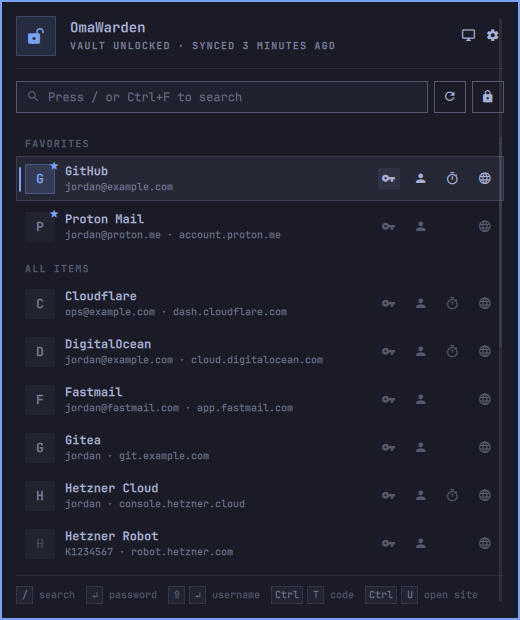
Bitwarden in the Omarchy bar. Press /, type a few letters, then press
Enter: the selected login or card value is on your clipboard for thirty
seconds — never in Omarchy's clipboard history, never in the shell.
Demo

Screenshots
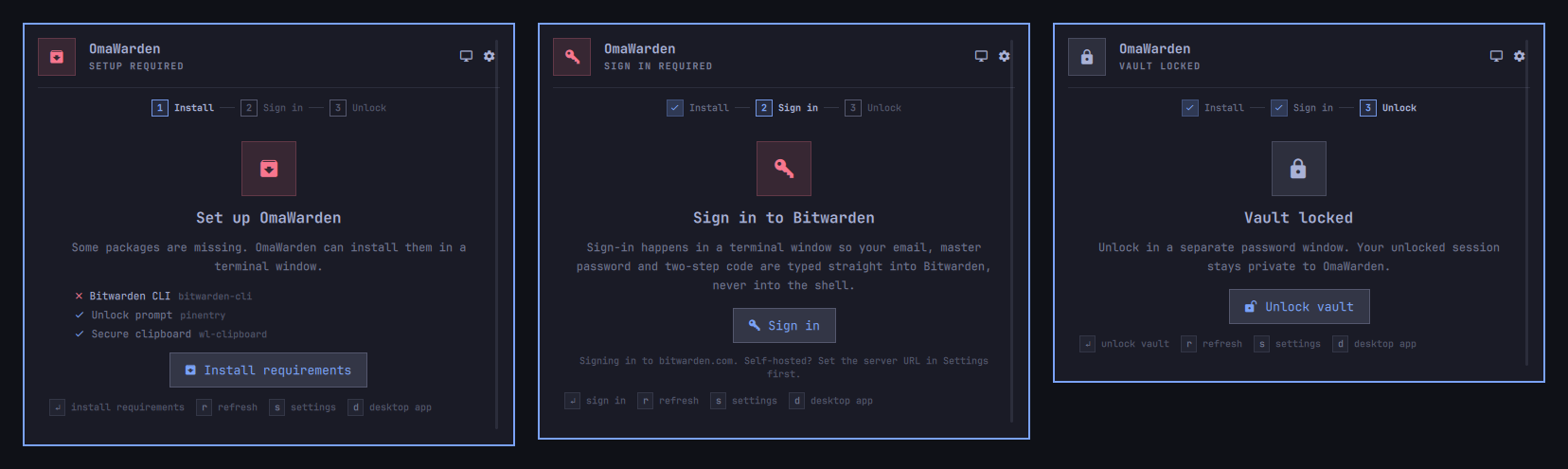
Before the vault is open — install, sign in, unlock:
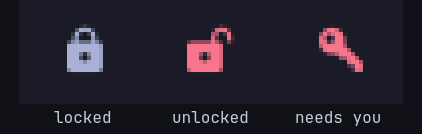
The bar icon, locked, unlocked and needing attention:
Highlights
- Instant. Search runs against an in-memory index of login names,
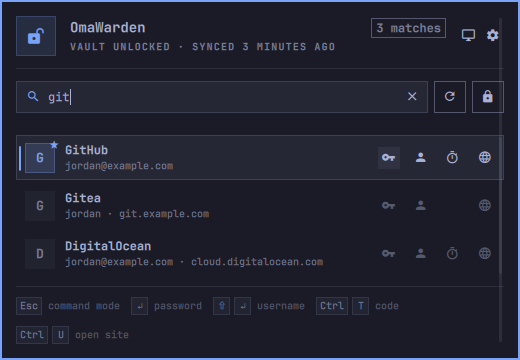
usernames and sites plus card names, brands and last four digits. Results
are ranked —
gitfinds GitHub before DigitalOcean — and the panel opens on what you used last. - Safe. The shell only ever sees names, usernames, sites, cardholders, card brands and last four digits. Passwords, one-time codes, card numbers and security codes go from the Bitwarden CLI straight to a sensitive, self-clearing clipboard, and the session key never leaves a small per-user helper.
- Keyboard first. The panel opens in command mode;
/orCtrl+Fenters search mode.Entercopies the primary value,Shift+Enterthe alternate, and the Ctrl shortcuts reach passwords, usernames, card fields, one-time codes and websites. - Native. Built from Omarchy's own components, so it follows your theme and locks with your screen.
Requirements
- Omarchy 4.0 or newer
bitwarden-cli,wl-clipboardandpinentry— the panel offers to install whatever is missing
Install
omarchy plugin add https://github.com/salemsayed/omawarden.git --enable
A padlock appears in the bar. Click it and follow the three steps:
- Install — one click installs the missing packages in a terminal.
- Sign in —
bw loginruns in a terminal, so your email, master password and two-step code go straight to Bitwarden. - Unlock — enter your master password. Done.
Use
Open the panel, press / (or Ctrl+F), start typing, then press Enter.
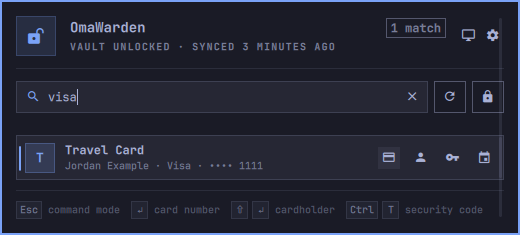
Login rows have actions for password, username, one-time code and website. Card rows have actions for number, cardholder, security code and expiry. Unavailable fields appear faintly on the selected row.
| Key | Action |
|---|---|
/ / Ctrl+F |
Focus search; / can then be typed normally inside it |
↑ ↓ |
Move between results |
Enter |
Copy password/username for a login, or card number for a card |
Shift+Enter |
Copy the alternate login or card field |
Ctrl+C / Ctrl+B |
Copy password/username or card number/cardholder |
Ctrl+T |
Copy the one-time code or card security code |
Ctrl+U |
Open a login's website |
Alt+← Alt+→ |
Choose the action for the selected row |
Ctrl+R |
Sync |
Ctrl+L |
Lock |
Ctrl+D |
Open the Bitwarden desktop app |
Ctrl+, |
Settings |
Esc |
Clear search, leave search mode, then close |
In command mode, before you press /: Enter copies, r syncs, s opens
settings and d opens the desktop app. While the vault is locked: Enter
or u unlocks, r refreshes, s opens settings, d opens the desktop app.
Each copy shows a countdown. The clipboard clears after 30 seconds, or the moment you lock.
Bar icon: left-click opens the panel, right-click opens settings, middle-click syncs.
Settings
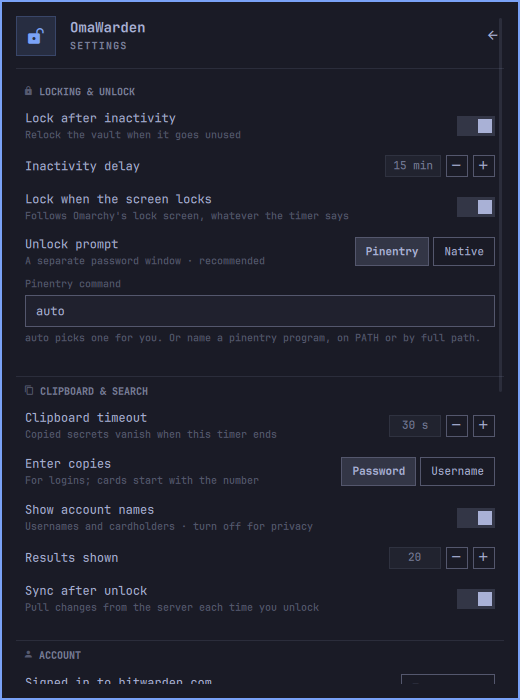
All settings are on the panel's settings page (Ctrl+,, or the gear).
They live in Omarchy's shell.json, so the same keys work from the
command line:
omarchy bar set io.github.salemsayed.omawarden autoLockMinutes 10 --json
omarchy bar set io.github.salemsayed.omawarden showUsernames false --json
omarchy bar set io.github.salemsayed.omawarden defaultCopy Username
| Key | Default | Meaning |
|---|---|---|
inactivityLockEnabled |
true |
Lock the vault when it goes unused |
autoLockMinutes |
15 |
Inactivity delay, 5–240 minutes |
lockOnScreenLock |
true |
Lock the vault with the screen |
unlockPrompt |
Pinentry |
Pinentry or Native |
pinentryCommand |
auto |
Pinentry program; auto picks one |
clipboardTimeoutSec |
30 |
Clipboard lifetime, 5–120 seconds |
defaultCopy |
Password |
What Enter copies for logins; cards start with number |
showUsernames |
true |
Show usernames and cardholder names |
resultLimit |
20 |
Rows listed at once, 5–50 |
syncOnUnlock |
true |
Sync after each unlock |
serverUrl |
(empty) | Self-hosted or EU server, applied at sign-in |
appDataDir |
(empty) | Separate CLI profile for a second account |
cliCommand |
bw |
Bitwarden CLI command |
refreshIntervalSec |
30 |
How often the bar re-reads the vault state |
Unlock prompts
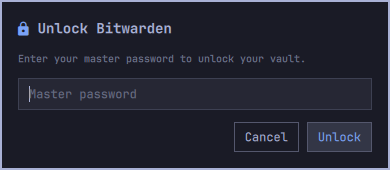
- Pinentry (default) — the GnuPG-style prompt runs as a separate
process; the master password never enters the shell.
autouses the first ofpinentry-gnome3,pinentry-qt,pinentrythat is installed. - Native — an Omarchy-themed prompt drawn by the shell, like the lock screen. The password is handed to the helper over a private pipe and cleared at once. Pick this for looks; Pinentry for isolation.
Self-hosted, EU and multiple accounts
Set Server URL before you sign in; it is applied as part of sign-in. To change servers later, sign out from the Account section and sign in again. A second account gets its own CLI profile folder.
Other CLI installs
cliCommand accepts a full path or a command with arguments, for example
flatpak run --command=bw com.bitwarden.desktop. Nothing goes through a
shell.
Keybinding
Every panel action is reachable over the shell's IPC:
-- ~/.config/hypr/bindings.lua
o.bind("SUPER + SHIFT + B", "Bitwarden", "omarchy-shell shell toggle io.github.salemsayed.omawarden")
omarchy-shell io.github.salemsayed.omawarden search git   # open with a query
omarchy-shell io.github.salemsayed.omawarden lock
omarchy-shell io.github.salemsayed.omawarden sync
Also open, close, toggle, settings, unlock, refresh, status
and screenLockState. There is no copy over IPC, on purpose.
Security
- The panel receives names, usernames, sites, cardholder names, card brands and last four digits, plus capability flags — never passwords, full card numbers, security codes, one-time-code seeds, notes or custom fields. Identities and notes are not listed.
- The session key lives only in the helper's memory and reaches
bwthrough its environment, never its arguments. - The helper listens on a user-only Unix socket in a private runtime directory and checks every peer's UID.
- Copies pipe
bw getstraight intowl-copy --sensitive; the clipboard is cleared at the deadline, on a new copy, and on lock. - Only
httpandhttpssites from your own vault entries can be opened. - The index is memory-only and wiped on lock, sign-out and exit.
- Unlocking only starts while Omarchy reports the screen as unlocked, read from its compositor lock check every 500 ms. With Lock when the screen locks on, a locked, unknown or failed check also locks the vault and blocks copies; a screen lock during an unlock or sync locks the vault as soon as that finishes. OmaWarden never touches the shell's private lock or authentication objects.
SECURITY.md has the threat model and how to report a vulnerability. Like any desktop integration, OmaWarden cannot protect you from malware already running as your user.
Troubleshooting
- "Setup required" with everything installed — set the CLI's full path under Settings → Advanced.
- The sign-in terminal says you're already signed in — close it and choose Unlock vault.
- Unlock takes a moment on a large vault — OmaWarden prepares its memory-only search index before the background sync reports that it is done. Once ready, opening and searching do not rerun that cold load.
- "Unlock is unavailable while the screen is locked or its state cannot be
checked" — OmaWarden only unlocks while Omarchy reports the screen as
unlocked;
omarchy-shell io.github.salemsayed.omawarden screenLockStateshows what it sees. - The helper won't start —
python3 omawarden-agent.py requestprints the reason.
Remove
omarchy plugin disable io.github.salemsayed.omawarden
omarchy plugin remove io.github.salemsayed.omawarden
OmaWarden keeps nothing on disk. Removing it does not sign the Bitwarden
CLI out; run bw logout for that.
Development
tests/run                    # agent, model, manifest and QML screen-lock tests
python3 tests/benchmark.py   # 10k-login search benchmark
omarchy plugin validate .
Screenshots and the demo GIF come from tools/demo. See CONTRIBUTING.md and docs/ARCHITECTURE.md.