
Lock Screen Explorer
Lock screens for Omarchy 4, an explorer to preview and switch between them, and a designer to build your own. Unlock with your password, a FIDO2 security key, a fingerprint or your face. Colors and fonts follow your Omarchy theme.
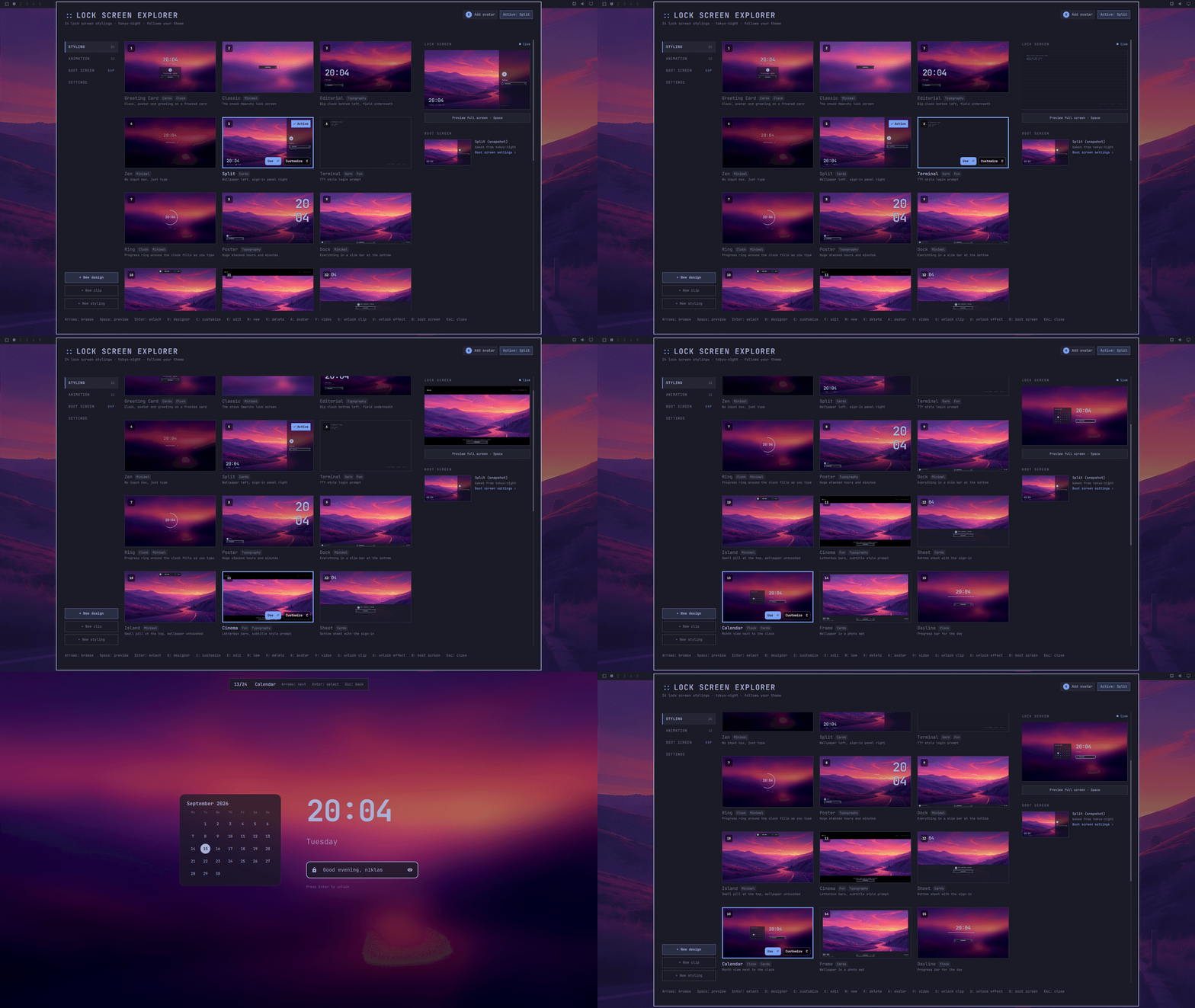
- Designs from minimal to animated, typing-reactive, drawn by Omarchy's own ttfx, and video clips that play as you unlock
- Security key, fingerprint and face unlock next to the password
- A visual designer for your own layouts, or write the QML yourself
- Unlock animations that fade, zoom or rise the lock screen away
- A matching boot screen for the disk decryption prompt
- Multi-monitor aware, with a clock-only screen on the others, and a 12-hour clock option
- In your language, with reduce motion, a larger size and wallpaper blur and dim for every design
- Search and favorites in the explorer, and a built-in check for anything missing from an install
Install
omarchy plugin add https://github.com/SirJul1337/omarchy-lock-explorer.git --enable
omarchy-shell lock explore
Designs
<table> <tr><td align="center"><img src="media/designs/card.jpg" width="200" alt="Greeting Card"><br><sub>Greeting Card</sub></td><td align="center"><img src="media/designs/classic.jpg" width="200" alt="Classic"><br><sub>Classic</sub></td><td align="center"><img src="media/designs/editorial.jpg" width="200" alt="Editorial"><br><sub>Editorial</sub></td><td align="center"><img src="media/designs/zen.jpg" width="200" alt="Zen"><br><sub>Zen</sub></td></tr> <tr><td align="center"><img src="media/designs/split.jpg" width="200" alt="Split"><br><sub>Split</sub></td><td align="center"><img src="media/designs/terminal.jpg" width="200" alt="Terminal"><br><sub>Terminal</sub></td><td align="center"><img src="media/designs/ring.jpg" width="200" alt="Ring"><br><sub>Ring</sub></td><td align="center"><img src="media/designs/poster.jpg" width="200" alt="Poster"><br><sub>Poster</sub></td></tr> <tr><td align="center"><img src="media/designs/dock.jpg" width="200" alt="Dock"><br><sub>Dock</sub></td><td align="center"><img src="media/designs/aurora.jpg" width="200" alt="Aurora"><br><sub>Aurora</sub></td><td align="center"><img src="media/designs/analog.jpg" width="200" alt="Analog"><br><sub>Analog</sub></td><td align="center"><img src="media/designs/flip.jpg" width="200" alt="Flip"><br><sub>Flip</sub></td></tr> <tr><td align="center"><img src="media/designs/island.jpg" width="200" alt="Island"><br><sub>Island</sub></td><td align="center"><img src="media/designs/cinema.jpg" width="200" alt="Cinema"><br><sub>Cinema</sub></td><td align="center"><img src="media/designs/sheet.jpg" width="200" alt="Sheet"><br><sub>Sheet</sub></td><td align="center"><img src="media/designs/neon.jpg" width="200" alt="Neon"><br><sub>Neon</sub></td></tr> <tr><td align="center"><img src="media/designs/calendar.jpg" width="200" alt="Calendar"><br><sub>Calendar</sub></td><td align="center"><img src="media/designs/frame.jpg" width="200" alt="Frame"><br><sub>Frame</sub></td><td align="center"><img src="media/designs/dayline.jpg" width="200" alt="Dayline"><br><sub>Dayline</sub></td><td align="center"><img src="media/designs/profile.jpg" width="200" alt="Profile"><br><sub>Profile</sub></td></tr> <tr><td align="center"><img src="media/designs/weather.jpg" width="200" alt="Weather"><br><sub>Weather</sub></td><td align="center"><img src="media/designs/music.jpg" width="200" alt="Music"><br><sub>Music</sub></td><td align="center"><img src="media/designs/system.jpg" width="200" alt="System"><br><sub>System</sub></td><td align="center"><img src="media/designs/rain.jpg" width="200" alt="Rain"><br><sub>Rain</sub></td></tr> <tr><td align="center"><img src="media/designs/motion.jpg" width="200" alt="Motion"><br><sub>Motion</sub></td><td align="center"><img src="media/designs/pond.jpg" width="200" alt="Pond"><br><sub>Pond</sub></td><td align="center"><img src="media/designs/constellation.jpg" width="200" alt="Constellation"><br><sub>Constellation</sub></td><td align="center"><img src="media/designs/sparks.jpg" width="200" alt="Sparks"><br><sub>Sparks</sub></td></tr> <tr><td align="center"><img src="media/designs/storm.jpg" width="200" alt="Storm"><br><sub>Storm</sub></td><td align="center"><img src="media/designs/eyes.jpg" width="200" alt="Eyes"><br><sub>Eyes</sub></td><td align="center"><img src="media/designs/river.jpg" width="200" alt="River"><br><sub>River</sub></td></tr> <tr><td align="center"><img src="media/designs/cipher.jpg" width="200" alt="Cipher"><br><sub>Cipher</sub></td><td align="center"><img src="media/designs/ember.jpg" width="200" alt="Ember"><br><sub>Ember</sub></td><td align="center"><img src="media/designs/synthwave.jpg" width="200" alt="Synthwave"><br><sub>Synthwave</sub></td><td align="center"><img src="media/designs/etch.jpg" width="200" alt="Etch"><br><sub>Etch</sub></td></tr> <tr><td align="center"><img src="media/designs/bounce.jpg" width="200" alt="Bounce"><br><sub>Bounce</sub></td><td align="center"><img src="media/designs/digital.jpg" width="200" alt="Digital"><br><sub>Digital</sub></td><td align="center"><img src="media/designs/spotlight.jpg" width="200" alt="Spotlight"><br><sub>Spotlight</sub></td><td align="center"><img src="media/designs/fireworks.jpg" width="200" alt="Fireworks"><br><sub>Fireworks</sub></td></tr> <tr><td align="center"><img src="media/designs/vhs.jpg" width="200" alt="VHS"><br><sub>VHS</sub></td><td align="center"><img src="media/designs/horizon.jpg" width="200" alt="Event Horizon"><br><sub>Event Horizon</sub></td><td align="center"><img src="media/designs/orbit.jpg" width="200" alt="Orbit"><br><sub>Orbit</sub></td><td align="center"><img src="media/designs/screensaver.jpg" width="200" alt="Screensaver"><br><sub>Screensaver</sub></td></tr> <tr><td align="center"><img src="media/designs/forge.jpg" width="200" alt="Forge"><br><sub>Forge</sub></td><td align="center"><img src="media/designs/mainframe.jpg" width="200" alt="Mainframe"><br><sub>Mainframe</sub></td><td align="center"><img src="media/designs/beacon.jpg" width="200" alt="Beacon"><br><sub>Beacon</sub></td><td align="center"><img src="media/designs/supernova.jpg" width="200" alt="Supernova"><br><sub>Supernova</sub></td></tr> <tr><td align="center"><img src="media/designs/binary.jpg" width="200" alt="Binary"><br><sub>Binary</sub></td><td align="center"><img src="media/designs/tracking.jpg" width="200" alt="Tracking"><br><sub>Tracking</sub></td><td align="center"><img src="media/designs/login.jpg" width="200" alt="Login"><br><sub>Login</sub></td><td align="center"><img src="media/designs/keycode.jpg" width="200" alt="Keycode"><br><sub>Keycode</sub></td></tr> <tr><td align="center"><img src="media/designs/core.jpg" width="200" alt="Core"><br><sub>Core</sub></td><td align="center"><img src="media/designs/panel.jpg" width="200" alt="Panel"><br><sub>Panel</sub></td><td align="center"><img src="media/designs/statusline.jpg" width="200" alt="Statusline"><br><sub>Statusline</sub></td></tr> </table>Weather fetches from wttr.in (same location as the bar widget), Music reads MPRIS players, System shows uptime, memory, load and battery. Motion loops a video you pick. Pond, Constellation and Sparks react to your typing. Storm, Eyes and River play their clip when you unlock.
Cipher through Statusline are drawn by ttfx, the terminal text effects Omarchy ships: the clock or
your branding logo is animated a character at a time, in your theme colors, and a wrong password
glitches it apart. Screensaver runs the logo through one effect after another, the way the Omarchy
screensaver does.
Every password field has an eye button to show what you typed (Ctrl+E does the same). It hides again after a failed attempt or when the field is cleared.
Show off the one you ended up with, or one you built, in Show your lock screen.
Install details
The shell loads this service a moment before it unloads the stock one, and the lock IPC target
moves over once the stock one is gone, within a few seconds. If omarchy-shell lock explore
still answers Function not found after that, run omarchy restart shell.
This replaces the built-in omarchy.lock service (the manifest has clonedFrom: omarchy.lock
so the shell swaps them and everything that locks the screen keeps working). To go back to the
stock lock screen, see Remove: Omarchy does not always switch its own one back on.
Usage
omarchy-shell lock explore
Arrows (or H J K L) to browse, Tab to go through Styling, Animation and Favorites, Space for full-size preview, Enter to select, Esc to close. Scroll with the mouse wheel or PageUp/PageDown. U opens Settings, and B the boot screen. ? lists every key the explorer takes.
Settings is one page in sections -- Unlock, Look, Password field, Screen and power, Sign-in and security, System -- with a line of help under every choice. It scrolls with the mouse wheel, the arrow keys, PageUp/PageDown and Home/End.
/ (or Ctrl+F, or a click on the field in the header) searches every design by name, description
and tag, across Styling and Animation at once; Enter or Down goes back to the grid with the matches
kept, Esc clears them. F stars the selected design, or click the star on its card, and starred
designs are listed under Favorites in the sidebar. They are saved on the plugin entry as
favorites; omarchy-shell lock toggleFavorite zen and omarchy-shell lock favorites do the same
from the command line.
A picks a profile picture with the normal file dialog (the explorer steps aside while the
dialog is up and comes back when you are done), Shift+A clears it again. The designs that show
the user — Greeting Card, Split, Dock, Poster, Sheet, Island and Profile — use it, and fall back
to your initial when there is none.
With a fingerprint reader enrolled the lock screen listens for it as soon as it comes up, and
with face unlock set up (pam_facelock, the omarchy-lock-face PAM config with a model
enrolled) pressing Enter on an empty password field starts a face check, the same as the stock
lock. The password field shows an icon for each one that is available.
When the camera looks is yours to set, under Face unlock starts in Settings:
| On wake (default) | When the display comes back on, or when you return to a screen that stayed lit. Locking the screen while you sit in front of it does not scan, so it cannot recognise you and let you straight back in. |
| Always | As soon as the session locks. |
| On request | Never on its own; Enter on an empty field or the face button. |
Either way the camera is only used behind a lock screen that is actually on: when the display blanks the scan stops and the camera is released, and a result that arrives from a scan the blanking cut short is ignored. Enter and the face button work in every mode.
The field also shows the keyboard layout when it is not a US one — DK, DE, and so on,
read from Hyprland and updated while the screen is locked, so a layout switched since you
last typed is visible rather than something you discover four wrong passwords later.
With more than one layout configured (kb_layout = "us,dk") the code is always shown, US too,
and clicking it switches to the next layout, the same as Hyprland's own layout toggle.
On battery at 15% or less, every design shows a low-battery warning in the top right corner, so a laptop left locked does not run flat unnoticed.
A security key works too, once you have enrolled one with the Omarchy menu (Setup > Security >
Fido2) and run bash extras/setup-fido2.sh. That script writes /etc/pam.d/omarchy-lock-fido2,
the only part of this that needs root. With a key plugged in, the lock comes up on the key: touch it,
or type its PIN first when the credential you enrolled asks for one. Tab, or the key icon in the
field, switches to the password and back.
Lock the screen with no key attached and you get the password field, with the key icon dimmed. Plug one in and the lock picks it up within a couple of seconds and asks for a touch, unless you had already switched to the password yourself or started typing.
The Settings tab in the explorer has a "Security key" row once the PAM service is there. Off keeps the setting with your other lock screen settings and sends the lock screen back to the password. Your PAM setup and your enrolled key are left alone, so the key still works for sudo, polkit and anything else that uses it.
The key gets its own PAM service on purpose. A pam_u2f.so line in omarchy-lock-password would
send every mistyped password to the key as a PIN attempt, and a key locks itself out after eight
of those. So the password field is inert while pam_u2f is actually waiting for a touch, and
nothing you type then can reach the key. Press Enter to ask for another go: a failed attempt can
cost a PIN retry, so nothing retries on its own. After three PIN attempts in one lock the screen
stops offering the key and asks for the password: the key itself refuses further PINs at that
point until it is replugged, and the rest of its retries are not the lock screen's to spend. With
no key attached the field takes your password as normal. bash extras/setup-fido2.sh --remove
takes the PAM file out again.
One thing to decide at enrollment: a credential made without PIN verification unlocks the screen for whoever is holding the key, the same as it does for sudo today. If the key travels in the same bag as the laptop, enroll it with a PIN.
D opens the visual designer — a new design, or the selected one if it was made there (see
The designer). C on any design copies it to ~/.config/omarchy/lock-designs/
(it shows up under Custom) and opens it in the built-in code editor. E edits a design of your
own, in the designer or the code editor depending on where it came from. N starts a new one
from the template. X (or the
Delete button on the card) removes a design of your own — press it twice, the first press just
arms the button. Deleting a clip design also removes its video from ~/.config/omarchy/lock-videos/
unless something else still uses it (another design, the boot screen, the Motion video or the
unlock clip). Built-in designs can't be deleted. The editor has the code on
the left and a live preview on the right: Ctrl+S saves and reloads the preview and the lock screen, Ctrl+O opens
the file in your normal editor (changes made there are picked up too), Esc goes back.
To get it in the app launcher and the Omarchy menu (Style -> Lock Screen, and lock in the
menu's search), set "Omarchy menu" to Added in the Settings tab. Nothing is added on install: a
plugin cannot run anything when it is installed, so it is a choice you make once. The same by hand,
with --remove to take both entries out again:
~/.config/omarchy/plugins/io.github.sirjul1337.lock-explorer/extras/install.sh   # --remove takes them out
omarchy-shell lock setMenuEntry on   # or off
Optional keybinding for ~/.config/hypr/bindings.lua:
o.bind("SUPER + SHIFT + L", "Lock screen explorer", "omarchy-shell lock explore")
Other commands:
omarchy-shell lock designs
omarchy-shell lock design
omarchy-shell lock setDesign zen
omarchy-shell lock previewDesign split   # you can type in the preview
omarchy-shell lock previewFail           # show the failure state in the preview
omarchy-shell lock hidePreview
omarchy-shell lock monitors
omarchy-shell lock setInputMonitor DP-1  # or "all"
omarchy-shell lock avatar
omarchy-shell lock pickAvatar            # the file dialog, same as A in the explorer
omarchy-shell lock setAvatar ~/me.png
omarchy-shell lock clearAvatar           # back to the initial
omarchy-shell lock resetAvatar           # back to whatever is found automatically
omarchy-shell lock unlockAnimation
omarchy-shell lock setUnlockAnimation fade   # none (default), fade, zoom or rise
omarchy-shell lock setUnlockDuration 600     # milliseconds, 0-2000, 400 by default
omarchy-shell lock previewUnlock             # play it on an open preview
omarchy-shell lock clockFormat
omarchy-shell lock setClockFormat 12   # or 24
omarchy-shell lock menuEntry
omarchy-shell lock setMenuEntry on     # launcher + Omarchy menu entries, or off
omarchy-shell lock boot
omarchy-shell lock setBoot follow            # stock, follow, or a design id with a twin
With more than one monitor you can pick which one shows the sign-in with setInputMonitor.
The others get a clock only screen (typing still works there).
The unlock is instant unless you ask for an animation. Settings in the explorer (U) turns one
on, and setUnlockDuration sets its length. With one on, the lock screen animates away rather than blinking out: the design fades into the plain wallpaper and the desktop is behind it on the
same background. fade dissolves it, zoom fades with a slight push in and rise lifts it off
the screen, none is the default instant one. setUnlockDuration takes milliseconds.
previewUnlock plays the animation on the preview so you can see it without locking. The lock
screen is held for the duration of the animation, so keep it short.
Hyprland paints black under the lock screen, which is why the plain wallpaper is drawn behind the
fade: the desktop comes back on the same background instead of through a dark flash. With
misc:session_lock_xray = true the compositor keeps drawing the desktop under the lock screen
instead, and the fade goes straight into it.
The selected design, the avatar, the unlock animation and the boot screen setting are saved on
the plugin entry in ~/.config/omarchy/shell.json, with a copy in
~/.config/omarchy/lock-explorer.json. Omarchy drops a plugin's entry when the plugin is
removed, so the copy is what brings every setting back after removing and adding the plugin
again. Delete that file too if you want to start over from the defaults.
12-hour clock
Clocks read 24-hour by default. The Settings tab has a "Clock" row — 24h or
12h AM/PM — and it applies to every design, built-in or your own, including
the previews in the explorer and the designer canvas. By hand:
omarchy-shell lock setClockFormat 12, and 24 to go back. It is saved on the
plugin entry in ~/.config/omarchy/shell.json as clock12.
Designs render their clock through lock.clock("HH:mm") rather than
Qt.formatTime directly, which is what lets one setting reach all of them: the
format is used as written on a 24-hour clock, and rewritten to a 12-hour one
with AM/PM after the time when the setting is on. A design that shows a bare
hour on its own — Flip's tiles, Poster's numerals — counts 1 to 12 and puts the
meridiem in lock.meridiem, which those two draw beside the digits.
Wallpaper blur and dim
Each design blurs and darkens your wallpaper its own way. The Settings tab has two rows to change
that for all of them. Wallpaper blur is As designed, Sharp (no blur), Soft or Heavy, and
replaces the design's own. Wallpaper dim is Lighter, As designed or Darker, and moves each
design's own dim up or down rather than replacing it: some designs darken the picture a lot so
their text stays readable, and one value for all of them would undo that. Designs drawn over a
solid color or their own art (Aurora, Neon, the ttfx designs and so on) are not affected. By hand:
omarchy-shell lock setWallpaperBlur sharp and setWallpaperDim darker, design for either to
go back. They are saved on the plugin entry as wallpaperBlur and wallpaperDim.
Language
The lock screen speaks your system's language when it has it: Danish, Dutch, English, French,
German, Italian, Norwegian, Polish, Portuguese, Spanish and Swedish so far. Prompts, greetings,
failure messages and the failed-attempt notification are translated, and dates use that
language's day and month names. The Settings tab has a "Language" row to pick one instead of
following LANG; by hand, omarchy-shell lock setLanguage de (auto to follow the system
again). The explorer follows the same choice, with its boot screen page, the designer and the
code editor; only the designs' own names and descriptions are still English. Designs that play on a terminal or a video recorder (Terminal,
Login, Statusline, VHS, Rain's lines) keep their English on purpose.
The lock screen's text lives in designs/Strings.js and the explorer's in ExplorerStrings.js,
both keyed by the English. Corrections and new languages are
welcome as pull requests. In a design of your own, lock.tr("Press Enter to unlock") gives the
translated text and lock.date("dddd d MMMM") a date in the lock screen's language.
Reduce motion and size
Reduce motion in Settings holds every design still: Off, On, or On battery (moving while on
mains power, still on the battery). The design keeps running underneath -- the password field
works as always -- but what is on screen is a still frame of it, taken once it has settled and
again whenever something on it changes: what you type, a wrong password, the fingerprint or key
status, the minute on the clock. It applies to the explorer's previews too, and to the unlock:
while motion is reduced the lock screen leaves at once, with no unlock animation, and neither the
clip designs' video nor the unlock clip plays. By hand: omarchy-shell lock setReduceMotion on (off, battery).
Size draws the whole lock screen larger, 100%, 125% or 150%: the design is laid out as if the
screen were that much smaller and then drawn to fill it, so the clock, the password field, the
messages and the avatar all grow together and nothing falls off the edge. Handy on a 4K panel at
scale 1, or when the text is simply too small to read. By hand: omarchy-shell lock setSize 125.
Both are saved on the plugin entry, as reduceMotion and uiScale.
Password field
The Password field section of Settings chooses what the field shows next to what you type: the
keyboard layout code, the CAPS warning, the eye button that shows the password, and the
fingerprint, face and security key icons. Each is shown by default. Hiding the sign-in icons hides
their buttons too; Tab still switches to the key and Enter on an empty field still starts face
unlock. By hand: omarchy-shell lock setFieldItem layout hide (caps, reveal, icons; show to
bring one back), and omarchy-shell lock fieldItems lists them. They are saved on the plugin entry
as hideLayoutBadge, hideCapsBadge, hidePasswordToggle and hideAuthIcons, only while hidden.
They apply to the designs that use the standard password field; a design that draws its own can
read them as lock.showLayoutBadge, lock.showCapsBadge, lock.allowPasswordToggle and
lock.showAuthIcons.
Blank the display after
By default the lock screen DPMS-offs the display five seconds after locking. The Settings tab has
a "Blank the display after" row — 5s, 15s, 30s, 1m, 5m, Custom, or Never. Custom takes minutes
(1 to 60) typed into an inline field. By hand: omarchy-shell lock setBlankDelay 30000, or
setKeepDisplayOn true for Never — anything longer than an hour is what Never is for.
While the display is blanked the password field is inert: a key press or the pointer wakes the
screen and nothing else, so the keys that switched it on never end up in the password. Typing
reaches the field again once the wake has run and the panel has had a moment to light up —
a second by default, set by the "Ignore keys after waking for" row under the blank delay
(Off, 0.5s, 1s, 2s). By hand: omarchy-shell lock setWakeGrace 500, up to 5000. Off drops
only the keys pressed before the wake ran, which suits a panel that lights up instantly and
anyone who types their password into a dark screen. omarchy-shell lock status reports the
current state as inputBlocked and the setting as wakeGraceMs.
The Settings tab also has a "Power buttons" row, off by default. On, the lock screen carries
sleep, restart and shut down in the bottom right corner, each asking a second time before it
happens — handy on a machine that otherwise can only be powered off by holding the button,
and worth leaving off anywhere a locked screen should do nothing but take a password.
By hand: omarchy-shell lock setPowerActions on.
"Report failed attempts", on by default, sends a notification after you unlock when somebody got
the password or the security key wrong while you were away: how many times, and when the last one
was. Wrong attempts that run straight into your own unlock, each within 30 seconds of the next,
are you getting it wrong on the way in and are left out. By hand:
omarchy-shell lock setAwayReport off.
Never keeps the lock screen lit for the whole lock: video designs keep playing, and slow monitors are never re-blanked mid-wake on resume — the display was never off to begin with.
For an HDMI setup that fails to wake after DPMS, you can instead keep displays powered
only while HDMI is present. Add "keepDisplaysOnWithHdmi": true to this plugin's
entry in ~/.config/omarchy/shell.json:
{"id": "io.github.sirjul1337.lock-explorer", "keepDisplaysOnWithHdmi": true}
This defaults off. While an HDMI-A-* screen is present, the blank timer turns off
only the keyboard backlight; all displays stay powered and the lock remains active.
When HDMI is removed, the normal blank delay starts again. Never still keeps
displays on regardless of connectors. Set the HDMI option to false or remove it
to disable the workaround. omarchy-shell lock status reports the effective policy
as displayBlankingSuppressed.
This uses more monitor power. It avoids a display-sleep trigger; it does not fix driver hotplug faults or prevent explicit system suspend. The setting follows Hyprland's visible HDMI screen names, not USB dock presence.
Some monitors disconnect when they go to sleep, and with no output left the shell can
crash while the screen is locked. The lock always comes back after a crash like that. If
the shell went down with the display off, it keeps the displays on for the rest of the
login instead of blanking again, so it happens at most once. The shell log then shows
blank-crashed: keeping displays on for this login, and displayBlankingSuppressed
reads true. Logging out or rebooting resets it. On a monitor that does this every
time, pick Never.
With no avatar set, the first of ~/.config/omarchy/lock-avatar.{png,jpg,jpeg,webp}, ~/.face,
~/.face.icon and /var/lib/AccountsService/icons/$USER is used, so an existing profile picture
shows up on its own.
Boot screen (drive decryption)
The boot screen fails safe: a broken theme drops Plymouth to its plain text prompt, and the boot itself is never touched.
The screen that asks for your disk passphrase at first boot is Plymouth, not the shell, so it
normally stays the stock Omarchy one no matter which design you pick. Designs with a boot twin
under plymouth/ -- Terminal and Rain so far -- can style it too. Press B in the explorer (or
click the Boot screen chip) and pick "Match lock screen" to keep it in sync with your lock
design, pick a specific design to pin it, or "Untouched" to restore the stock one.
Applying generates a Plymouth theme from your current Omarchy theme colors and ships it as a
systemd-stub initrd addon on the EFI partition (omarchy_linux*.efi.extra.d/, one per
installed kernel), which the boot stub layers over the boot image -- one small file write,
near-instant, one password prompt, no initramfs rebuild. The first apply after updating from an older version of this plugin also
cleans up the previously baked-in theme, which runs one last rebuild (~30s). Colors are baked
into the addon at apply time, so re-apply after switching Omarchy theme (the explorer offers
this automatically). If a generated theme ever misbehaves the boot itself is fine -- Plymouth
falls back to a plain text prompt -- "Untouched" deletes the addon and the stock screen is back.
Snapshot boot entries never see the addon, so rollbacks always show the stock theme. Systems
that don't boot Omarchy's UKI keep the old bake-and-rebuild path automatically.
The twins are honest ports, not screenshots: Terminal keeps the blinking cursor, the bullets and a caps lock warning, Rain keeps the falling glyphs, animated live by plymouth. Clocks and live data can't come along (Plymouth has no clock and boots before the network), which is why not every design has a twin.
You can try a twin without touching your boot:
extras/boot-vm-test.sh "$(plymouth/apply.sh terminal --stage-only)"
boots your real kernel and initramfs in QEMU against a throwaway encrypted disk (passphrase:
omarchy). Needs qemu-system-x86, edk2-ovmf and qemu-ui-gtk.
The designer
"+ New design" in the explorer sidebar (or D) opens the visual designer: pieces on the left,
your lock screen at its real size in the middle, the settings for whatever is selected on the
right. Drag a piece onto the screen — or click it to drop one in the middle — move it around,
and press Ctrl+S. There is no separate preview: the canvas renders through the same components
the lock screen does, so what you arrange is what you get.
What you can drag in: Wallpaper, Video and Solid color for the background; Clock,
Date, Greeting, Text, User name, Host name and a Status line that turns
into the failure message when a password is wrong; a Password box or bare Dots to type
into; Avatar and Image; Panel and Divider to build a card out of; and Custom
QML for anything else — that one is a box you write QML into, with lock.now, lock.userName,
lock.greeting() and the rest in scope, exactly as in a hand-written design.
The Live pieces show what is going on while the screen is locked: Weather (from wttr.in for the place in Omarchy's weather settings, in the lock screen's language, in °C or °F), Now playing and Album art for whatever player is running, Battery, System info (uptime, memory, load or the kernel) and Month, this month's calendar with today marked. The weather is fetched once per half hour and shared by every screen and thumbnail showing it; a layout without a Weather piece never asks for it.
Nothing is parked at fixed pixel coordinates. Every piece holds on to a corner, an edge or the middle of the screen ("Sticks to" in the inspector, picked from where you drop it) and keeps its distance from there, so a design made on one screen still looks right on another. Dragging snaps to the screen's centre lines and to the other pieces' edges, and arrow keys nudge by a pixel (Shift for ten).
drag / click a piece   add it            Ctrl+click       add to the selection
arrows                 nudge (Shift 10)  Ctrl+D           duplicate
Del                    remove            [ and ]          send back / bring forward
Ctrl+Z / Ctrl+Shift+Z  undo / redo       Ctrl+S           save
Your own components
Select a piece — or several with Ctrl — press Save as component and give it a name. It goes
into ~/.config/omarchy/lock-components/ as one small JSON file and shows up at the top of the
palette, previewed live, ready to drag into any design from then on. A component keeps the
relative positions of everything in it, so a card built out of a panel, an avatar and a greeting
comes back as that card. Backgrounds are not saved into components — they cover the whole screen,
so there is nothing to place. The ✕ on a component removes it.
Because a component is just a piece of a layout, a Custom QML piece can be saved as one too: write the QML once, name it, and it becomes a block you drag in like any other.
What it writes
The designer saves an ordinary design into ~/.config/omarchy/lock-designs/, so it appears under
Custom next to everything else and can be applied, previewed and deleted the same way. The file is
a DesignBase with one DesignerItem per piece, and the layout itself sits on a single comment
line at the top — that line is what the designer reads when you open the design again. Edit the
code by hand and the next save from the designer overwrites it, so pick one: "Edit code" in the
designer toolbar moves a design over to the code editor for good, and E on a design opens it
wherever it was made.
Your own designs
Easiest: open the explorer, pick a design you like and press C. That copies it to
~/.config/omarchy/lock-designs/ and opens the editor. N gives you a blank one from
extras/lock-designs/MyDesign.qml. You can also just drop .qml files in that folder yourself;
they show up under Custom, named after the file (My Design for MyDesign.qml, id my-mydesign).
omarchy-shell lock customize zen        # copy the Zen design to ~/.config/omarchy/lock-designs/Zen.qml
omarchy-shell lock editDesign my-zen    # open it in your editor
omarchy-shell lock rescanDesigns        # pick up files added by hand
Keep the import "../plugins/io.github.sirjul1337.lock-explorer/designs" line, that is where
DesignBase, PasswordField, LockInput, Wallpaper and Avatar come from.
Your own video works as an unlock clip too: "+ New clip" in the explorer sidebar (or
omarchy-shell lock newClipDesign) opens the file picker, copies the video to
~/.config/omarchy/lock-videos/ and writes a one-line design for it, which shows up under
Animation. Like Storm and the others, the first frame holds while locked and the video plays
through as the unlock — so a clip that ends on your wallpaper looks best. By hand it is just a
file in ~/.config/omarchy/lock-designs/ containing
ClipDesign { clipName: "my-video.mp4" } after the import line.
"Unlock video ends as your wallpaper" under Settings makes any clip end seamlessly: the clip's
last frame is extracted while the screen is locked and set as the session background
(omarchy-theme-bg-set) the moment the video hands the screen back, so the desktop opens exactly
where the video stopped. Switching theme or cycling backgrounds replaces it again like any other
wallpaper. Off by default; also from the command line:
omarchy-shell lock setClipWallpaper true
"Clip speed" next to it plays the unlock clips faster or slower (0.5x-2x, also
omarchy-shell lock setClipSpeed 1.5). It applies to the clip designs and the separate unlock
clip alike.
To add a design to the plugin itself, copy one of the files in designs/, add it to
Designs.js, run omarchy restart shell.
A design is a DesignBase item. It gets passwordText, failureMessage, failedAttempts,
authenticatingPassword, fingerprintConfigured, faceConfigured, fido2Configured,
fido2Active, fido2Authenticating, fido2NeedsPin, fido2Status, inputEnabled, a ticking now, userName
(the login) and displayName (the account's first name, or the login with a capital),
hostName and greeting(). Use PasswordField for a normal input box or LockInput if you
want to draw the input yourself, and point inputItem at it so it gets focus. Set
shakeOnFail: true on box-less designs (the base flashes red on a wrong password either way), and
showPasswordToggle: false if you do not want the eye button.
For the profile picture use Avatar { lock: lock; width: 96 }, which shows the chosen image
masked to a circle and the user's initial when there is none. fontSize, fillColor,
textColor, borderWidth, borderColor and shadow are there to fit it into a design. The raw
values are on the base as hasAvatar and avatarUrl if you want to draw it yourself.
Remove
omarchy plugin remove --yes io.github.sirjul1337.lock-explorer
omarchy plugin enable omarchy.lock
The second line matters. Omarchy switches its own lock screen off while this plugin is enabled,
and after disabling or removing the plugin it can leave it off -- it says "Restored omarchy.lock"
and still nothing answers omarchy-shell lock, so nothing locks the screen. omarchy plugin enable omarchy.lock brings the built-in one back; the same goes for omarchy plugin disable.
omarchy plugin remove keeps a backup of the plugin as .io.github.sirjul1337.lock-explorer.bak.*
inside ~/.config/omarchy/plugins/. Delete it or move it elsewhere before installing the plugin
again, or the shell may load the old copy instead of the new one. Your own designs in
~/.config/omarchy/lock-designs/ are left alone, delete that folder if you want them gone.
The optional launcher entry from extras/install.sh can be removed with
rm ~/.local/share/applications/lock-screen-explorer.desktop ~/.local/share/icons/hicolor/scalable/apps/lock-screen-explorer.svg
and by deleting the style.lockscreen line from ~/.config/omarchy/extensions/omarchy-menu.jsonc.
Troubleshooting
Start with the check that ships with the plugin. It looks at everything below and prints the fix next to anything wrong, and it works even when the explorer will not open:
bash ~/.config/omarchy/plugins/io.github.sirjul1337.lock-explorer/extras/doctor.sh
--fix also does the two fixes that are safe to do unasked: it moves a second copy of the plugin
out of the plugins folder (to ~/.local/share/omarchy/lock-explorer-backups, nothing is deleted)
and switches Omarchy's own lock back on when neither lock screen is. The "Move it out" button next
to that warning in Settings runs the same.
"Check this install" in Settings runs the same thing in a terminal (when no terminal comes up,
a notification gives the command to run instead), and Settings also
lists what it can see is missing, such as qt6-multimedia, with an Install button that runs
omarchy pkg add in a terminal and restarts the shell. If you open an issue, paste the doctor's
output into it.
omarchy-shell lock explore says Function not found: the stock lock service is still the one
answering, so this plugin never took over the lock IPC target. Run omarchy restart shell.
If it persists, check that the plugin is enabled and that the stock one got disabled:
omarchy plugin list
jq '.plugins, .disabledPlugins' ~/.config/omarchy/shell.json
io.github.sirjul1337.lock-explorer should be enabled and omarchy.lock should be in disabledPlugins.
Target not found instead means neither service is loaded, usually because this one failed to
load. omarchy plugin validate ~/.config/omarchy/plugins/io.github.sirjul1337.lock-explorer
and the shell log will say why.
The explorer opens but nothing in it works, and every setting comes back as its default after
omarchy restart shell or an update: that is plugin versions up to 1.6.1 on Omarchy 4.0.3,
which stopped handing third-party plugins their shell.json settings and, for a lock screen,
their own service. Update the plugin (omarchy plugin update io.github.sirjul1337.lock-explorer
then omarchy restart shell); 1.7.0 reads its entry from ~/.config/omarchy/shell.json itself
and hands the explorer a facade of the service instead. Settings that were lost in the meantime
need to be picked again once.
A broken design can never lock you out: if the selected design fails to load (a custom design
with a typo, say), the lock screen falls back to Classic, and if even that fails a plain
built-in password field takes over — the password always works. The boot screen is equally
safe: a broken Plymouth theme drops to a plain text passphrase prompt, and the boot itself is
never touched. If the whole shell ever misbehaves, switch to a console with Ctrl+Alt+F3, log
in, and run omarchy restart shell (or omarchy plugin remove io.github.sirjul1337.lock-explorer).
Video designs fall back to Classic, or the clip designs and the unlock clip do nothing: stock
Omarchy ships Qt without the multimedia module, so anything that plays a video needs
qt6-multimedia. The rest of the plugin works without it (the shell log says
qt6-multimedia is not installed, and omarchy-shell lock status shows "multimedia": false).
Fix:
sudo pacman -S qt6-multimedia && omarchy restart shell
On plugin versions up to 1.5.1 the missing package took the whole service down, which is the
other way Target not found used to happen.
The boot screen went back to the stock Omarchy one after updating to Omarchy 4.0.4: that
update replaced the linux kernel with linux-omarchy and each kernel's boot image has its
own name on the EFI partition, so the boot screen addon stayed next to the kernel image that
is no longer booted (the old kernel is kept installed as a fallback, which is why nothing
errored). Update the plugin -- it now installs the addon next to every Omarchy kernel image --
then pick the boot screen again once in the explorer (B). The lock screen itself is
unaffected.
Designs show the theme color instead of your wallpaper (and the explorer header says the
wallpaper failed to load): stock Omarchy ships Qt without a WebP decoder, so .webp wallpapers
cannot be read by the shell even though the desktop shows them fine. Fix:
sudo pacman -S qt6-imageformats && omarchy restart shell
Dependencies
The video features — the clip designs (Storm, Eyes, River and your own), the Motion design and
the unlock clip — need qt6-multimedia, which stock Omarchy does not install. Without it they
are simply disabled and everything else works (see Troubleshooting). Beyond that, nothing
outside Omarchy 4 itself, except the Weather design, which runs curl to fetch
https://wttr.in (the same service and location file as the Omarchy weather widget). No other
design makes network requests. Picking an avatar runs omarchy file select, the desktop file
chooser that ships with Omarchy. The plugin reads ~/.config/omarchy/shell.json and writes
only its own entry in it (the design you pick, the path to your avatar and the other settings
above), plus files you create yourself under ~/.config/omarchy/lock-designs/. Avatar images are read where they are,
nothing is copied.
Setting a boot screen uses tools Omarchy already ships (magick, fc-match, pkexec, cpio
and binutils' objcopy/objdump for the addon) and writes one file,
/boot/EFI/Linux/omarchy_linux.efi.extra.d/omarchy-lock-explorer.addon.efi, plus the
applied-state marker ~/.local/state/omarchy/lock-explorer-boot. "Untouched" deletes the addon
again. On systems without Omarchy's UKI boot the legacy path bakes the theme into
/usr/share/plymouth/themes/omarchy-boot/ with plymouth-set-default-theme and an initramfs
rebuild instead. The optional extras/boot-vm-test.sh and extras/addon-vm-test.sh need the
QEMU packages listed above and never touch the host.
Credits
The unlock clips that ship with the clip designs — Storm, Eyes and River — were made by @yamzeight on X and are included with his permission. Credit is also shown on the cards in the explorer.
License
MIT, see LICENSE. Service.qml is based on the built-in omarchy.lock plugin from Omarchy (MIT).
Development
omarchy plugin validate ~/.config/omarchy/plugins/io.github.sirjul1337.lock-explorer
qmllint -I "$OMARCHY_PATH/shell" ~/.config/omarchy/plugins/io.github.sirjul1337.lock-explorer/{*.qml,designs/*.qml}
omarchy restart shell
On Omarchy 4.0.3 and later the explorer, editor and designer do not get the service object
from the host (it is an authentication service, kept private). Service.qml publishes a
facade of itself through Bridge.js instead, with the settings, design state and actions the
UI needs and none of the PAM state. Anything new the UI reads off service has to be added to
that facade; extras/test-service-api.py (run in CI) fails when something is missing.
Every script that writes a file of the user's — design copies, imported clips, boot previews,
the launcher and menu entries — goes through extras/safe-paths.sh: the target must sit under
$HOME behind a chain of real, user-owned directories (a symlink anywhere in it stops the
script), and a file is replaced by writing a temporary next to it and renaming it into place.
Use safe_dir and put_file from there rather than mkdir -p, cp or > when adding one.