
TickTick for Omarchy
What's due and what you haven't done yet, in the Omarchy bar. Tasks, habits and a focus timer in one popup — add, edit and complete without leaving the desktop.
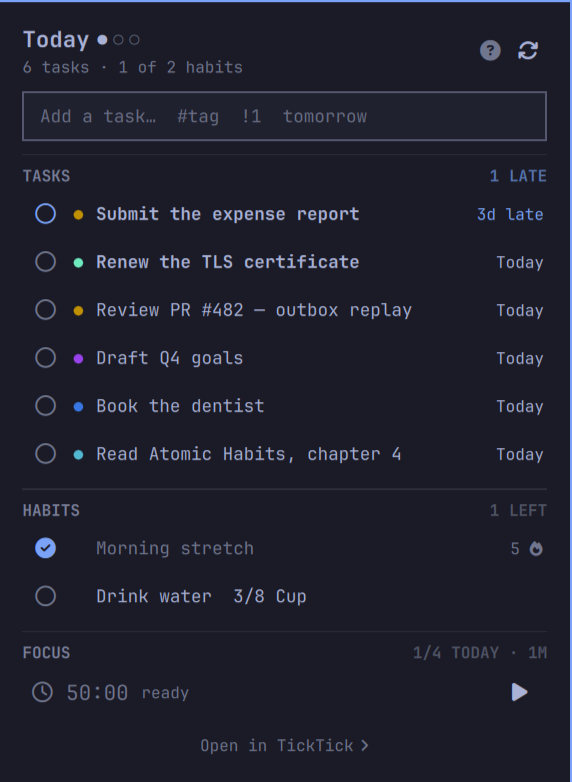
The bar shows a count ( 3 2♦ — three tasks due, two habits open) and
turns urgent when something is late. Left click opens the panel.
Features
- Tasks due today, tomorrow, or the next seven days — today's work first, late work under its own rule with the count, newest slip first
- Edit a task in place —
efills the add field with the task's own line - Completing a task or checking a habit in is a click on its circle — the row itself is not a hit target, so a stray click costs nothing
- Habits with today's state and a running streak
- Quantified habits (8 cups of water) advance one step per click
- Quick-add field — type a title, hit enter, it lands due today
- Undo window — a completion or check-in is held for a few seconds before it is sent, so a misclick costs nothing
- Due notifications — an optional desktop notification the moment a task's time arrives, batched so five o'clock is one popup and not five
- Focus timer — a pomodoro that uses your TickTick durations, counts down in the bar, and uploads each finished block to your focus statistics
- Fully keyboard driven, with an in-panel shortcut list
- Tag colours come straight from TickTick; due state follows your Omarchy theme
- Everything is theme aware and follows the bar's vertical/horizontal layout
Requirements
| Dependency | Required | Why |
|---|---|---|
| Omarchy 4 (Quattro) with Quickshell | yes | the shell that hosts the plugin |
python3 |
yes | the CLI; standard library only, no pip packages |
curl |
no | not used — the CLI speaks HTTP through urllib |
notify-send (libnotify) |
no | only for due notifications, which are off by default |
| A TickTick account | yes | free accounts work; habits need TickTick's own habit feature |
No external Python packages, no build step, and nothing is compiled.
Install
omarchy plugin add https://github.com/SotoAugusto/omarchy-ticktick.git --enable
Then click the widget in the bar. It shows a plug icon until it is connected, and clicking it opens a setup card with three steps and a paste field:
- Open
ticktick.comand sign in F12→ Application → Cookies →https://ticktick.com- Copy the value of the cookie named
t, paste it, press Connect
That is the whole setup. The field is masked, the token is handed to the CLI
through a file in a 0700 directory rather than on a command line, and the
file is deleted as soon as it is read. Nothing reads your browser.
Why a cookie and not a password: see About the API. Short version — TickTick's risk control rejects scripted password logins, so the browser session is the reliable path.
If you would rather stay in a terminal:
~/.config/omarchy/plugins/io.github.sotoaugusto.ticktick/bin/omarchy-ticktick login --token -
--token - prompts with the input hidden, so the credential stays out of
your shell history.
When the token eventually expires, the panel returns to the same card and says so. Reconnecting is the same paste.
Removal
omarchy plugin remove io.github.sotoaugusto.ticktick
That disables the widget, drops its entry from ~/.config/omarchy/shell.json,
and deletes the plugin directory. Two things live outside it and are left
behind on purpose, because they are your data and your credential:
omarchy-ticktick logout                     # forget the token + keyring entry
rm -rf ~/.local/state/omarchy/ticktick      # remove the cache and session file
Run logout before removing the plugin if you want the keyring entry
cleared too — the CLI is what knows how to clear it, and removal deletes the
CLI. Nothing in TickTick itself is touched: no tasks, habits, or focus
sessions are deleted by uninstalling.
About the API
TickTick's documented Open API (v1, OAuth) has no habits endpoint at all. It covers projects and tasks and nothing else. This plugin therefore speaks the same private v2 API the TickTick web app uses, authenticated with a session token.
That is a deliberate trade and you should know what you are taking on:
- It is undocumented. TickTick can change or break it without notice.
- Scripted password login is unreliable and risky.
/api/v2/user/signonanswers a correct password withusername_password_not_matchwhen its risk control does not recognise the client, and repeated attempts get the account flagged. Use the browser token. - The edge rejects requests that imitate the web app too closely. Sending
Origin/Referer, or the fullx-deviceobject from TickTick's own bundle, returnsaccess_forbidden; a minimalx-deviceis what works. - No password is written to disk. Only the session token is, at
~/.local/state/omarchy/ticktick/session.json, mode 0600. /api/v2/user/signin— the path several published wrappers still use — is a dead 404. The live one is/user/signon.
Sessions expire eventually. When one does the panel returns to its setup card and asks for a fresh token. There is no automatic renewal: it would need a stored password, and TickTick refuses scripted password logins anyway, so the machinery would sit there unable to do the one thing it exists for.
Using TickTick's Chinese service instead? Set TICKTICK_DOMAIN=dida365.com.
How it fits together
The shell never talks to TickTick. bin/omarchy-ticktick owns the session
and every request, and writes a cache to
~/.local/state/omarchy/ticktick/data.json. Panel.qml watches that file
and shells back out for writes. So a long-lived credential stays out of the
shell process, and every mutation is one command you can run yourself.
bin/omarchy-ticktick   session, API calls, the JSON cache
Model.js               task filtering, due labels, habit streaks (node-testable)
Service.qml            everything that must exist once, not once per screen
Panel.qml              the popup — a view of the service
BarWidget.qml          the bar slot
Multiple monitors
A bar surface is created per monitor, so the widget and its panel exist once per screen. Anything stateful left in the panel is therefore duplicated, and that is not merely wasteful: two focus clocks each upload the block they finish, inflating the very statistics the timer exists to keep honest.
Service.qml is a service-kind plugin, which the shell mounts exactly once
and hands to views through shell.serviceFor(id) — the same arrangement the
first-party media plugin uses. It owns the cache, the sync timer, the write
queue, the undo window, and the focus clock. The panels render it and keep
only what is genuinely per-screen, such as which date range that screen is
showing.
Panel routing is the bar's job, not the plugin's. A widget lives once per
monitor, but an IPC target resolves to a single handler, so a keybind used to
open the panel on whichever instance registered first. The bar already
answers this for shell.summon by asking Hyprland which output is focused,
so the plugin's own IPC calls borrow that resolution rather than acting
locally.
Two things stay defensive even so, because separate processes are involved:
delivery of the outbox runs under an exclusive lock, and timer-driven syncs
pass --max-age so a sync another process just finished is not repeated.
CLI
omarchy-ticktick login --token -            # paste the browser's `t` cookie
omarchy-ticktick login [--email ADDR]          # password fallback
omarchy-ticktick sync [--scope tasks|habits|pomo|full]
omarchy-ticktick add "Pay rent" --due today [--priority 0|1|3|5] [--tags work,ops]
omarchy-ticktick update <taskId> [--title T] [--due D] [--priority P] [--tags a,b]
omarchy-ticktick complete <taskId>
omarchy-ticktick reopen <taskId>
omarchy-ticktick delete <taskId>
omarchy-ticktick checkin "Read" --toggle    # by name or id
omarchy-ticktick checkin "Water" --value 3
omarchy-ticktick pomo status                # today's focus stats + settings
omarchy-ticktick pomo log --minutes 50      # upload a finished focus block
omarchy-ticktick status                     # cache state as JSON
omarchy-ticktick logout
Every command prints JSON on stdout and errors on stderr, so it scripts and binds cleanly.
Settings
Configure in Setup > Plugins, or inline on the bar entry in
~/.config/omarchy/shell.json:
| Key | Default | What it does |
|---|---|---|
syncInterval |
5 minutes |
2 minutes, 5 minutes, 15 minutes, 1 hour, or Only when opened. |
horizon |
Today |
Today, Tomorrow, or Next 7 days. |
includeOverdue |
true |
Count and list work that is already late. |
showTasks |
true |
Show the task section. |
showHabits |
true |
Show the habit section. |
maxTasks |
12 |
Rows before the list is capped with a "+N more". |
barLabel |
Count |
Count, Next (next task's title, scrolling), or Icon. Right-click the widget to cycle it. |
notifyOnDue |
false |
Notify when a task's time arrives. Off by default. |
notifyLeadMinutes |
0 |
Notify this many minutes early instead. |
showPomo |
true |
Focus section, and a live countdown in the bar. |
undoSeconds |
6 |
How long an action is held before sending. 0 disables undo. |
pomoMinutes |
0 |
Focus length. 0 follows your TickTick account. |
shortBreakMinutes |
0 |
Short break. 0 follows your account. |
longBreakMinutes |
0 |
Long break. 0 follows your account. |
longBreakInterval |
0 |
Long break every N blocks. 0 follows your account. |
{
  "bar": {
    "layout": {
      "right": [
        { "id": "io.github.sotoaugusto.ticktick", "horizon": "Next 7 days", "maxTasks": 20 }
      ]
    }
  }
}
Keys and clicks
| Where | Input | Action |
|---|---|---|
| Bar | left | open the panel |
| Bar | middle | sync now |
| Bar | right | cycle the label: counts → next task → icon only |
| Panel | click the circle | complete the task / check the habit in |
| Panel | click the title | cycle the range (Today → Tomorrow → 7 days) |
| Panel | Open in TickTick › |
open the web app or desktop app, when installed, and close the panel |
| Panel | ↑ ↓ |
move between tasks and habits — into an open task's subtasks too |
| Panel | enter |
complete the task / check the habit in / flip the subtask |
| Panel | o |
open the task's details (description, subtasks); again folds and steps back out |
| Panel | c |
copy the selected task as markdown |
| Panel | u |
undo the held action |
| Panel | a |
focus the quick-add field |
| Panel | e |
edit the selected task in that same field |
| Panel | r |
sync now |
| Panel | p |
start or pause focus |
| Panel | d / del |
discard the focus block (not logged) |
| Panel | g / G |
first / last row |
| Panel | tab |
next bar panel |
| Panel | v / V |
cycle the range forward / back |
| Panel | ? |
show or hide the shortcut list |
| Panel | esc |
back out one layer, then close |
The shortcut list is reachable both ways: ? from the keyboard, and the
? button in the panel header for the mouse. A shortcut list you can only
reach by shortcut helps the people who need it least.
IPC, for keybindings:
omarchy-shell io.github.sotoaugusto.ticktick toggle
omarchy-shell io.github.sotoaugusto.ticktick sync
omarchy-shell io.github.sotoaugusto.ticktick focus       # start or pause a block
omarchy-shell io.github.sotoaugusto.ticktick focusStop   # discard it
omarchy-shell io.github.sotoaugusto.ticktick cycleLabel   # counts / next task / icon
toggle, open, close, show, and hide open the panel on the monitor
Hyprland currently has focused, not on whichever copy of the widget happens
to own the IPC target. sync goes to every instance, since refreshing is not
a place.
Tests
node --test tests/model.test.js
python3 tests/test_cli.py
CI runs the same suite on every push to master and every pull request,
along with a compile check of the CLI and a parse of manifest.json.
Model.js holds every piece of logic that can be wrong without being
visibly wrong — timezone handling on all-day due dates, streak counting
across a day that is still open, overdue sorting — so it is plain JS with no
QML imports and runs under node.
What a notification decides — which moment fires, once, and what the popup says — is in there too. That it actually reaches the desktop is one D-Bus call away from being observable, so check it directly rather than by waiting for 14:30:
dbus-monitor --session "interface='org.freedesktop.Notifications',member='Notify'"
With that running, add a task due a minute ago and force a sync — the call should appear once, and not again when the shell restarts:
bin/omarchy-ticktick add "Test" --due today --time $(date -d '1 min ago' +%H:%M)
bin/omarchy-ticktick sync
The CLI tests exercise state-changing request paths with an isolated fake session, so they never read account credentials or contact TickTick.
Background sync
The interval is a short list rather than a number field, because the useful range is narrow and the costs are not obvious:
| Option | Meaning |
|---|---|
2 minutes |
for a busy shared list; the most this should ever poll |
5 minutes |
the default |
15 minutes |
fine for a personal list |
1 hour |
you mostly add tasks rather than watch them |
Only when opened |
no background polling at all |
Opening the panel always syncs, and so do the sync button and r, so this
setting governs only the idle case — how fresh the bar's count is while you
are not looking at it.
Two things make a short list better than a free-form seconds box here. Each
tick is five HTTP requests, and a bar surface exists per monitor, so a
two-screen desktop fires the timer twice. To keep that from doubling the
traffic, a timer-driven sync passes --max-age: whichever instance gets
there first does the work, and the second sees a fresh cache and exits
without a request. Explicit syncs never skip, and neither does a sync with
anything queued in the outbox.
omarchy-ticktick sync --max-age 285 # what the timer runs
Only when opened still syncs once shortly after the shell starts —
otherwise the bar would show a stale count until you first clicked it.
Due notifications
Off by default. Turn notifyOnDue on and the desktop says so when a task's
time arrives, through notify-send — the count in the bar is something you
have to look at, and this is the half that comes to you.
{ "id": "io.github.sotoaugusto.ticktick", "notifyOnDue": true, "notifyLeadMinutes": 10 }
What it announces, and what it deliberately does not:
| A task with a time | at that time, or notifyLeadMinutes before it |
| A task with a duration | when it starts — a meeting 8:30–9:30 arrives at 8:30, not as it ends |
| A task with a date but no time | never: its due "time" is midnight, which is not a moment worth waking anyone for |
| Several at once | one notification listing them, not one popup each |
Whether a task got a time at all is visible as you type it: the quick-add
field shows Today · 21:00 when it took the clock, and plain Today when it
did not — which is the difference between a reminder that fires and one that
never does.
It rides the clock the bar already runs, so nothing new polls: the check is a
pass over the cached task list once a minute, and the only process it ever
starts is notify-send itself, and only when there is something new to say. A
sync that pulls in a task that is already due announces it there and then,
rather than holding it to the next minute boundary.
Two things keep it from repeating itself or shouting. What has been announced
is keyed on the moment, not the task — a recurring task rolls its due date
forward and earns a fresh reminder, and so does one you reschedule — and that
record is written to
~/.local/state/omarchy/ticktick/notified.json, because the shell restarts on
every theme or config change and an in-memory record would announce your 14:30
meeting again at 14:31. And a moment is only announced within an hour of
passing: a laptop that was asleep all morning tells you about the last hour,
not about all of it, and never about yesterday.
The cache is what it reads, so a task completed elsewhere can still be announced if it comes due inside the sync interval — the notification is as fresh as the count in the bar beside it. Completing a task here suppresses its notification immediately, and it stays suppressed while the completion waits out its undo window, even if a sync lands in the meantime.
That cuts both ways, and it is the one thing worth setting up deliberately: a
reminder can only be as current as your last sync. With Background sync set
to Only when opened, the cache is refreshed once at startup and then only
when you open the panel, so a task you added on your phone this morning may
never be announced at all. If you want reminders you can rely on, leave
background sync on an interval shorter than the notice you expect.
Switching notifications on does not replay the morning at you. The first check after you switch them on — for the first time, or off and on again — remembers whatever is already past as announced without showing it, because nothing can have been missed before the feature was armed. A reminder whose lead time has started but whose moment is still ahead is not past, and goes out as usual. A shell restart is the other case: it catches up on what came due while the shell was down, within the hour, which is what the record on disk is for.
If notify-send is missing or no notification daemon is listening, nothing is
recorded as announced, so the reminders are still waiting once you install one
rather than having been quietly used up.
Why writes feel immediate
A write costs a sync, and a full sync is five HTTP round trips — about two seconds. Adding a task cannot change your habits, your check-ins, or your pomodoro settings, so re-fetching them afterwards spends most of that second confirming that nothing happened.
Syncs are therefore scoped. A task write refreshes tasks only, a check-in refreshes habits only, and a finished focus block refreshes the pomodoro stats. Sections outside the scope keep their cached values.
omarchy-ticktick sync --scope tasks # ~0.6s, vs ~2.0s for full
On top of that, a quick-added task appears in the list the moment you press enter, before the request completes. The next cache write replaces it with the real one. The placeholder row is inert — it has no id yet, so it cannot be completed by accident.
Offline
A write made while TickTick is unreachable is not lost and not silently
dropped. It goes into an outbox at
~/.local/state/omarchy/ticktick/outbox.json, and the change is applied to
the local cache immediately — so the task appears in the list, the habit
shows checked, and both survive a shell restart rather than living only in
the panel's memory.
Every sync drains the queue before reading anything back, so what you get afterwards reflects your writes instead of contradicting them. The panel shows a cloud and a count while anything is waiting; clicking it retries.
This is safe to replay because every write carries a client-generated id — tasks, check-in entries, and pomodoro records alike. Sending a queued write twice updates the same record instead of creating a duplicate.
Replays resolve against current server state rather than being sent verbatim. A v2 update is a whole-object write, so a queued completion re-fetches the task and changes only its status; anything you edited on another device in the meantime survives. Queued check-ins re-query the day's entry before deciding whether to add or update it.
A write that TickTick actively rejects is dropped rather than retried forever, since replaying a rejection only earns another rejection. A write that never got a verdict — no network, or a rate limit — is kept and retried. When the queue stalls, the remaining entries stay in order instead of each one hammering a dead network.
omarchy-ticktick status # includes the queued count
Quick add
The field takes more than a title:
Renew the TLS cert #work !1 tomorrow
| Syntax | Does | Whose convention |
|---|---|---|
#tag |
attaches a tag, lowercased | TickTick's — # is what its apps use |
!1 !2 !3 |
priority: high, medium, low | this plugin's |
!high !med !low |
the same, spelled out | this plugin's |
trailing today / tomorrow / yesterday / 2026-09-01 |
sets the due date | TickTick parses dates from text too |
trailing 21:00 / 9pm / 9 pm / 9:30am |
sets a due hour | TickTick parses times too |
trailing 21:00-22:30 / 9am-5pm |
sets a duration — both ends must be clocks; an end not after the start spills into the next day | this plugin's |
shift+enter on gym 6 - 7am |
takes the range the hint offers, as gym 6am-7am |
this plugin's |
on for due by before either; at and @ before a clock; @ attached to a day (@tomorrow) |
filler; goes with the date, not the title | TickTick swallows these too |
Everything not consumed becomes the title, so the line above creates Renew
the TLS cert, tagged work, high priority, due tomorrow. With no syntax at
all it is a plain task due today.
Editing pre-fills the field with the line that would have created the task — including its times — so a duration survives an edit by riding along in the line. Delete the clock from the line and the duration is deleted with it; the line is always the whole truth.
TickTick has no quick-add symbol for priority — it is still an open request
on their forum — so ! is defined here rather than borrowed. # and the
date words match what TickTick already taught you.
Five details worth knowing:
- A date word only counts at the end.
Plan today standupkeeps its word;Standup notes for todaydoes not, and the preposition goes with the date rather than being left dangling.atand@do the same in front of a clock, soCall mum at 9pmis a call at nine, not a task called "Call mum at" — but not in front of a day, where they usually end a title:Look at todayis a task called Look at. - A duration is a hyphen between two clocks. In
gym 6 - 7 amthe6is a number, not six o'clock, so the line stays in the title and the hint says the time was not recognised, rather than the task landing at 07:00 — the end of the block — called "gym 6 -".to,tilland an en dash read the same way. The gluedgym 6 - 7amis still read as it always was, becauseLevel 3 - 9pmhas the same shape and is a real title with a real time; the hint then names the task,called “gym 6 -”, so a half-read range shows before enter. Either way a second line under the field offers the range —⇧ enter → 06:00–07:00— and shift+enter takes it, rewriting the line togym 6am-7ambefore it is added. Tags or priority after the range come along, a day written in front of it is named (⇧ enter → Tomorrow 06:00–07:00), and a block may run past midnight (shift 11 - 7am). A full range the grammar reads implausibly gets the likelier reading offered too:call 1:30-2pmis read as 01:30 to 14:00, a twelve-and-a-half-hour block, and shift+enter offers 13:30–14:00. Plain enter never guesses. - The line under the field says what it understood —
Today · 21:00, or justTodaywhen you typed no time. A clock it would not take says so —Today · time not recognised— and the words stay in the title, so the task lands all-day and never notifies. When an edit would change a task's name, the hint leads withRenaming to “…”. The hint is how you see all of that before enter, rather than after. - An unrecognised
!tokenis left alone in the title. - Tags are lowercased, because that is the key tasks reference them by.
The same syntax is listed under ? in the panel.
Editing uses the same line
Press e on the selected task and the field fills with the line that would
have created it — Renew the cert #work !1 tomorrow. Change it, press enter,
and the task becomes what the line says. Escape cancels.
So there is no separate editor and no second syntax: what you type to make a
task is what you edit to change it. Removal falls out of that — delete
#work from the line and the tag is gone, drop !1 and the priority clears.
A date is applied only when the line carries one, so an undated task stays
undated.
The view, and what it hides
The panel opens on the horizon you configured — Today by default, meaning
overdue work plus today's. That is the point: a bar widget should answer
"what now", not show a backlog.
But a task you just created must never be invisible, so:
- Click the title (or press
v) to cycle the range: Today → Tomorrow → Next 7 days → back to Today.Vsteps the other way. - Position dots beside the title (
● ○ ○) show how many ranges there are and which one you are on. They are deliberately not a chevron: a chevron promises a dropdown, and this control cycles. - The tooltip names where the next click lands rather than a direction, since the control wraps — "Show Tomorrow", then "Show Next 7 days", then "Back to Today".
- Adding something due later widens the view automatically. Type
Ship the release tomorrowfrom a Today view and the view moves to Tomorrow so you can see what you just made.
Widening is a look, not a setting. Closing the panel returns it to your
configured horizon, so the default never drifts.
Late is a day, not an hour. A task due at 10:30 is still today's work at 18:00 — it turns late at midnight, when its day is over. Late work sits under its own rule carrying the count, newest slip first: what went late yesterday is still the work you meant to do, while something months late is a decision to take, not a row to act on.
Long titles
A title wider than the row is elided — until you point at it. The row under the mouse, or under the keyboard cursor, scrolls to reveal the rest, pauses at the end, and slides back.
Only that one row moves. A list where every long title animates at once cannot be scanned, and scanning is what the list is for. Nothing scrolls until you show interest in a specific row, and a row that stops mid-scroll returns home rather than sitting half off the edge.
The bar behaves the same way in Next mode, where the label is a task title:
it scrolls rather than being cut at 28 characters, and pauses at each end
instead of wrapping around. A continuous wrap — the way the media widget
scrolls a track name — leaves the bar slot looking empty for part of every
loop, which a track name can afford and a task reminder cannot. Reading speed
is constant in both places, so a longer title takes longer rather than moving
faster.
The slot keeps a fixed width in Next mode. A bar item that resized with
every task title would shove its neighbours sideways each time you completed
something.
Colours
TickTick stores a colour for tags and for projects, and this shows the tag colour as a dot beside the task title. That is the only colour in a task's data — there is no colour field on a task itself.
Overdue, today, and upcoming have no colour in the API. Every TickTick client paints that itself, so this one paints it from your Omarchy theme rather than hardcoding their palette: overdue takes the accent colour, today takes normal foreground, anything further out is muted. Overdue means a day behind — a timed task counts as today until midnight, though its row still shows the hour. A fixed red would fight every theme you switch to.
Priority is the same story — the API gives an integer, not a colour — so a high-priority task is shown in bold rather than in TickTick's red.
Note that dots only appear on tasks that are both tagged and dated, since the panel lists dated tasks.
Undo, and why it is a delay
Completing a task or checking a habit in does not fire immediately. The
action is held for undoSeconds, an undo row appears, and only when the
window lapses is anything sent. Closing the panel sends everything still held
— closing is not a cancel.
Held actions are a stack, not a single slot. Ticking four things off in a
row is how a list actually gets cleared, and holding only the newest would
mean the first three were already gone by the time you noticed the mistake —
the undo window would fail exactly where mistakes cluster. Each action keeps
its own countdown, u takes back the most recent, and pressing it repeatedly
walks back through them. The row shows how many are behind the one on offer
(+2 more).
It works this way because the alternative does not work. TickTick's own
completion flow rolls a recurring task forward and records the finished
occurrence separately, so a later reopen cannot put that transaction back.
An undo that never sends the request is the only one that is actually
reversible.
Recurring tasks
TickTick does not roll a recurring task forward on its server. Its own web
client does it in two writes: it adds a new task holding the finished
occurrence, and updates the live series back to not-done with its dates moved
on. A generic v2 update sending only status = 2 therefore does not complete
an occurrence — it ends the series, and every future repetition with it.
So completing a recurring task here sends that same pair in one batch/task
call. The finished occurrence is a copy with a fresh id, its recurrence
fields cleared and repeatTaskId pointing back at the series. The series
keeps its id, stays open, and its start and due dates move by whole days in
the task's own timezone — so a 9am task is still at 9am after the clocks
change, and a duration survives the move. Subtask ticks, progress and focus
summaries reset, because last week's are not this week's.
That means the next occurrence date is computed here rather than by TickTick,
which is the one part of this that can be silently wrong. It covers the
repeats TickTick's picker builds: DAILY, WEEKLY, MONTHLY and YEARLY
with an interval, BYDAY (including ordinals like 3MO and -1FR),
BYMONTHDAY (including -1 for month-end), BYMONTH, COUNT, UNTIL, and
"repeat from the day I finish". Anything else — TickTick's non-RFC ERULE
repeats, lunar calendars, Ebbinghaus spacing, a series with no due date — is
refused with a message rather than guessed at, and stays completable in
TickTick. A refusal costs you one trip to another app; a wrong date silently
reschedules a real task.
An occurrence you skipped in TickTick is not landed on again: the series' excluded dates are read and stepped over rather than rolled back onto. A subtask carrying a date of its own moves by the same number of days, so it does not read as overdue the moment the task rolls over.
A last occurrence completes plainly: an exhausted COUNT or a next date past
UNTIL has nothing to roll forward, so it becomes an ordinary completion.
Reopening is unchanged throughout — it never rolled anything forward.
The finished occurrence does not carry the series' attachments. Those are server-side files owned by the live task, and pointing two records at one upload is worse than a completed copy without them.
Focus timer
TickTick's pomodoro is client-side. There is no server-side running clock to
join, so this plugin runs its own and uploads each completed block through
POST /batch/pomodoro — the same thing TickTick's apps do. Your durations,
break lengths, long-break interval, and daily goal are read from the account
(/user/preferences/pomodoro), so the rhythm matches the phone app.
Durations are settable per widget. Each of pomoMinutes,
shortBreakMinutes, longBreakMinutes, and longBreakInterval defaults to
0, meaning "use whatever TickTick says" — so the panel tracks your account
until you deliberately disagree with it, and only the fields you set are
overridden:
{ "id": "io.github.sotoaugusto.ticktick", "pomoMinutes": 25, "longBreakInterval": 3 }
While a block runs the bar shows the countdown instead of the task count. Stopping a block early does not log it: TickTick counts a pomodoro on completion, and banking partial blocks would inflate the statistics this is meant to keep honest.
Changes
CHANGELOG.md — note that 0.2.0 renames the
refreshIntervalSec setting to syncInterval.
Licence and acknowledgements
MIT — see LICENSE.
Built on Omarchy and Quickshell, and it speaks TickTick's private v2 API, which several other projects mapped out first. Who contributed what, and what this plugin owes them, is in ACKNOWLEDGEMENTS.md.
Unofficial and unaffiliated: not endorsed by or supported by TickTick (Appest Inc.). Please do not report breakage here to them.
Limitations
- Read plus the core writes. No editing titles, no rescheduling, no subtasks, no moving between projects — do those in TickTick.
- Habit check-ins are all-or-step. Arbitrary values need
--value. - One account.
- Due notifications need a task to carry a time. A task dated today with no time is counted in the bar but never announced.
- The focus timer lives in the shell process. Restarting the shell loses a running block; it is not persisted.
- A stopped focus block is discarded, never logged.