
Screenshot Tooling & Organizer
Screenshot Tooling organizes your new screenshots into monthly folder. Also adds a panel that can capture a selected region, capture the focused screen, or open the current screenshot folder.
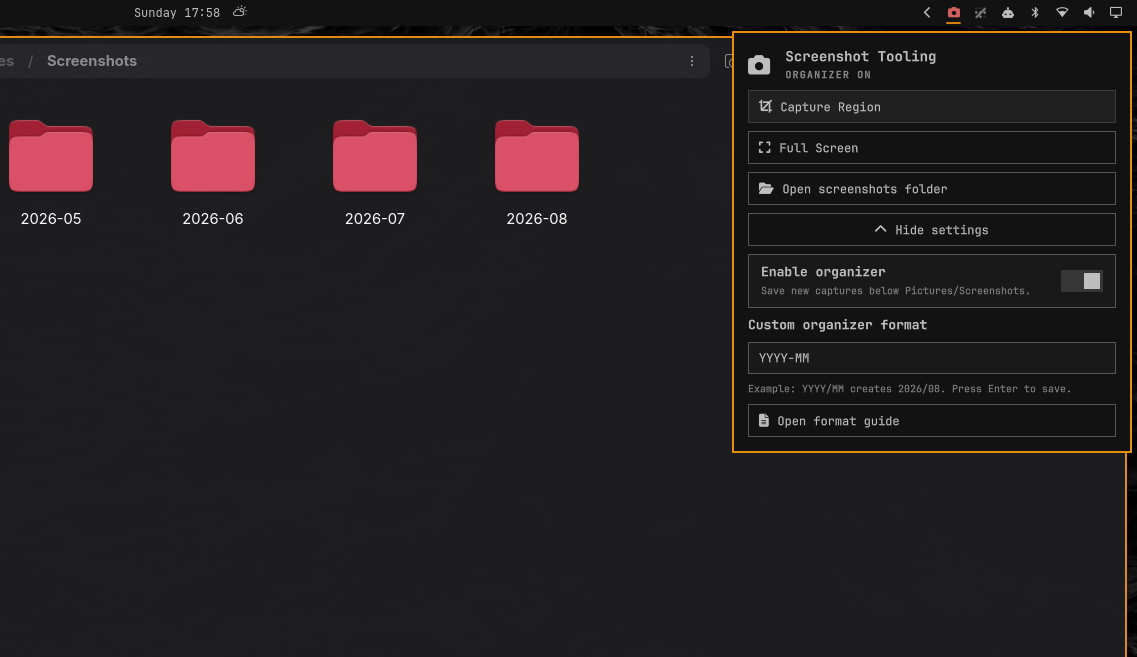
The organizer is enabled by default. It changes where captures are saved and creates the destination when needed:
<XDG Pictures>/Screenshots/YYYY-MM/
The default format is YYYY-MM. You can change it under Show settings. See ORGANIZER_FORMAT.md for the supported tokens, examples, and validation rules.
The setting persists across shell restarts. Disabling it sends later captures back to the XDG Pictures directory. "Open screenshots folder" always opens the base Screenshots directory. Existing files are never moved or deleted.
Requirements
- Omarchy 4.0 or newer with the Quattro shell
omarchy-capture-screenshot, supplied by Omarchy- Python 3, supplied by Omarchy
xdg-open, and optionallyuwsm-app, for opening the folder
The plugin does not need root access and does not modify Omarchy's packaged files.
Install
From a published Git repository:
omarchy plugin add https://github.com/varo6/screenshot-tooling-omarchy --enable
For this local checkout:
PLUGIN_ID="io.github.varo6.screenshot-tooling"
PLUGIN_DIR="$HOME/.config/omarchy/plugins/$PLUGIN_ID"
mkdir -p "$PLUGIN_DIR"
install -m 0644 manifest.json BarWidget.qml Panel.qml README.md ORGANIZER_FORMAT.md LICENSE "$PLUGIN_DIR/"
install -m 0755 screenshot-tooling secure-files.py "$PLUGIN_DIR/"
omarchy-shell shell rescanPlugins
omarchy plugin enable "$PLUGIN_ID" --section right
Optional Print Key integration
Screenshots taken from the plugin panel always follow the organizer toggle. By
default, the PRINT key runs Omarchy's screenshot command directly, so it does
not read the plugin's organizer setting.
Run this command if you want PRINT captures to follow the same toggle:
~/.config/omarchy/plugins/io.github.varo6.screenshot-tooling/screenshot-tooling enable-print-integration
The command creates a one-time backup of ~/.config/hypr/bindings.lua, adds
the replacement PRINT binding, and reloads Hyprland. Running it again does
not add duplicate bindings.
The read-only "Print Key follows organizer" indicator under Show settings
reports whether these lines are active. Click the indicator to reopen these
instructions. The organizer toggle then controls both panel and PRINT
captures.
Use
Click the camera icon and choose an action. The panel also supports the keyboard:
- Up and Down select an action.
- Enter or Space runs it.
Rcaptures a region,Fcaptures the focused screen, andOopens the folder.- Escape closes the panel.
Omarchy's fullscreen capture means the focused monitor. Region capture uses Omarchy's standard frozen-screen picker and copies the result to the clipboard.
Validate
omarchy plugin validate .
qmllint -I "$OMARCHY_PATH/shell" BarWidget.qml Panel.qml
tests/run
Remove
If you added the optional PRINT override, first remove these lines from
~/.config/hypr/bindings.lua:
hl.unbind("PRINT")
o.bind("PRINT", "Screenshot", os.getenv("HOME") .. "/.config/omarchy/plugins/io.github.varo6.screenshot-tooling/screenshot-tooling capture smart")
Reload Hyprland after saving the file so Omarchy's default PRINT binding is
restored, then remove the plugin:
hyprctl reload
omarchy plugin remove io.github.varo6.screenshot-tooling
The organizer preferences are harmless and may be kept for a later reinstall.
To remove both the organize and format state files after uninstalling:
rm -r -- "${XDG_STATE_HOME:-$HOME/.local/state}/screenshot-tooling"