
Clawbar
See the state of OpenClaw without leaving your Omarchy bar.
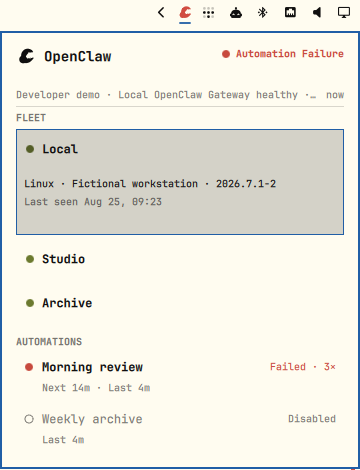
Clawbar is a read-only status surface for your Gateway, Fleet, registered Agents, and Automations. The bar shows whether anything needs attention; the keyboard-first panel explains what changed without exposing task content, messages, credentials, or raw errors.
Install
omarchy plugin add https://github.com/yasuhito/clawbar.git --enable
Clawbar appears in the right bar section and starts collecting immediately. It uses the Gateway already resolved by OpenClaw, so a normal local or configured remote setup needs no second connection configuration.
What you get
- One-glance status. The Claw changes color with current severity; open the panel for Gateway, Node, Agent, Task Result, and Automation context.
- Quiet incident notifications. Clawbar groups failures and recoveries and does not repeat the same notification on every refresh.
- A responsive shell. Collection runs outside QML, has a 12-second deadline, and renders from an atomic cached snapshot without blocking Quickshell.
- A strict privacy boundary. Only bounded Operational Metadata reaches the panel. Clawbar never stores a Gateway token or displays Private Content.
- Keyboard-first operation. Navigate with arrows or
j/k, refresh withr, and close with Escape.
Requirements
- Omarchy with the Quickshell plugin commands (
omarchy plugin ...) - OpenClaw
2026.7.1-2or a later stable release with the same supported JSON command surfaces - Python 3; the collector uses only the standard library
- Optional: Tailscale for the verified fallback setup when OpenClaw cannot resolve a local, configured remote, or Node-host Gateway
Clawbar does not install a Python package, daemon, systemd service, or timer. One Quickshell service entry point owns the bounded collection schedule. It collects immediately after enablement and repeats every 30 seconds. OpenClaw first resolves its normal local or configured remote Gateway. If that fails on a Node host, Clawbar uses the Gateway connection recorded in OpenClaw-owned Node-host state; it never probes Fleet Nodes directly and never stores a Gateway token. If the Gateway retains several registrations with the same Node display name, Clawbar shows only the freshest connected registration.
If none of those sources resolves a Gateway, the panel shows Gateway Setup
Required and lists online Tailscale devices under stable, opaque candidate
keys. Select a device with j/k or the arrow keys and press Enter. Clawbar
accepts it only after the bounded, read-only Gateway JSON probe succeeds. A
verified target is reused for later collections; Clawbar never asks for or
stores a Gateway token or password.
Without Tailscale, the panel stays in the non-Incident setup state and gives
instructions to connect Tailscale and refresh.
Configure
Set CLAWBAR_REFRESH_INTERVAL_SECONDS before starting Omarchy Shell to change
the interval. Accepted values are 15 through 300 seconds.
export CLAWBAR_REFRESH_INTERVAL_SECONDS=60
omarchy restart shell
The whole collection has a 12-second deadline. A slow or unavailable Gateway cannot accumulate overlapping collector processes or block the bar. A healthy snapshot becomes Stale after three configured refresh intervals. Each command output stream and local state file is limited to 8 MiB. Clawbar reads state only from regular files without following a final symbolic link, so a replaced FIFO, device, link, or oversized file cannot block collection or the bar cache reader.
Use
Press Clawbar to open the panel.
j,k, Up, Down: move selection- Enter: verify the selected Gateway candidate
r: request a non-blocking refresh- Escape: close the panel
- Middle-click the bar widget: request a non-blocking refresh
The bar icon changes color with current severity and briefly snaps while
hovered or collecting; its compact slot does not render a separate status dot
or count. The tooltip reports current Attention Items while yellow or red. The
panel keeps Gateway identity and status pinned while its operational rows
scroll. Selecting a Node, Agent, or Automation expands its bounded Operational
Metadata directly beneath that row; selecting another row moves the single
expanded detail with the selection. The panel keeps Agents and Automations in
independent sections because Gateway metadata establishes no Node ownership; an
empty Agents section is omitted. Routine healthy Node and Automation rows omit
the repeated Healthy label while retaining it for accessibility; exceptional
and historical states remain explicit. A green Healthy indicator remains
visible in the panel header. Registered Agents use a static green presence dot
without claiming health or current activity; previous Task Result remains
separate. Offline Nodes appear as muted Operational Metadata and do not affect
Attention counts, Incidents, or notifications. Automation Failures appear once
in the Automations section.
Privacy boundary
Clawbar persists only Operational Metadata: generalized health states, bounded Node and Agent display names, model/runtime labels, Automation schedule metadata, timestamps, and opaque local UI keys. It discards raw command output after parsing.
Clawbar never persists or displays task instructions, message bodies,
destinations, account identifiers, credentials, host/IP/private Node or
Tailscale identifiers, or raw errors. Tailscale device identifiers are HMACed
with Clawbar's local secret into stable candidate keys before entering a
snapshot. QML does not open user-controlled files directly. It obtains both the
snapshot and current theme colors through collector commands that cap each read
at 8 MiB, accept regular files only, and do not follow a final symbolic link.
The snapshot is $XDG_STATE_HOME/clawbar/snapshot.json (or
~/.local/state/clawbar/snapshot.json). Private mode-0600 state beside the
snapshot maps opaque candidate keys to Tailscale targets and remembers a
verified Tailscale fallback. Automatic resolution never replaces that fallback.
None of these state files contains a token, password, or other credential.
Incident deduplication state and the local key secret are per-login data under
XDG_RUNTIME_DIR.
Selecting an Automation reveals only its bounded Operational Metadata. Clawbar cannot create, edit, retry, cancel, enable, disable, or delete OpenClaw work.
Update, disable, and remove
omarchy plugin update io.github.yasuhito.clawbar --yes
omarchy plugin disable io.github.yasuhito.clawbar
omarchy plugin remove io.github.yasuhito.clawbar --yes
Disable and remove unload the Quickshell service immediately, stopping future collection and notification scheduling. A collector already inside its bounded request exits within 12 seconds. No systemd unit, timer, or background daemon is left behind.
Developer demonstration
scripts/clawbar_demo.py pauses Gateway collection for the desktop login and
writes fictional, sanitized snapshots through the same atomic snapshot seam
used by the collector. The panel labels these snapshots Developer demo so
they cannot be mistaken for current Gateway data. This is a development tool,
not a user-facing mode. Run a scenario, open the actual Omarchy panel, and
repeat for all twelve accepted states:
python scripts/clawbar_demo.py setup-required
python scripts/clawbar_demo.py healthy
python scripts/clawbar_demo.py registered-agents
python scripts/clawbar_demo.py unstable-gateway
python scripts/clawbar_demo.py offline-gateway
python scripts/clawbar_demo.py degraded-gateway
python scripts/clawbar_demo.py configuration-error
python scripts/clawbar_demo.py automation-failure
python scripts/clawbar_demo.py stale-snapshot
python scripts/clawbar_demo.py empty-fleet
python scripts/clawbar_demo.py grouped-incidents
python scripts/clawbar_demo.py recovery
Resume normal scheduled collection after review:
python scripts/clawbar_demo.py --resume
grouped-incidents shows two Offline Nodes as muted Operational Metadata and
starts one grouped notification for two Automation Failures. recovery
restores a healthy Fleet and emits one grouped recovery notification. Use
j/k and Enter while reviewing the panel.
For release review, exercise each scenario in the actual shell at narrow and
wide panel widths on white, catppuccin-latte, flexoki-light, and
vantablack, then repeat once with reduced motion. Confirm immediate panel
navigation while a delayed collector runs and check the shell console for QML
errors.
Marketplace
- Category:
Widgets - Tags:
ai,bar,quickshell - License: MIT