
Text Transform
Paste text, pick a transformation, get the result back. Fix the grammar, make it shorter, translate it, rewrite it for work email, or anything else you have written a prompt for.
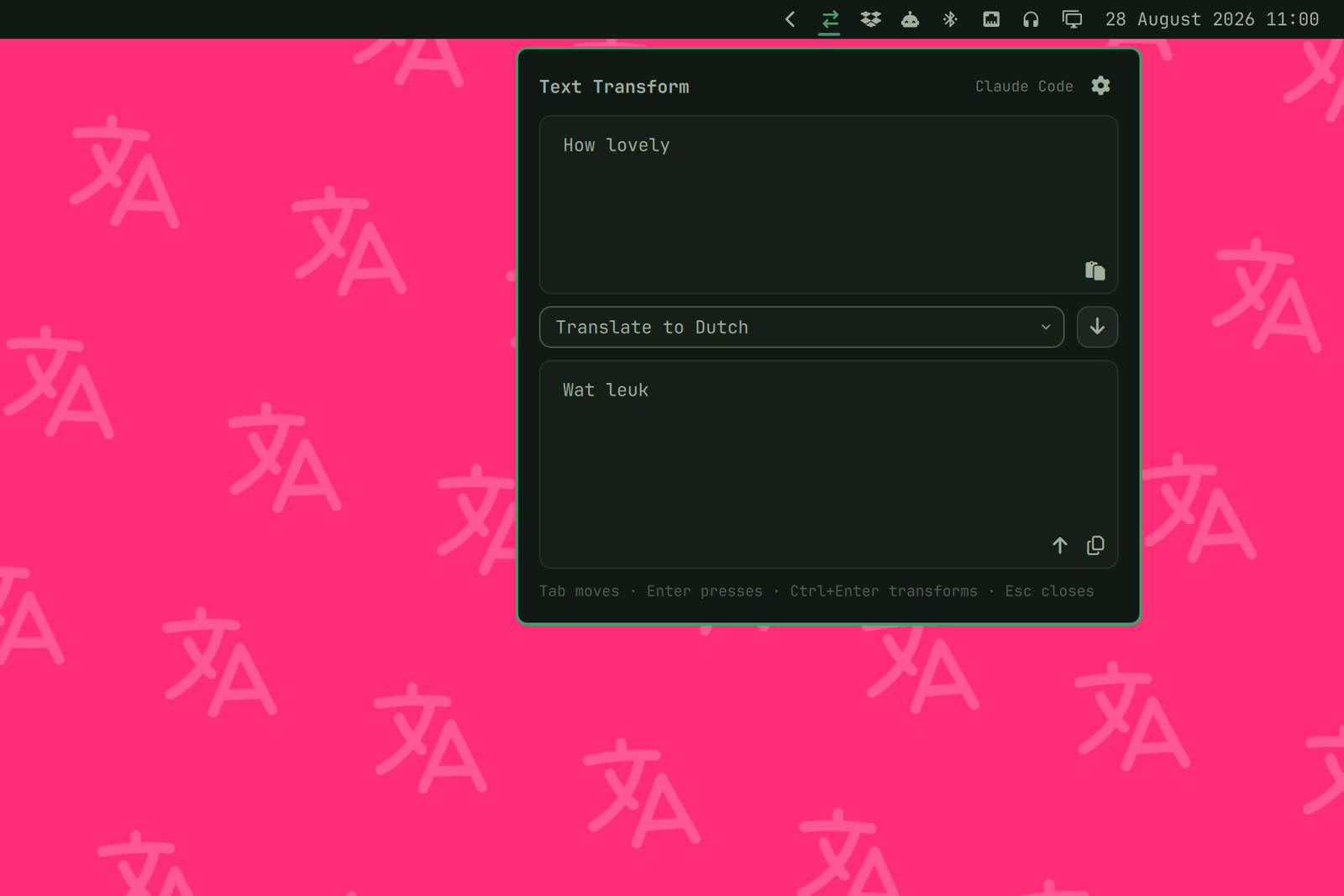
The work is done by the coding agent you have already set up in Omarchy, through omarchy default agent. There is no API key to enter, no model to pick and no account to make: if omarchy agent starts something on your machine, this widget uses it.
How it works
Type or paste into the top box, choose a transformation, and press the arrow (or Ctrl+Enter). The answer lands in the bottom box and goes straight onto your clipboard, so you can paste it wherever you were heading. A notification says so.
Three small buttons do the rest. The one in the input box pastes your clipboard in. In the output box, the up arrow sends the answer back to the top so you can run it through another transformation (shortening something twice is a different thing from asking for it very short once), and the other copies it again.
A transform takes a few seconds. You do not have to sit and watch it: close the panel and carry on, and the arrows in the bar stay lit while the agent works. When the answer lands you get a notification and the text is waiting in the panel next time you open it. With automatic copy on, the notification says only that it finished and that it is on your clipboard, because notifications end up on lock screens. With automatic copy off, it carries the first couple of lines of the answer, so you can read the gist of it without reopening the panel; the whole thing is waiting there.
If it takes too long, the arrow becomes a stop button, and Ctrl+Enter does the same. Stopping kills the agent rather than just hiding the spinner: an agent left thinking is still spending your tokens.
Nothing here needs the mouse. The panel opens with the cursor in the input box; Tab walks both boxes, the dropdown and every button, Enter or space presses whatever is focused, Ctrl+Enter transforms or stops from anywhere, and Escape closes. Bind the panel to a key (see Installing) and the whole thing is a keyboard away.
A transformation is a name, a prompt, and an optional automatic clipboard copy. The name is what the dropdown shows; the prompt is what the agent is told to do with your text. Press the gear to edit them, add your own, or throw out the ones you never use. The copy button beside each prompt is on by default; turn it off for questions whose answers you want to read in the panel without replacing your clipboard.
Three come with it: fix typos, make it shorter, translate to Dutch. That is deliberately not a set of everything you might want; the plugin is worth having because you write the ones you need yourself. "Rewrite this as a commit message", "turn this into English that does not read like a translation", "say this the way I would say it": each of those is a name and a prompt, and then it is a keypress away.
Requirements
- Omarchy Quattro (4.x)
- A default agent:
omarchy default agent claude(orcodex,opencode,crush,pi,omp,grok,goose,agy,copilot,ori) jq, andwl-copyfor the copy button (both standard on Omarchy)
If no default agent is set, the panel says so instead of failing quietly.
Supported agents
The text you transform is untrusted: it comes off a clipboard, and a language model can be talked into treating it as instructions however plainly the prompt says otherwise. So the prompt is not what keeps you safe. What keeps you safe is that the agent has no tools, and this plugin only drives agents that can be told so:
| Agent | Tools off with | Text goes in via |
|---|---|---|
| Claude Code | --tools "" |
stdin |
| OpenCode | --agent text-transform against an inline config agent |
stdin |
| Codex | every tool-bearing feature off by config | stdin |
| Pi | --no-tools |
stdin |
| Oh My Pi | --no-tools |
stdin |
| Goose | --no-profile |
stdin |
| Ori | inherited from claude or pi | stdin |
| Grok | --tools "" |
argument |
| GitHub Copilot | --available-tools="" |
argument |
Seven of those are a single switch that means "no tools", so a tool added by an update is off without this plugin being changed. OpenCode's switch is a config key rather than a flag, passed inline through OPENCODE_CONFIG_CONTENT so it does not depend on your own config, and --pure skips external plugins on top of that. Because that config travels in the environment and can be ignored without saying so, the plugin asks OpenCode what the agent resolved to and refuses the run unless every tool comes back off. Codex is the exception: it has no such switch, and instead each of its tool-bearing features is turned off by name, with the read-only sandbox under it as a second layer. That list needs revisiting when Codex ships a new feature.
Crush and Antigravity are refused. Not because they are worse, but because neither can be told to run without tools from the command line: Crush's run has no tool flag, and Antigravity has a blanket --sandbox that restricts the terminal rather than removing tools. If one of those is your default agent, the panel says so and transforms nothing.
Grok and Copilot have no way to take a prompt on stdin, so with those two your text is briefly visible in the process list to other accounts on the machine. The other seven never put it there. If that matters on your machine, pick one of the seven.
Ori is a launcher rather than an agent, so it needs Claude Code or Pi installed to have something to launch.
Grok gets a throwaway GROK_HOME inside the working directory, because it logs to logs/unified.jsonl under that path and on a machine that has used Grok that log is already past the file-size limit every agent runs under, which kills the transform. That means Grok has to have been run once by hand first: the isolated home borrows the binary Grok installs on its first launch, and until that exists the panel says so rather than trying anything clever.
Claude Code runs with --strict-mcp-config, which loads no MCP servers. Measured on a normal setup that takes a transform from around 5.8 to 2.9 seconds, because connecting to them is most of what the startup does. Forcing a small model is deliberately not done: Haiku measured slower than the default here, since at this length the time goes into starting up rather than generating.
Goose runs with --no-profile, which loads none of the configured extensions, and the only extensions a run could still get are ones passed on the command line, of which there are none. GOOSE_MODE=chat sits under it as a second layer: even a tool that appeared anyway would not be executed. Goose gets the same treatment as Grok: its state, a sessions database and full request logs, is pointed into the throwaway working directory and leaves with it. Where Grok's logs are over the file-size limit before the run starts, goose's grow with the text, and at the largest transform this plugin accepts they come near enough to the limit that the limit is raised for goose alone; everything it bounds is deleted with the directory afterwards. A side effect worth having: the text you transform never reaches goose's request logs, which it otherwise writes.
Your text and the agent
The text is handed to the agent as one prompt, and the agent is told to treat everything between the markers as text rather than as instructions. That is not a guarantee, because a language model can be talked into things, so the plugin narrows what an agent could do if it were:
- The agent runs with no tools at all, and an agent that cannot be told that is refused rather than driven anyway. See Supported agents.
- Every run happens in a fresh empty directory, so even if a tool did appear there is no project to read or write.
- Everything is bounded in bytes as well as in time: what you send in, what the agent writes out, and what comes back. The agent runs under a file size limit the kernel enforces, so it cannot fill your disk on the way to being slow.
- The transformations file is opened without following symlinks and without blocking on anything that is not a regular file, so nothing planted at that path is read or written through.
Text you paste is still sent to whatever service your agent talks to, and counted against your plan there. That is the trade: no key to configure, but also no local-only mode.
Installing
omarchy plugin add https://github.com/jankeesvw/omarchy-text-transform
omarchy plugin enable jankeesvw.text-transform
omarchy bar move jankeesvw.text-transform --section right
A keybinding, if you want one:
o.bind("SUPER + T", "Text Transform", "omarchy-shell shell toggle jankeesvw.text-transform")
And one for the thing you probably came here to do, which is transform what you just copied:
o.bind("SUPER + SHIFT + V", "Transform clipboard", "omarchy-shell jankeesvw.text-transform paste")
That opens the panel with the clipboard already in the input box and the run button focused, so it is one key to open and Enter to go. It uses the last transformation you picked, which is usually the one you want again.
If even that Enter is one key too many, there is also a binding that presses the button for you:
o.bind("SUPER + SHIFT + T", "Transform clipboard now", "omarchy-shell jankeesvw.text-transform transform")
That runs the last-used transformation on the clipboard the moment you press it. When that transformation copies automatically, the panel closes itself again: one key, a few seconds, and the result is ready to paste. If automatic copy is off, it stays open on the answer instead. The panel always opens while it works, so you can see the spinner and stop it, and if something goes wrong it stays open with the error instead of disappearing on you.
And the whole loop in one key, without even the copy and the paste:
o.bind("SUPER + SHIFT + R", "Transform selection in place", "omarchy-shell jankeesvw.text-transform replace")
Select some text anywhere, press the key, and a few seconds later the selection has been replaced by the transformed version. Under the hood the plugin sends the window a Ctrl+C, transforms what came back, and sends a Ctrl+V with the answer on the clipboard; the window is remembered by address, so the paste finds it even if you switched away while the agent was thinking. The panel opens while it works, exactly as above. Two honest caveats: it takes your clipboard (the answer is on it afterwards, which is also your safety net if the paste cannot land), and it assumes the app treats Ctrl+C and Ctrl+V as copy and paste, which terminals for example do not.
Removing it
omarchy plugin remove jankeesvw.text-transform
That leaves one thing behind: the transformations you wrote, in ~/.config/omarchy-text-transform/transformations.json (the directory is mode 700, the file 600, and only your account can read them). Nothing else is stored; the text you transform and the answers you get are never written to disk by this plugin. To delete the prompts too:
rm -rf ~/.config/omarchy-text-transform
The script on its own
bin/text-transform works without the panel, which is handy for a keybinding or a script of your own. Everything goes in and out as JSON on stdin and stdout:
bin/text-transform agent
bin/text-transform list

printf '%s' '{"text":"hallo wereld","prompt":"Translate to English."}' \
  | bin/text-transform run
Two more exist for the replace flow: grab copies the selection out of the active window and prints it, put takes {"text":..,"window":..} on stdin and pastes it into that window. Both lean on hyprctl, so they are Hyprland-only.
Licence
MIT