
Proton Pass for Omarchy
A native Omarchy Quattro bar widget for keyboard-first Proton Pass login search and safe Wayland clipboard copy through Proton's official pass-cli.
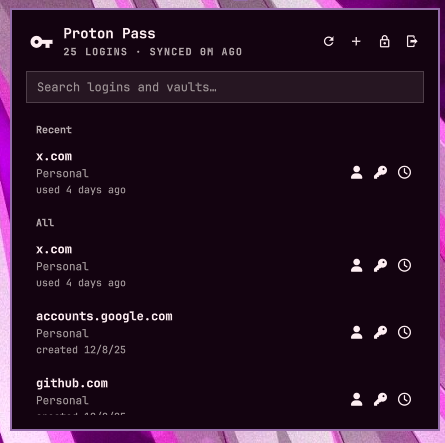
It complements the official Proton Pass apps and CLI rather than replacing them, and never displays a retrieved username, password, or TOTP code. The plugin makes no network connections of its own; only Proton's official pass-cli contacts Proton. SECURITY.md states every security claim plainly and shows you how to check each one yourself.
[!IMPORTANT] Proton Pass CLI access requires a personal Pass Plus plan (or a bundle that includes it) or a business Pass Professional plan. Business Pass Essentials is not eligible. See Proton's personal plan guide and business plan comparison.
Security at a glance
- It makes no network connections of its own. Only Proton's official
pass-clitalks to Proton's servers. The plugin never opens a socket, never calls out, never "phones home." - It never sees your Proton password. Signing in opens Proton's own
pass-cliin a terminal. Your password and any 2FA go straight to Proton; the plugin only checks afterward that a session exists. - It never shows or stores a secret. Field values go from
pass-clistraight to your clipboard, marked sensitive. They never appear in the panel, never touch a log, never land in a file. - The only things it writes to disk are a list of recently used item IDs (no names, no secrets) and a one-way hash of the last value it copied (used to auto-clear the clipboard safely). Both are yours-only files, and the recents list is deleted the moment you turn the setting off.
Every claim above is verifiable. SECURITY.md has the full model, the honest limits, and the greps and tests you can run to check each claim yourself.
Features
- Search login items across your vaults by title or vault name.
- Copy a username, password, or TOTP code with one keystroke. Username falls back to email.
- Create a login with a generated password, straight from the panel.
- Recently used logins show first, with when each was last used.
- Copied values are marked sensitive, kept out of clipboard history, and cleared after a set delay. Clear one now from the panel too.
- Lock or log out of the session; logout asks for confirmation.
- Sign in and unlock through Proton's own CLI in a terminal.
Editing, deleting, sharing, attachments, custom-password creation, secret display, and offline use are out of scope.
Requirements
- Omarchy Quattro (4.x)
- Proton Pass CLI 2.3 or newer on
PATH - An eligible Proton plan as described above
wl-clipboard- Network access for every refresh and copy
jq,bash, and GNU coreutils, which are included with Omarchy
Install
-
Install Proton's official CLI if needed. On Arch, the community package is
proton-pass-cli-bin:yay -S proton-pass-cli-binOn other distributions, see Proton's
pass-clidocumentation for official packages.[!WARNING] The AUR package named
pass-cliis an unrelated project. Do not install it for this plugin. -
Install the Wayland clipboard tools:
sudo pacman -S wl-clipboard -
Add and enable the plugin:
omarchy plugin add https://github.com/josh2c/omarchy-protonpass.git --enable -
Open the key icon in the bar. If you are signed out, choose Sign in. The plugin launches plain
pass-cli loginin a terminal, which uses Proton's browser authentication flow.
The panel automatically rechecks the session when it is opened again after login or unlock.
Create a login
Choose the Create login action, enter a title and a username or email, and pick a vault. The helper generates a random 24-character password and hands the login to pass-cli; the password never touches the UI, arguments, logs, or files (see SECURITY.md). Use Copy password in the success message to copy it once.
To set your own password, use an official Proton Pass app. The CLI has no safe interactive create flow, and typing a password into a shell command would leak it through shell history.
Keyboard use
The panel opens with search focused. Row buttons intentionally contain no visible shortcut labels or hover shortcut hints; this section is the sole shortcut reference.
Global chords
These work while typing in search and while navigating the list.
| Chord | Action |
|---|---|
Enter |
Copy password |
Shift+Enter |
Copy username, falling back to email |
Ctrl+U |
Copy username, falling back to email |
Ctrl+P |
Copy password |
Ctrl+T |
Copy TOTP |
Ctrl+R |
Refresh the index |
Ctrl+L |
Lock the Proton Pass CLI session |
Ctrl+Shift+X |
Clear the plugin-owned clipboard value now |
List and search keys
| Key | Context and action |
|---|---|
| Type | In search: filter by login title or vault name |
Down or Tab |
From search: enter list navigation |
j / k or Down / Up |
In list focus: move through results |
p |
In list focus: copy password |
u |
In list focus: copy username, falling back to email |
t |
In list focus: copy TOTP |
L |
In list focus: lock the Proton Pass CLI session |
r |
In list focus: refresh the index |
/ or another printable key |
From list focus: return to search; / itself is not inserted |
Esc |
Clear search, then close the panel |
Modifier chords can be remapped with the Keyboard shortcuts setting. Enter comma-separated chord:action pairs, for example:
ctrl+shift+c:copy-password,ctrl+o:logout
Chord grammar is (ctrl+)?(shift+)?(alt+)?(enter|f[1-9]|[a-z]), case-insensitive. Actions are copy-username, copy-password, copy-totp, clear-clipboard, lock, logout, and refresh. Invalid entries are ignored. A remapped logout chord still uses the panel's two-step confirmation.
Mouse users can select a row and use its explicit username, password, or TOTP action. Selection alone never copies anything.
Session locking
pass-cli session lock works only after a session lock has been configured. Run this once in a terminal if you want the panel's L action:
pass-cli session create-lock
The unlock button launches pass-cli session unlock in a terminal so the CLI handles the lock credential directly.
Settings
Configure the widget through Omarchy's plugin settings.
| Setting | Default | Range / behavior |
|---|---|---|
| Clear clipboard after | 45 seconds | 0–300 seconds; 0 disables automatic clearing |
| Paste once | Off | Offers the value once with wl-copy -o; some browsers and Electron apps read more than once and may fail to paste |
| Excluded vaults | Empty | Comma-separated, case-sensitive exact vault names; surrounding spaces are trimmed |
| Keyboard shortcuts | Empty | Comma-separated chord:action overrides; unmodified defaults remain active |
| Show recent items | On | Shows up to eight recently copied logins; turning it off deletes the local recents store immediately |
Vault names containing commas cannot be excluded individually in v1.
Update or uninstall
Review and apply plugin updates with:
omarchy plugin update josh2c.protonpass
Disable the widget without removing its checkout:
omarchy plugin disable josh2c.protonpass
Remove it completely:
omarchy plugin remove josh2c.protonpass
Removing this plugin does not uninstall Proton Pass CLI or alter Proton's session files.
Development
The test suite uses captured, identity-free CLI fixtures and mocks; CI needs no Proton account or network access.
tests/helper-test.sh
tests/security-test.sh
tests/manifest-test.sh
tests/source-contract-test.sh
omarchy plugin validate .
Contributors: the implementation plan and release acceptance checklists live on the dev-docs branch, kept out of the installed plugin tree.
License
MIT