
Flight Tracker for Omarchy
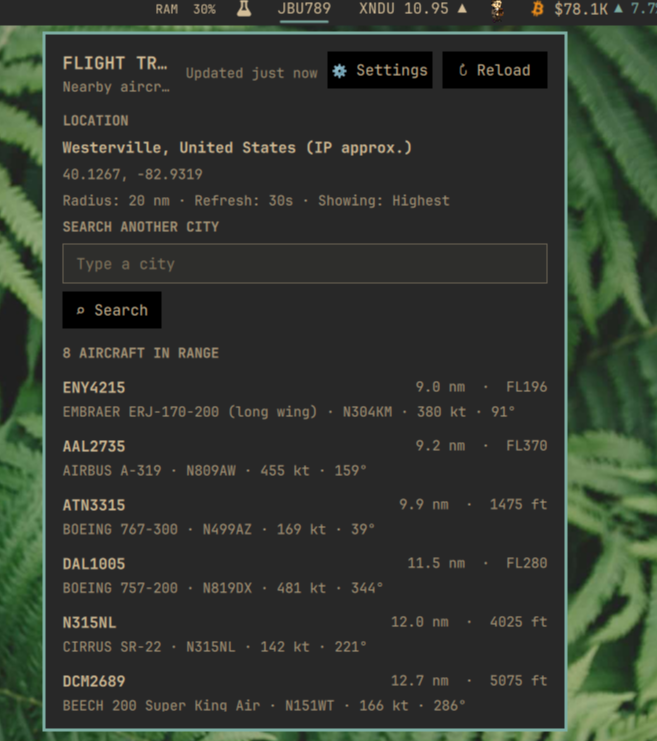
A bar widget that shows nearby aircraft — or follows one specific flight across the world and shows how far along it is — using free, key-free ADS-B data from adsb.fi's opendata API and route data from adsbdb. No feeder hardware, account, or API key required — just a live internet connection.
Highlights
- Bar label shows one featured aircraft's callsign, or just a count
- Pick which aircraft is featured: closest, lowest, highest, fastest, or slowest currently in range
- Configurable search radius (5–250 nautical miles) and refresh interval (30–600 seconds)
- In-panel ⚙ Settings — no manual config-file editing needed
- Popup lists every aircraft in range (callsign, distance, altitude, type, registration, speed, heading), sorted by distance, with the featured one marked ★
- Track mode pins the widget to one callsign anywhere in the world, ignoring the search radius, and shows a progress bar of how far along that flight is between its departure and arrival airports
- Location is detected automatically via IP geolocation, or you can search and pin any city manually — a pinned city is remembered across restarts
- Self-limits requests to stay within adsb.fi's public rate limit
Use
Left-click the bar widget to open the panel.
| Control | Result |
|---|---|
| ↻ Reload | Fetch aircraft data now |
| ⚙ Settings | Show/hide the settings section (see below) |
| ⌕ Search | Look up a city by name and pin your location to it |
| ⌖ Use current | Forget the pinned city and go back to IP-based location |
| ✈ Track | Follow the callsign typed in the box next to it |
| Click an aircraft | Track that aircraft, without typing its callsign |
| ✕ Stop tracking | Return to the nearby-aircraft display |
Track mode
Normally the widget shows aircraft within your search radius. Track mode does the opposite: it locks onto one flight, wherever it is in the world, and ignores the radius entirely.
Start it either way:
- Open the panel, click ⚙ Settings, type a callsign (e.g.
BAW123) under Track a flight, and click ✈ Track. - Or just click any aircraft in the list at the bottom of the panel.
While tracking, the bar shows the callsign followed by a slim progress bar. The panel shows the same progress between the two airport codes, along with the cities, how far there is left to run, and the aircraft's altitude, type and distance from you. Hovering the bar gives you the percentage and the route without opening the panel.
Departure and arrival airports are not part of an ADS-B broadcast — a plane
transmits its position, altitude and callsign, and nothing about where it is
going. The route is looked up separately, by callsign, from
adsbdb. Progress is then measured as
distance flown ÷ (distance flown + distance remaining), both great-circle
from the aircraft's live position.
A few things worth knowing:
- Not every callsign has a route. Airline flight numbers almost always do; private and general-aviation registrations usually do not. The flight is still tracked in that case — there is just no progress bar, because there is nothing to measure against.
- A tracked flight going quiet is normal. Aircraft drop out of ADS-B coverage over oceans and empty terrain, and stop transmitting after landing. The widget keeps showing the last known position, dims itself, and says how long it has been since the last signal, so a coverage gap doesn't throw away a flight you were following. It picks back up on its own.
- The nearby list pauses while tracking. Track mode swaps which endpoint the refresh cycle calls rather than adding a second call, so the request rate is unchanged. The list keeps showing the last scan; press ↻ Reload to refresh it, or stop tracking to resume automatic scanning.
- The callsign is remembered when you stop tracking, so returning to track mode resumes the same flight.
Configure
Open the panel and click ⚙ Settings:
| Setting | Default | Range / options |
|---|---|---|
| Aircraft selection | Closest | Closest, Lowest, Highest, Fastest, Slowest |
| Bar display | Aircraft | Aircraft (single), Count, or Track |
| Search radius | 25 nm | 5–250 nm, in steps of 5 |
| Refresh interval | 30 s | 30–600 s, in steps of 10 |
Bar display is set to Track for you when you start tracking a flight, and
the tracked callsign is stored alongside it. Because there is no free-text field
type in the bar settings schema, the callsign is entered from the widget's own
panel rather than from the shell's settings UI.
A city pinned with ⌕ Search is saved alongside the other settings, so the widget comes back to it after a shell restart instead of re-running IP geolocation; while a city is pinned, no IP lookup is made at all. ⌖ Use current forgets it and hands location back to IP geolocation.
Aircraft selection and Bar display apply instantly — they only re-pick from aircraft data already sitting in memory, so there's no extra API call. Search radius and Refresh interval apply on the next scheduled fetch rather than immediately, by design, so changing settings never causes an extra request against adsb.fi's rate limit.
If no aircraft in range currently reports the data a criterion needs (e.g. "Highest" is selected but nothing nearby broadcasts altitude), the widget falls back to showing the closest aircraft and says so in the tooltip instead of showing nothing or crashing.
Settings are saved to ~/.config/omarchy/shell.json under this widget's
bar-layout entry, the same place Omarchy stores every other bar widget's
configuration.
Data source
Nearby aircraft come from https://opendata.adsb.fi/api/v3/lat/{lat}/lon/{lon}/dist/{radiusNm},
and a tracked flight from https://opendata.adsb.fi/api/v2/callsign/{callsign} —
both free public endpoints fed by the adsb.fi community's own ADS-B receivers.
Coverage depends on receiver density in your area — it will show fewer
aircraft in regions with sparse feeder coverage. Per adsb.fi's usage
guidelines, requests are kept to a sane minimum:
- Refresh interval is clamped to 30 seconds minimum.
- Settings changes never trigger an out-of-cycle request.
- Track mode changes which endpoint the cycle calls, rather than adding a second call to it — one request per refresh either way.
- Location lookups (IP geolocation) run independently on a 30-minute cadence, separate from and not counted against the flight-data cadence.
Flight routes (departure and arrival airports) come from
https://api.adsbdb.com/v0/callsign/{callsign}, a free public database — also
no key or account. Only the callsign is sent to it, and only while you are
tracking a flight; it is looked up once per callsign, not once per refresh,
because a route doesn't change. Callsigns are reduced to A-Z0-9, at most 8
characters, before they reach any URL.
Every string that arrives from one of these services is also neutralised before
it is displayed. Short identifiers (callsigns, registrations, airport codes) are
whitelisted to A-Z0-9-; free text (aircraft types, airport and city names) has
markup-significant characters removed. In addition, the bar label and tooltip are
sanitised again as they are handed to omarchy-shell, whose own WidgetButton and
tooltip render text with Qt's default AutoText — a format that interprets HTML,
which this plugin cannot switch off from outside.
Location is resolved via https://ipwho.is/ (automatic) or
https://nominatim.openstreetmap.org/ (manual city search); while a city is
pinned, https://ipwho.is/ is not contacted at all. Neither your
location nor any other data is sent anywhere besides these three services and
adsb.fi — the plugin has no telemetry, analytics, or third-party tracking of
its own.
Those four origins are also the whole of what the plugin is able to contact:
every request is checked against a hardcoded allowlist of them before it is
built, only https is permitted, and redirects are not followed, so a 3xx from
any of these services cannot move the request to another host or to a local
address. A request that is refused fails the same way being offline does — the
panel keeps showing the last data it had.
Install
omarchy plugin add https://github.com/kairos-tech-oh/omarchy-flight-plugin.git --enable
The shell normally picks up the plugin immediately. If the widget doesn't appear, restart it once:
omarchy restart shell
Update
omarchy plugin update kairos.flight-tracker --yes
Remove
omarchy plugin remove kairos.flight-tracker --yes
Removing the plugin removes its widget, its checkout, and its settings
entry in ~/.config/omarchy/shell.json.
Dependencies
The plugin shells out to curl (present on any standard Omarchy install)
to talk to adsb.fi, adsbdb, ipwho.is, and Nominatim, and to sh, timeout, and
head — coreutils, already on the system — to put a byte ceiling and a
deadline on each of those responses. No other packages, background services,
or daemons are required.
Development
The three files that make up this plugin:
| File | Purpose |
|---|---|
manifest.json |
Plugin metadata and the settings schema |
BarWidget.qml |
Thin bar-bound button; forwards bar/settings into the panel |
Panel.qml |
All logic: fetching, parsing, aircraft selection, route/progress maths, and the popup UI |
Changes inside an installed plugin directory normally hot-reload. Restart the shell if a QML component remains cached:
omarchy restart shell
License
MIT © 2026 Kairos Technologies.