
Sandman
Set when your screen rests, locks, and sleeps from the Omarchy Quattro bar.
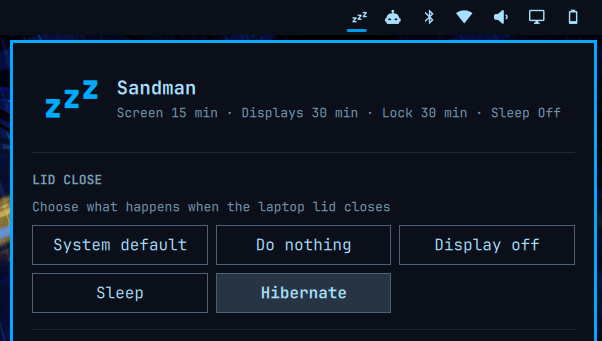
On laptops, Sandman also shows lid-close actions:
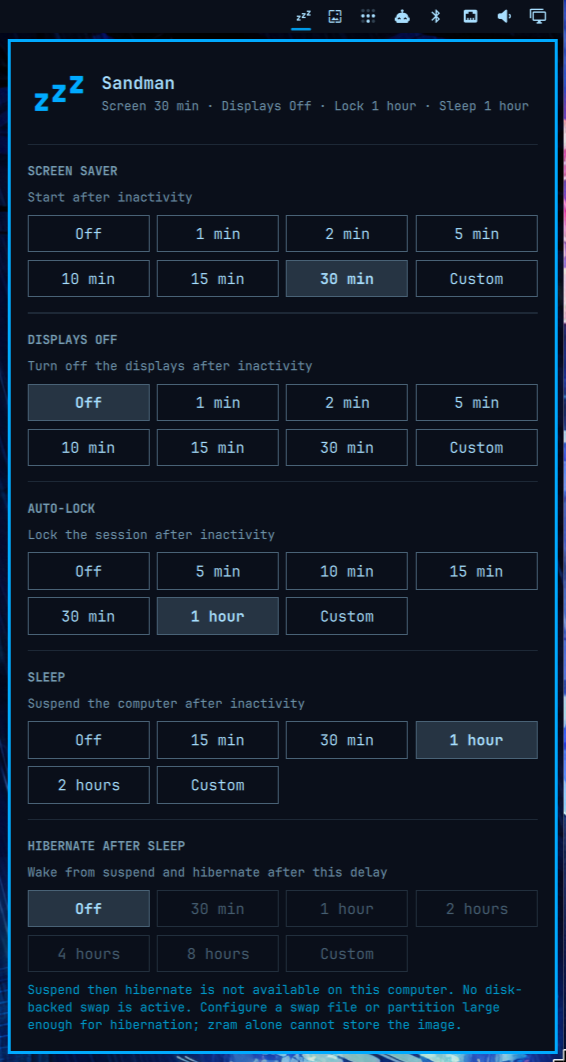
Sandman provides six simple controls:
- Lid close — keeps the system default or does nothing, turns off the laptop display, suspends, or hibernates when the lid closes.
- Screen saver — starts the screen saver after the selected period of inactivity.
- Displays off — turns the displays off (DPMS) after the selected period of inactivity while respecting idle inhibitors.
- Auto-lock — locks the session after the selected period of inactivity.
- Sleep — suspends the computer after the selected period of inactivity while respecting idle inhibitors.
- Hibernate after sleep — wakes a suspended computer after the selected delay and hibernates it.
Each setting offers presets, Off, and a custom hours-and-minutes timeout. Omarchy requires positive screen-saver and lock values, so Sandman simulates Off with safe seven-day timeouts while displaying and persisting Off as 0.
Install
omarchy plugin add https://github.com/lgse/sandman.git --enable
Install the privileged helper from the user-owned plugin checkout, then restart the shell if it is already running:
sudo install -D -o root -g root -m 0755 \
  ~/.config/omarchy/plugins/lgse.sandman/sandman-configure-hibernate \
  /usr/local/libexec/sandman-configure-hibernate
omarchy restart shell
If needed, add it to the bar explicitly:
omarchy bar plugin add lgse.sandman --section right
Usage
Click the Zzz icon in the bar and choose a lid-close action or a timeout for each idle stage. Presets apply immediately; Custom accepts hours and minutes and applies on confirmation for screen saver, displays off, auto-lock, sleep, and hibernate-after-sleep. Existing values that do not match a preset—including Omarchy's 2½-minute screen-saver default—open as Custom. Changes survive shell reloads and reboots.
The lid controls appear only when UPower reports a laptop lid. System default leaves logind in charge. The other actions use a low-level lid-switch inhibitor while Sandman is running, then handle the event without changing system-wide logind configuration. For managed lid actions, Sandman also installs a small managed block in ~/.config/hypr/bindings.lua that replaces Omarchy's default switch:on:Lid Switch binding. Omarchy's default binding locks immediately on lid close, before Sandman can apply Do nothing or Display off, so Sandman unbinds it and keeps only Omarchy's clamshell monitor reconciliation. Selecting System default removes Sandman's managed Hyprland block again. Display off targets the internal eDP/LVDS/DSI output and turns it back on when the lid opens. Hibernate is selectable only when logind reports that it is available.
Sandman stores its state in ~/.config/omarchy/sandman.json. The effective screen-saver and auto-lock values remain in Omarchy's standard ~/.config/omarchy/shell.json; lid actions and the displays-off, sleep, and hibernate-after-sleep timers are handled by Sandman itself and are not written there. Changing the hibernate delay asks for administrator authorization because systemd's RTC wake timer is configured system-wide.
How displays off works
Sandman uses Quickshell's idle monitor with inhibitor support and turns the displays off through Hyprland's dpms dispatcher. Applications holding an idle inhibitor can prevent the timer from firing, and any key press or mouse movement turns the displays back on.
How sleep and hibernate work
Sandman uses Quickshell's idle monitor with inhibitor support and requests suspend through systemctl suspend. Applications holding an idle inhibitor can prevent the timer from firing, and system-level sleep inhibitors can reject the suspend request.
When Hibernate after sleep is enabled, Sandman instead requests systemctl suspend-then-hibernate. systemd sets an RTC wake alarm, wakes after the chosen delay, and hibernates. Sandman stores the delay in /etc/systemd/sleep.conf.d/90-sandman.conf; changing or disabling it requires administrator authorization. The option is available only when logind reports that suspend-then-hibernate is supported. When it is unavailable, Sandman disables the positive timeout choices and reports any prerequisite it can detect, including missing disk-backed swap, missing kernel hibernation support, missing resume discovery, or restrictive kernel lockdown. Off remains available so an old setting can always be cleared.
Requirements
- Omarchy Quattro
- Python 3
- systemd
- UPower
- GLib (
gdbus) - Polkit (
pkexec), to change the systemd hibernate delay
The helper is deliberately separate from sandman.py, because the latter is
loaded from the user-owned plugin directory and must never be executed as root.
Validate
npm test
omarchy plugin validate .
qmllint -I "$OMARCHY_PATH/shell" BarWidget.qml Panel.qml Service.qml LidService.qml
Remove
omarchy plugin remove lgse.sandman
rm -f ~/.config/omarchy/sandman.json
sudo rm -f /etc/systemd/sleep.conf.d/90-sandman.conf
sudo rm -f /usr/local/libexec/sandman-configure-hibernate
Removing Sandman does not revert the screen-saver and lock timeouts already written to shell.json. If Sandman is removed while a managed lid action is selected, remove the managed block between -- BEGIN Sandman lid action override and -- END Sandman lid action override from ~/.config/hypr/bindings.lua, or reinstall Sandman and select System default before removing it.
This matters if either setting was left Off. Off is stored in shell.json as a
seven-day timeout, so removing Sandman while auto-lock is Off leaves a machine that
effectively never locks, with no Sandman UI left to notice it. Set anything you want
back on before removing, or restore Omarchy's defaults afterwards:
python3 - <<'PY'
import json, pathlib
path = pathlib.Path.home() / ".config/omarchy/shell.json"
config = json.loads(path.read_text())
config.setdefault("idle", {}).update({"screensaver": 150, "lock": 300})
path.write_text(json.dumps(config, indent=2) + "\n")
PY
License
MIT