
mhvac.ac — Omarchy AC control plugin
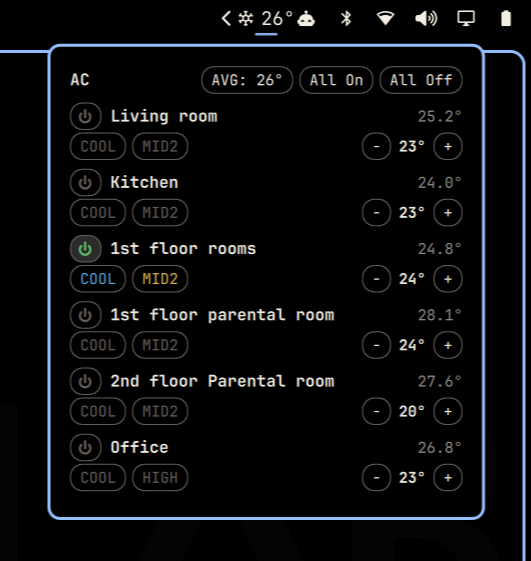
Bar widget for the Omarchy shell (Quickshell) that controls a Mitsubishi M-NET HVAC system: per-zone status, on/off, mode, temperature, and fan speed, from a popup anchored to a bar icon.
If the gateway can't be reached (or the status call fails for any reason), the bar icon switches to the theme's urgent/red color and drops the temperature reading rather than showing a stale value.
Requirements
- A Mitsubishi M-NET HVAC system reachable over the network through an
HTTP/XML gateway (
servlet/MIMEReceiveServlet) — this is a specific integration, not a generic "any AC" plugin. If your gateway doesn't speak this protocol, this plugin won't talk to it. python3onPATH, with therequestspackage installed (pip install requests, or your distro's package).- Network access from the machine running Omarchy to the gateway.
No elevated privileges are needed — everything runs as your normal user.
The M-NET HTTP/XML gateway protocol provides no authentication or encryption. This plugin assumes the gateway is reachable only over a trusted LAN; do not expose it directly to untrusted networks or the public internet.
Install
omarchy plugin add https://github.com/aallamaa/hvac.git --enable
Then place it on the bar (if --enable didn't already):
omarchy bar move mhvac.ac --section right
The widget works without a terminal shortcut. To use the shorter ac ...
commands shown below, install an optional symlink to the deployed CLI:
mkdir -p ~/.local/bin
ln -s ~/.config/omarchy/plugins/mhvac.ac/ac_cli.py ~/.local/bin/ac
If that path already exists, inspect or remove it before creating the link; the command intentionally does not overwrite an existing file.
Usage
Click the snowflake icon in the bar to open the popup. Each zone shows:
- a power button (on/off)
- the current room temperature
- a mode button (cycles through that zone's supported modes)
- a fan-speed button (cycles through that zone's supported speeds)
- an air-direction button when the indoor unit reports vane control support
- a −/+ temperature stepper
An active filter-cleaning reminder shows the filter icon in the urgent
color; hover it to see Filter ON. Active faults add [FAULT] in the urgent
color; use ac alarms for the controller's detailed M-NET address, numeric
alarm code, model, and detection time.
"All On"/"All Off" at the top act on every configured zone. The "AVG: N°"
button next to them cycles the bar icon's own temperature display through
avg/min/max/off (see Configure).
The bar icon itself shows an aggregate temperature reading whenever sensor data is available (regardless of whether a zone is on), and turns the theme's urgent/red color if the gateway can't be reached.
Configure
Gateway host/port, zone names, and per-zone capabilities live in
~/.config/ac-plugin/config.json, not in the code:
{
  "host": "192.168.1.2",
  "port": 80,
  "icon_temp": "avg",
  "zones": {
    "1": { "name": "Living room", "modes": ["COOL", "DRY", "FAN"], "fan_speeds": ["AUTO", "MID1", "MID2", "HIGH"], "air_directions": [] },
    "6": { "name": "Office", "modes": ["COOL", "HEAT", "DRY", "FAN"], "fan_speeds": ["LOW", "MID1", "MID2", "HIGH"], "air_directions": ["HORIZONTAL", "MID1", "MID2", "VERTICAL"] }
  }
}
icon_temp controls what number the bar icon shows next to the snowflake
across available zone temperature readings:
avg (default), min, max, or off. It's also editable straight from
the popup — the "AVG: N°" button in the header cycles through the four
values.
modes/fan_speeds are what the popup's mode/fan cycle buttons step
through for that zone — see "Per-zone capability discovery" below for
where they come from. A zone can also be given as a plain name string
("1": "Living room"); it's upgraded on load to the full shape above,
filled in with not-yet-discovered defaults.
If this file (or its zones key) is missing, the popup shows a Discover
zones button instead of silently creating configuration. Set the gateway
address first if it is not the default, then click that button (or run
ac zones-init) to read the configured group inventory and names. On firmware
without the inventory API discovery falls back to probing the 50 possible
group slots. It never assumes zones 1–6. An explicit "zones": {} is
authoritative and means “query and control no groups.” Invalid or unreadable
configuration fails closed instead of restoring built-in control targets.
The initial gateway default is 192.168.1.2; use set-host or AC_HOST /
AC_PORT to point discovery elsewhere. AC_CONFIG_FILE overrides the path.
Finding your zones
ac discover            # read the group inventory (with probe fallback)
ac zones-init          # same, then add groups and gateway-configured names
ac rename 3 "Kids room"
ac set-host 192.168.1.50
set-host changes only the gateway address; it deliberately retains existing
zone names and discovered capabilities so an IP-address change does not erase
your setup. If the new address points to different hardware, reconcile the
saved zones before using bulk controls: run zones-init to add newly discovered
groups, then remove stale groups from config.json (and run
discover-features to refresh capabilities).
Before replacing an existing configuration, the CLI keeps one recovery copy
at ~/.config/ac-plugin/config.json.backup. To restore it, copy it back over
config.json while no AC command is running, then reopen the popup:
cp ~/.config/ac-plugin/config.json.backup ~/.config/ac-plugin/config.json
Per-zone capability discovery
Different indoor unit models on the same M-NET system can support different
modes and fan speeds. discover-features reads the gateway's capability flags
(IcKind, mode switches, fan-stage count, and automatic-fan support) and saves
the resulting per-zone choices. It is entirely read-only and does not turn off
or change any HVAC unit.
ac discover-features        # every configured zone
ac discover-features 6      # just zone/group 6
AUTOCOOL/AUTOHEAT remain display-only statuses: Mitsubishi integration
documentation marks them as not applicable for setting, so the plugin never
writes them. Capability results also report air-direction, swing, filter-sign,
and error-sign availability in the CLI output.
Update
omarchy plugin update mhvac.ac --yes
Remove
omarchy plugin remove mhvac.ac --yes
That removes the plugin from the bar and deletes
~/.config/omarchy/plugins/mhvac.ac/. It leaves two things behind, which
you can delete yourself if you want a full cleanup:
rm -rf ~/.config/ac-plugin           # host/zone/capability config
rm -f ~/.local/bin/ac                # the `ac` CLI shortcut, if installed
Development
Source of truth is this repo; ~/.config/omarchy/plugins/mhvac.ac/ holds
a deployed copy (Omarchy's plugin validator rejects symlinks inside a
plugin folder, so it can't just point back here). After editing files,
redeploy with:
cp mit.py ac_cli.py Panel.qml manifest.json ~/.config/omarchy/plugins/mhvac.ac/
QML edits hot-reload automatically once copied; if changes don't seem to
apply, omarchy restart shell forces a clean reload.
mit.py— M-NET client (XML over HTTP to the gateway), used as a library.ac_cli.py— CLI wrapper aroundmit.py. The QML shells out to this for every read and write; it's also usable standalone from a terminal.Panel.qml— the bar icon + popup (Quickshell/QML).manifest.json— Omarchy plugin manifest (id: mhvac.ac).
Running ac_cli.py commands directly
There's no omarchy plugin <id> <command> passthrough — omarchy plugin
only manages plugin lifecycle (list/enable/disable/validate). To run
ac_cli.py commands yourself, either call it directly:
python3 ~/.config/omarchy/plugins/mhvac.ac/ac_cli.py status
or use the optional ac shortcut described under Install. It lives at
~/.local/bin/ac (normally on PATH) and calls the deployed copy:
ac status
Every subcommand prints one JSON value to stdout and exits 0 on success;
on failure it prints {"error": "..."} to stderr and exits 1.
Commands
| Command | Args | Description |
|---|---|---|
status |
Status of every configured zone (drive, mode, set temp, fan speed, inlet temp). | |
config |
Print the resolved config (host, port, zones). | |
alarms |
List active detailed controller alarms. Read-only. | |
on |
<group> |
Turn a zone on. |
off |
<group> |
Turn a zone off. |
set-temp |
<group> <temp> |
Set target temperature (16–30). |
set-fan |
<group> <speed> |
Set fan speed: AUTO, LOW, MID1, MID2, or HIGH. Not every zone accepts every value — see "Per-zone capability discovery". |
set-mode |
<group> <mode> |
Set mode: COOL, HEAT, DRY, FAN, or AUTO. Not every zone accepts every value — see "Per-zone capability discovery". |
set-air |
<group> <direction> |
Set a capability-discovered vane position such as HORIZONTAL, MID1, MID2, VERTICAL, or SWING. |
all-on |
Attempt to turn on every configured zone and report each result. | |
all-off |
Attempt to turn off every configured zone and report each result. | |
discover |
[--max N] |
Read configured groups from the inventory API, falling back to probes when unsupported. Doesn't touch the config. |
zones-init |
[--max N] |
Run discovery and add new groups using controller-configured names when available; existing names are kept. |
discover-features |
[group] |
Read mode/fan capability flags for a zone (or every configured zone) and save them. Does not change HVAC state. |
rename |
<group> <name> |
Set a zone's display name in the config. |
set-host |
<host> [port] |
Set the gateway host/port in the config (default port 80). |
set-icon-temp |
<mode> |
Set the bar icon's temperature display: avg, min, max, or off. |
Examples
ac status
ac on 3
ac set-temp 3 22
ac set-fan 3 HIGH
ac set-mode 3 COOL
ac rename 3 "Kids room"
ac discover --max 10
ac zones-init
ac discover-features
ac discover-features 6
ac set-host 192.168.1.2
License
GPL-3.0-or-later — see LICENSE.
Protocol references
Mitsubishi does not appear to publish a public specification for the
MIMEReceiveServlet XML wire format. The closest vendor documentation found
is Mitsubishi Electric's G-50A operation manual
and its IP integration instructions,
which document 50 groups and identify Auto Cool/Auto Heat as non-settable
statuses. The HTTP/XML packet details and one-group-at-a-time discovery are
based on observed gateway behavior and independently reverse-engineered
clients, not an official public wire-protocol specification.