
Dock Recall
You use Omarchy differently with or without a monitor.
The frustration: undock, and Hyprland re-homes your windows onto the laptop panel. Connect your monitor again and the windows stay on the laptop — piled onto one screen, on the wrong workspaces, grouped (or not grouped) wrong — and you spend the first minute of the session dragging them back and arranging it "just so".
Dock Recall records how you like each situation set up, and your windows auto-arrange to your preferred setup the moment the cable changes.
Why you will want it
- A layout per monitor setup. Docked and undocked are recorded separately, keyed on your monitors' own EDID names, so the layout that comes back is the one you recorded for the setup you are actually in.
- You choose what is watched. Tick the apps you care about; everything else is left exactly where it is. A scratch terminal never gets moved because a restore ran.
- It puts back more than the monitor. Workspace, tab-group membership in the recorded order, floating geometry to the pixel, tiled shape and ratio.
- It says so when it will not act. Where the desktop cannot be read without guessing, the plugin refuses and the panel says why. Nothing is silently approximated into place.
- Nothing is one-way. Undo a recording right after you make it; a restore that could not place something lists the app and offers Retry; every recorded setup stays reachable from the panel.
- Apps you closed come back too — relaunched from a command derived from the process that was running, not from a guess, and landed in their recorded place rather than on whatever workspace has focus.
- It stays out of the way. No network access, no elevated privileges, no
extra packages, no second Quickshell process. It reads
hyprctl, writes one state file, and shows a toast only when it actually did something.
Requirements
- Omarchy Quattro with third-party shell plugins (Hyprland 0.56)
- No AUR package, no runtime network dependency, no privileged helper
Install
omarchy plugin add https://github.com/mkelk/dock-recall.git --enable
The bar widget defaults to the right-hand system cluster. To place it yourself:
omarchy bar move mkelk.dock-recall --section right --index 0
Confirm it loaded:
omarchy plugin list | grep mkelk.dock-recall
A service plugin needs a shell restart to become fully live the first time —
omarchy restart shell — after which [dock-recall] service-ready appears in
qs log -p "$OMARCHY_PATH/shell".
Update
omarchy plugin update mkelk.dock-recall --yes && omarchy restart shell
Remove
omarchy plugin remove mkelk.dock-recall
Removing the plugin leaves your recordings in
~/.local/state/omarchy/dock-recall.json. Delete that file too if you want them
gone.
The idea in three lines
- Tick the running apps you care about.
- Arrange them how you like, with the monitor setup you care about active, and hit Record layout.
- On the next attach or detach, the layout recorded for that topology comes back.
Open the panel by clicking the bar glyph, or bind a key to it:
omarchy-shell shell summon mkelk.dock-recall '{"focus":"restore"}'
The {"focus":"restore"} payload opens the panel with Restore now focused,
so the whole round trip is one keystroke and Enter. A bare '{}' just opens it.
The bar glyph
The small monitor shape in the bar is the fastest read on what the plugin thinks is happening:
| Glyph | Means |
|---|---|
| hollow outline | no layout recorded for the current monitor setup |
| solid | recorded, and the desktop matches it |
| solid + accent dot | recorded, but windows have drifted from the recording |
| solid + urgent dot | the last restore reported a failure |
| solid + sweep band | a restore cycle is running right now |
The panel
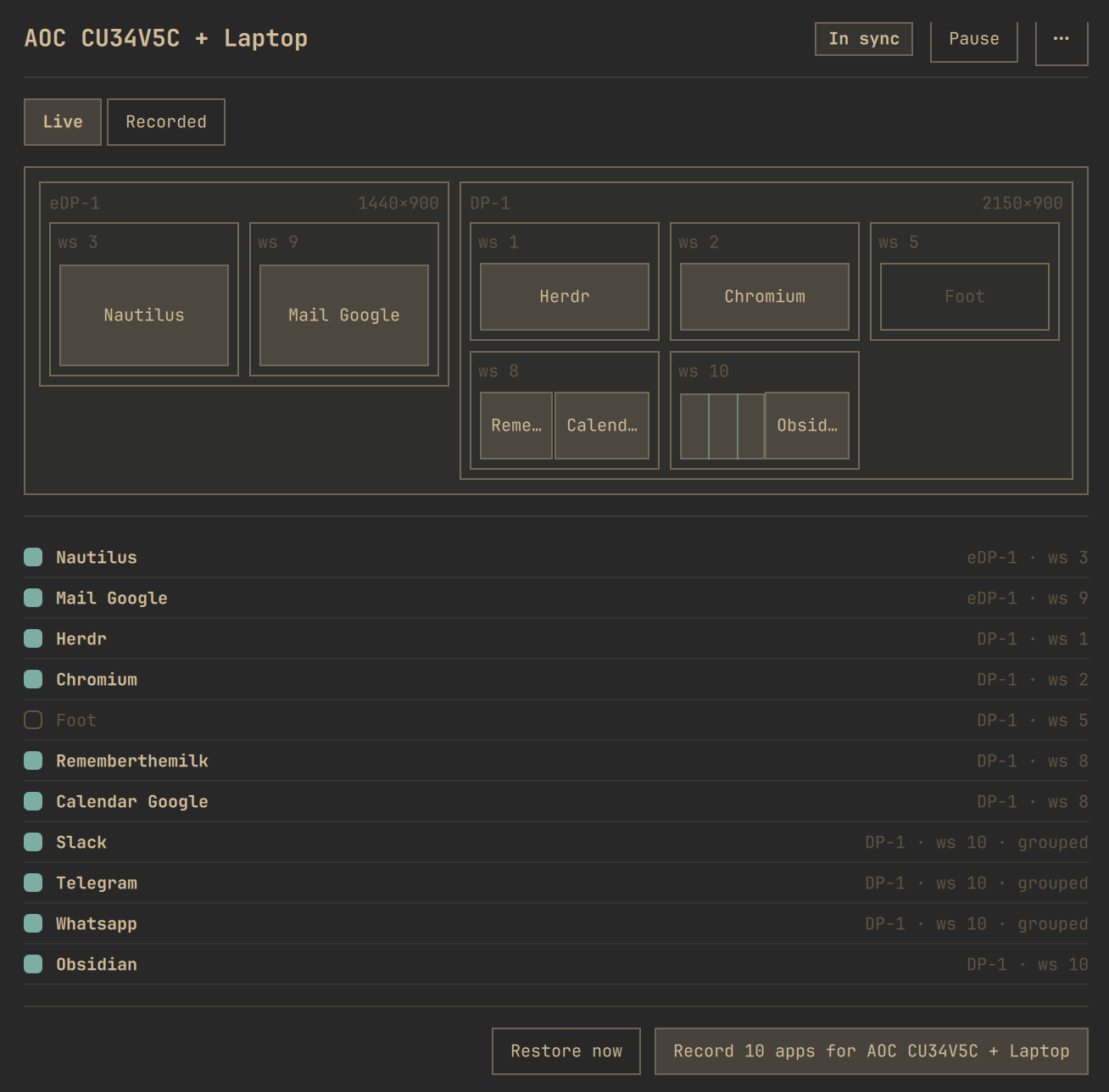
- Workspace map — mini-monitors with true-proportion window chips. Hovering a chip highlights its row and the other way round.
- App list — every window Hyprland is showing, ordered monitor → workspace → position, with a tick per app. Unticked apps are ignored by every restore. Apps with several windows get one row per window.
- Record layout / Restore now — record the current arrangement for the current topology, or replay the recording immediately without waiting for a cable.
- Undo record — immediately after recording, put the previous recording back. One shot, held in memory: a net under the moment you just had, not a history. Forgetting a topology is undoable the same way.
- Failed list — when a restore could not place something, the app is listed with a Retry button, reachable by pointer and by keyboard.
- Overflow menu (
⋯) — every recorded topology, its glyph state, re-record and forget. - Pause / Activate — stop reacting to monitor events without losing anything.
- Full keyboard navigation; Escape closes the panel.
Every restore runs three settle passes, at 1 s, 3 s and 7 s after the trigger, so a monitor that takes two seconds to wake up is not a race. "Nothing happened" is only true about ten seconds after a dock.
Where it refuses
Refusals are the design, not gaps waiting to be filled. Each one is visible in the panel with its reason:
- Two identical monitors — twin displays with the same EDID description cannot be told apart reliably, so the topology is refused rather than restored onto a coin flip.
- A terminal running an ambiguous command — see below.
- Tiled shapes that differ by more than one split flip — a single flipped split
is repaired with one
togglesplit; anything deeper is refused and tagged shape differs in the list, because a tiling tree is not addressable enough to reconstruct blindly. - Special workspaces are filtered out at record time. Hyprland addresses them with relative selectors, and dispatching against them moves an innocent workspace while reporting success.
- A locked session — group joins and split flips are deferred and replayed at unlock instead of being dispatched into a lock screen.
Terminal-hosted apps are known by their title
A terminal-hosted app is identified by the title it was launched with. A TUI
app running inside a plain terminal (say herdr typed into foot) is otherwise
invisible: the window is just class foot, indistinguishable from every other
terminal, and its /proc cmdline is the terminal's, not the app's. Launch it
with a title of its own and it becomes addressable:
foot --title=herdr herdr
The title rather than a window class of its own, because this way the class
stays plain. That command sets the window's initialTitle to herdr while its
class remains foot, so every window rule you already have for terminals keeps
applying to it — Omarchy's own
o.window("(Alacritty|kitty|foot)", { scroll_touchpad = 1.5 }) included. Rename
the class instead and that rule stops matching: Hyprland full-matches an
unanchored window-rule regex, so neither herdr nor a compound foot.herdr
matches (Alacritty|kitty|foot), and the window scrolls slower than a plain
terminal for no reason you can see from the outside.
initialTitle is fixed at the moment the window maps, so an app that renames
itself the instant it starts moves only its live title. A window's identity
never becomes time-varying.
The command shape differs per terminal, not just the title flag: foot and
kitty take a bare trailing command, Alacritty and Ghostty reject one and need
-e.
foot --title=herdr herdr          # foot, footclient
kitty --title=herdr herdr         # kitty
alacritty --title=herdr -e herdr  # Alacritty
ghostty --title=herdr -e herdr    # Ghostty
That means remapping whatever keystroke launches it. Until you tick it the panel
still draws that window as Foot, because a class is all it knows about a window
nobody has claimed. Tick it and the panel reads the title off the window itself,
proposes {"patterns":["^foot$"],"titlePatterns":["^herdr$"]}, writes that exact
command as the identity's launch in the same click, and restores the app like any
other. From then on the chip is named after the app rather than the terminal.
The panel can usually write that command for you
If you tick a terminal window whose own command line is nothing but the terminal,
the panel looks at the terminal's child process — the thing actually running
inside it — and watches the app rather than the terminal. The identity it creates
is named after the child, matches the terminal class and the child's title,
and arrives with the launch command already filled in — title flag and the -e
that terminal needs included:
{ "id": "herdr", "patterns": ["^foot$"], "titlePatterns": ["^herdr$"],
  "launch": "foot --title=herdr herdr" }
That is the point of the pair: a bare ^foot$ would claim every terminal on the
desktop, so the next window you opened would be "herdr" too. A plain interactive
shell in between is looked through, so foot → bash → herdr derives just as
well.
The window it derived from usually does not match that identity yet: a terminal
you typed herdr into has initialTitle: "foot", and the pair asks for herdr.
So the panel carries a line naming the identity and the exact command to relaunch
with, and the line disappears the moment a window matches.
It only does this when the answer is unambiguous — exactly one child. A
terminal running two things, a shell with two jobs, a shell inside a shell, a
terminal sitting at an empty prompt, or one whose child's command line cannot be
read is refused out loud: the tick writes nothing, the panel says which of those
it was and what to relaunch with, and nothing is guessed. It will not fall
back to a bare ^foot$ — an identity that claims every terminal and can only
ever start one of them is a worse answer than none. If you do want every terminal
window watched as one app, write that identity into the state file by hand.
Deriving one of two candidates would write a launch command that silently reopens the wrong app, and you would only find out at the next restore.
In the recording, such a window is claimed by an identity that carries
titlePatterns — regex strings matched against initialTitle — beside the usual
patterns, which are matched against class and initialClass. An empty list
is no constraint on that axis; when both are non-empty both must match, so
{"patterns":["^foot$"],"titlePatterns":["^herdr$"]} means exactly "the foot
window titled herdr".
The identity list is priority order and the first match wins, so a wide rule sitting in front of a narrow one swallows it. The panel will not write that arrangement: a new identity goes to the front, except behind any identity it would shadow. And where a list already holds one — a hand edit, or a file from an older build — the panel names both identities and says no open window reaches the one behind.
Class matching still works, and nothing about it changed. If you already launch an app with a window class of its own, it keeps being matched and restored exactly as before — a dedicated class simply stops being the documented answer for terminal-hosted apps.
A launch command belongs to the app, not to one of its windows: if a recording holds two windows of the same app and neither is running, the tool runs that one command twice, waiting for each window to appear before starting the next. Apps that need different arguments per window need a title per window — the same rule again.
What it touches
Everything Dock Recall does is local, unprivileged and inspectable:
| Path | What it holds |
|---|---|
~/.local/state/omarchy/dock-recall.json |
your recordings, one per topology |
~/.local/state/omarchy/dock-recall.status.json |
what the bar glyph reads |
~/.local/state/omarchy/dock-recall.trigger |
a one-shot restore request |
~/.local/state/omarchy/dock-recall-forensics/ |
snapshots of restores that failed |
It runs hyprctl to read the desktop and dispatch moves, reads /proc and
.desktop files to derive launch commands, and calls notify-send for the
restore toast. It makes no network requests, asks for no privileges, installs
nothing, and never writes to your Hyprland or Omarchy configuration.
How well does it actually work?
The measurement surface is scripts/verify: it prints a
recorded-vs-live table for the current topology and exits 0 only when every
watched window is where the recording says it should be, with floating windows
inside a ±2 px tolerance and tiled windows scored by intersection-over-union.
Underneath that, every state the desktop can be in has a defined behaviour and a
test that pins it — including the ones the plugin deliberately refuses, which are
written down as refusals rather than left as gaps. tests/ is where that
contract lives: 756 tests over real hyprctl fixtures, plus tests/sim-dock.sh,
which drives the installed plugin end to end against a headless output.
The behaviour has also been through a physical checklist on a real ultrawide over a dock — cold dock, dock with the desktop deliberately scattered, undock, undock while the session is locked, and suspend-dock-wake.
Development
The brain is dependency-free ES5 JavaScript in engine.js,
StateModel.js and PanelModel.js — no
QML, no clock, no I/O — so it is testable under node against real hyprctl
fixtures (see tests/fixtures/README.md):
node --test 'tests/**/*.test.js'   # 756 tests, no dependencies
omarchy plugin validate .          # manifest + entry points
qmllint -I "$OMARCHY_PATH/shell" Service.qml Panel.qml BarWidget.qml
./scripts/dev-install --restart    # install this working tree and restart the shell
./tests/sim-dock.sh                # end-to-end: fake topology, record, restore, verify
sim-dock.sh drives the installed plugin with a headless output and its own
scratch windows, backs your real state file up and restores it byte-for-byte
afterwards. scripts/bench measures restore quality — shape and ratio
intersection-over-union across recorded rounds — for when a change to the
placement planner needs a number rather than an opinion.
The repository root is the plugin folder, because omarchy plugin add clones
the repository and installs the clone root. Tests and scripts ride along; the shell
loads only the three entry points the manifest declares.
License
MIT — see LICENSE.