
Per-monitor Workspaces for Omarchy
Give every screen its own set of workspaces. SUPER+3 always means this
screen's third workspace — never "jump to whichever monitor happens to own
workspace 3".
Why
Omarchy binds SUPER+1..0 to ten global workspaces shared by every monitor. On
a laptop alone that is fine. Plug in a second screen and it grates: you press
SUPER+1 on your big screen and focus jumps to the laptop, because that is
where workspace 1 happens to live. The screen you were looking at does nothing.
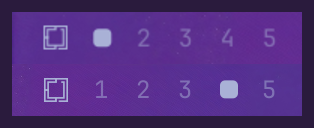
With this plugin each monitor gets its own set, the way dwm, awesome and i3 do it. Nothing is hardcoded — no monitor names in your config, nothing to declare up front. A screen gets its own set the first time you press a slot key on it.
How it works, honestly
Hyprland has no per-monitor workspaces. Its workspaces are global: one flat list, any of which can be shown on any monitor. There is no lower level to configure — a native version of this would have to come from Hyprland itself.
So this plugin builds the idea on top of what Hyprland does offer: a workspace
can carry a name. Each screen gets workspaces named after it — <screen>:1,
<screen>:2 — and SUPER+1 resolves to a name at the moment you press it,
from whichever screen has focus. You never see those names; the bar labels
everything by position.
That is the whole trick, and it explains the edges: a workspace still belongs to Hyprland's one global list, so unplugging a screen leaves its workspaces parked on a surviving one, and a returning screen has to be put back on its own. Both are handled — see Unplugging a screen.
The name is the identity, but the workspaces underneath are numbered ones, not
Hyprland's named workspaces — and the difference is something you can see.
Hyprland picks which way a switch slides by comparing the two workspaces'
numbers, and a named workspace is handed a negative one in the order it was
created, so going from slot 1 to slot 2 slid whichever way that order happened
to fall. So each screen is given a block of numbers the first time it is seen:
slot N on the screen holding block B is workspace B * 100 + N, and a workspace
rule gives it its name as it is created. Numbers now climb with the slots on
every screen, so a switch slides the way you pressed it. The blocks are kept in
~/.local/state/omarchy/, so a screen keeps its own across a restart.
Requirements
- Omarchy 4 (Quattro), using the built-in bar
- Hyprland with the Lua config
Install
omarchy plugin add https://github.com/mmsbrggr/omarchy-per-monitor-workspaces.git --enable
That is the whole feature: per-monitor workspaces, the bar indicators, and the screen handling when you dock. It takes the built-in workspace widget's place in your bar, and hands it back if you ever remove the plugin.
Keyboard shortcuts
Optional, and strongly recommended — without them SUPER+N keeps switching
Omarchy's global workspaces, which is not what the dots show. The first time the
widget runs without them, it offers:
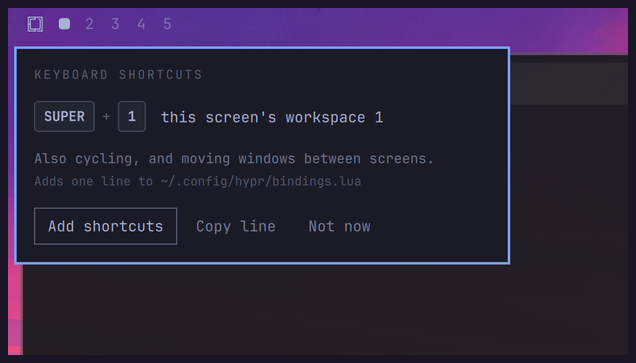
Add shortcuts appends one line to ~/.config/hypr/bindings.lua, Copy
line hands it to you to place yourself, Not now declines and is not asked
again. Nothing is written until you choose, the write only appends, and your
previous file is kept as bindings.lua.bak.
By hand, that line is:
pcall(dofile, os.getenv("HOME") .. "/.config/omarchy/plugins/mmsbrggr.per-monitor-workspaces/hypr/init.lua")
Omarchy's plugin installer never runs code from a plugin — it only clones files — so a plugin cannot add keybindings to your config on its own.
Keys
On one screen
| Key | Does |
|---|---|
SUPER + 1..5 |
Focus this screen's workspace 1..5 |
SUPER + SHIFT + 1..5 |
Move the window there and follow it |
SUPER + SHIFT + ALT + 1..5 |
Move the window there, stay where you are |
SUPER + TAB / SUPER + SHIFT + TAB |
Next / previous workspace on this screen |
SUPER + scroll |
Same, with the wheel |
SUPER + CTRL + TAB |
Back to this screen's previous workspace |
SUPER + L |
Toggle this workspace between dwindle and scrolling |
Cycling walks the slots in order whether or not you have used one yet — Hyprland deletes a workspace as soon as its last window closes, so a cycle over only the live ones would usually be a cycle of one.
Across screens
| Key | Does |
|---|---|
SUPER + CTRL + ALT + ←↑↓→ |
Focus the screen in that direction |
SUPER + CTRL + SHIFT + ←↑↓→ |
Send the window there and follow |
SUPER + SHIFT + ALT + ←↑↓→ |
Send everything on this workspace there |
SUPER + CTRL + ALT + SHIFT + ←↑↓→ |
Swap this screen's windows with that screen's |
Directions are physical, so there are no monitor numbers to memorise. These move windows, not workspaces — every workspace stays on the screen it belongs to, and focus follows what you sent. Swapping keeps both screens' tiling intact.
With the mouse
On the dots: left-click to focus, right-click to send the focused window there, scroll to cycle. Each bar acts on its own screen.
What this changes in Omarchy's defaults
SUPER + 6..0 are removed — with per-monitor slots they could only pull you to
another screen. SUPER + CTRL + TAB and SUPER + SHIFT + ALT + ←↑↓→ are
rebound for the same reason.
SUPER + L is rebound because Omarchy's version files your choice under the
workspace's number. Here that number is an implementation detail — which block
a screen was handed, in the order screens were first seen — so a layout stored
against it says nothing about whose slot 2 you set, and a slot that never got a
number of its own is invisible to it: slot 100 and beyond on a screen, or one
whose number something else already holds. Ours addresses the workspace by name,
the way the rest of this plugin does, and remembers your choice in
~/.local/state/omarchy/, since a rule set at runtime is gone the next time
Hyprland reads its config.
Everything else is untouched.
Configuration
Five slots per screen by default:
omarchy bar set mmsbrggr.per-monitor-workspaces count 8 --json
That is an ordinary widget setting on your shell.json entry, which is where
Omarchy keeps plugin settings — you can edit it there directly too. The widget
projects it into ~/.local/state/omarchy/ for the shortcuts to read, and hands
the running Hyprland the same number, so the keys change along with the dots
rather than at the next reload.
Your own keybindings
The shortcuts are one opinionated arrangement; the actions underneath are the
part that matters. Load hypr/actions.lua instead of hypr/init.lua and bind
whatever you like:
local pmw = dofile(os.getenv("HOME") ..
  "/.config/omarchy/plugins/mmsbrggr.per-monitor-workspaces/hypr/actions.lua")

o.bind("SUPER + code:10", "Workspace 1",  pmw.focus_slot(1))
o.bind("SUPER + TAB",     "Next",         pmw.cycle(1))
o.bind("SUPER + ALT + L", "Screen right", pmw.focus_monitor("r"))
focus_slot, move_to_slot, move_to_slot_silently, cycle, focus_monitor,
send_window, send_workspace, swap_workspaces, toggle_layout, plus
count. Each takes its argument and returns a function to bind.
Taking this path means Omarchy's SUPER + L stays as it is, which on a named
workspace does nothing — bind toggle_layout if you want that key back:
hl.unbind("SUPER + L")
o.bind("SUPER + L", "Toggle workspace layout", pmw.toggle_layout())
count changes while Hyprland runs, whenever you change the setting. Keys that
depend on how many slots there are go inside on_count, which runs immediately
and again on every change. A shrink arrives the same way as a growth, so drop
the keys before binding the current set — unbinding a key that is not bound
costs nothing:
pmw.on_count(function(count)
  for slot = 1, 10 do hl.unbind("SUPER + code:" .. (slot + 9)) end

  for slot = 1, math.min(count, 10) do
    o.bind("SUPER + code:" .. (slot + 9), "Workspace " .. slot, pmw.focus_slot(slot))
  end
end)
Unplugging a screen
Hyprland parks a disconnected screen's workspaces on a surviving one. The bar
shows them after your numbered slots, as a display glyph rather than a number —
the number they carry belongs to the screen they came from, and printing it
would put a second "4" after this screen's "5". Hover to see where it came from,
and SUPER + TAB reaches them, so nothing is stranded.

Plug the screen back in and its workspaces come home with their windows. Left to itself Hyprland hands a returning screen a fresh global workspace, and a dock can put the same panel on a different connector than last time, which leaves two screens showing each other's workspaces. The widget sorts both out.
Screens are identified by description rather than connector, because DP-2 and
DP-3 can swap on replug. Two identical panels that report no serial describe
themselves alike; those get the connector appended to tell them apart.
Updating
omarchy plugin update mmsbrggr.per-monitor-workspaces
The new version takes over the next time the shell restarts, which
omarchy update does at the end; run omarchy-restart-shell to have it now.
The widget then has Hyprland re-read its config, the way a theme change does,
so the keys change along with the dots and there is nothing else to reload.
Workspaces that are already open when you update keep their old numbers, since Hyprland will not renumber a workspace in place. Until they are closed, switching to or from them slides the way it did before, and touchpad swipes follow the old order. Log out and back in to have every workspace on the new numbers at once.
Uninstall
omarchy plugin remove mmsbrggr.per-monitor-workspaces
Omarchy's built-in workspace widget goes back where this one was. Then remove the
pcall(dofile, ...) line from ~/.config/hypr/bindings.lua.
License
MIT. The bar widget is derived from Omarchy's built-in workspace widget.