
Omabench
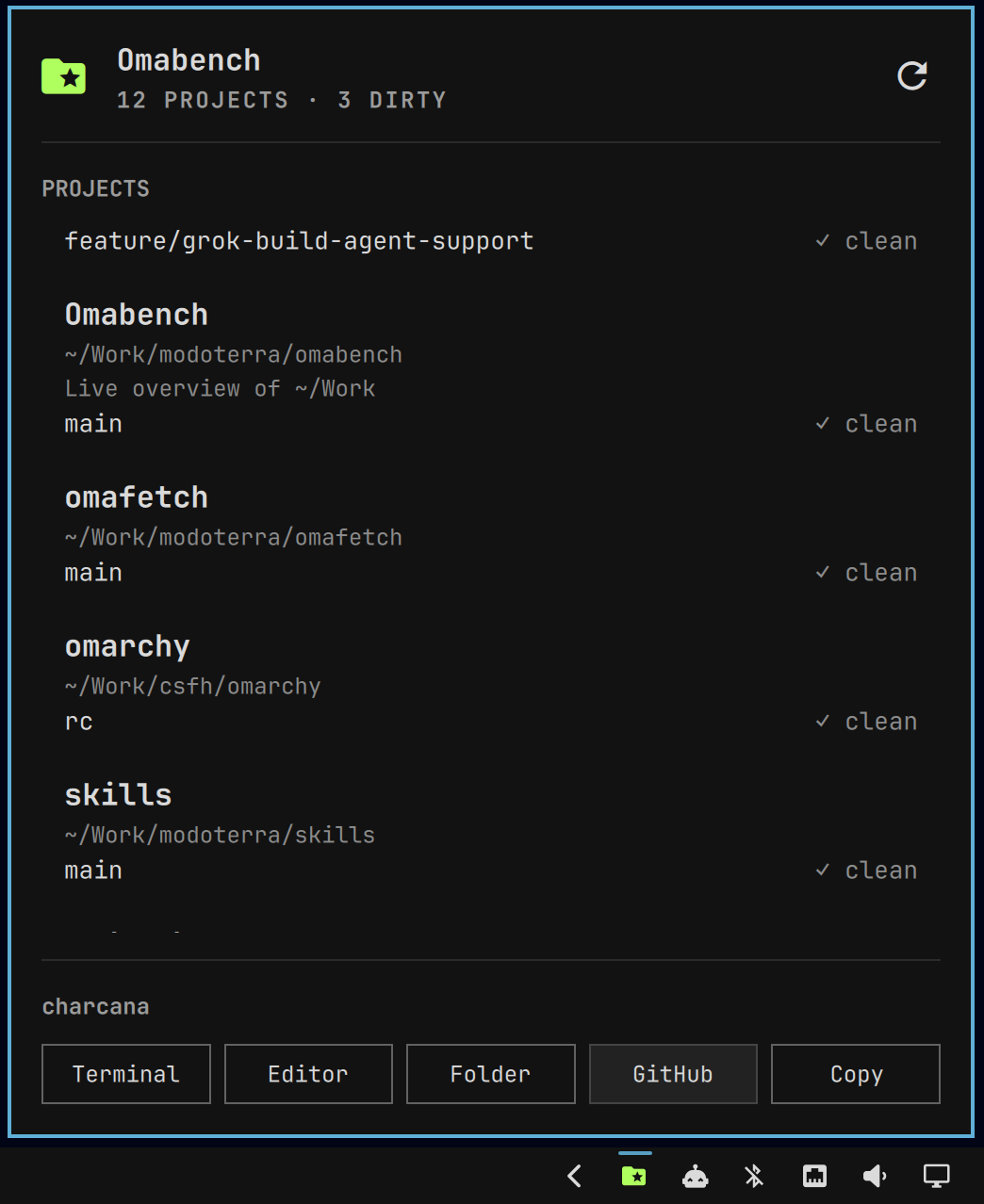
Omabench turns ~/Work into a desktop workspace. It walks that folder for git repositories and keeps a live row for each one: name, path, branch, dirty or clean, ahead and behind, and listening ports.
Click a project to open a terminal, the editor, the folder, or GitHub, or to copy its path.
Install
omarchy plugin add https://github.com/modoterra/omabench.git --enable
The widget lands on the right of the bar. Move it with:
omarchy bar move modoterra.omabench --section right
Usage
Left click the mark to open the project list. Right click refreshes immediately. The mark shifts from green to red as more projects are dirty.
Inside the panel:
- click a project to select it (hover does not change the selection)
j/kor arrows: move between projectsh/l: move onto the action pillsenter/space: open a terminal, or run the highlighted action- double click a row: open a terminal in that project
t/1terminal ·e/2editor ·f/3folder ·g/4GitHub ·c/5copy path- project commands sit in a separate row; the first click shows the real command and asks before running
rrefreshescclose
Configure
The default work folder is ~/Work. Point it somewhere else in ~/.config/omarchy/shell.json on the modoterra.omabench bar entry:
{
  "id": "modoterra.omabench",
  "workRoot": "~/Work",
  "refreshIntervalSec": 8,
  "maxDepth": 6
}
Refresh is every 8 seconds while the panel is closed, and every 4 seconds while it is open.
Omafile
Drop an Omafile in the project root to name the card, add a summary, set the site URL, and attach commands. The file is TOML. Projects without one keep the folder name and built-in actions.
name = "Omabench"
summary = "Live overview of ~/Work"
url = "https://github.com/modoterra/omabench"

[[actions]]
label = "Dev"
run = ["bun", "run", "dev"]
command = "bun run dev" is also accepted when it parses to the same kind of argument list.
name replaces the folder name. summary sits under the path. url feeds the GitHub or site button. Each allowed actions entry becomes a button in a Project commands row, not next to Terminal and Editor.
An Omafile command is the same trust decision as running that project's Makefile or package.json script. Omabench does not run free-form shell. It only accepts a fixed set of task runners (just, make, npm / pnpm / yarn / bun run, cargo, go, docker compose, python3 -m, and a few others) with plain arguments. Labels cannot reuse built-in names such as Terminal or Editor.
The first time you click a project command, the panel shows the exact arguments and the project path. Trust records that command for that project and then runs it in a new terminal. Later clicks of the same command skip the prompt. If the command in the Omafile changes, Omabench asks again.
Trusted commands are stored in ~/.local/state/omabench/trust.json (or $XDG_STATE_HOME/omabench/trust.json). The lock button left of Refresh opens that file in the editor. Delete the file to forget every remembered command.
A broken or rejected Omafile is shown on that row. Omabench still lists the project.
Remove
omarchy plugin remove modoterra.omabench