
Omahub
← All plugins
D

Cava

by Dave Brown

Audio visualizer bars for the Omarchy status bar, painted in the bar text color.

Security review

No obvious issues detected

Deterministic scan — not a security guarantee

None
Risk level
None
Analyzed commit
6611c90
Scanned
1 month ago

No potentially dangerous behavior detected in the analyzed commit.

Automated analysis only — not a security guarantee.

AI advisory review

No obvious issues detected

Language-model assessment · ~deepseek/deepseek-v4-flash-latest — advisory only

Low
AI risk level
Low
Recommendation
install
Model
~deepseek/deepseek-v4-flash-latest
Analyzed commit
6611c90
Reviewed
1 month ago

The plugin runs cava and python3 to generate an audio visualizer, but all commands are safe and use validated inputs. No malicious behavior, network access, or system modifications were found.

  • Executes external commands (cava, python3) but with fixed arguments and sanitized settings.
  • Writes a config file to the user's runtime directory, which is standard and harmless.
How this check works

This review combines the deterministic scan (the rule-based results above) with an independent look at the plugin's code by a language model. The model reads a trimmed sample of the repository's files, the manifest, and the README, then gives a plain-language risk level and a recommendation: install (no notable danger), review (look closer first), or avoid (clearly dangerous).

It runs on the same analyzed commit as the deterministic scan and is strictly advisory — it is not a security guarantee and never blocks a plugin by itself. A human moderator still reviews plugins before they are listed.

AI advisory only — automated analysis, not a security guarantee.

Install
$ omarchy plugin add https://github.com/twodogsdave/omarchy-cava-widget --enable
Widgets #bar #quickshell #media

Cava

Audio visualizer bars for the Omarchy status bar.

Bars use the bar text color from the active theme ([bar] text in shell.toml) and follow theme changes. When nothing is playing they blend into the bar background. Click the widget to change the number of bars, bar width, and gap. Created with Grok.
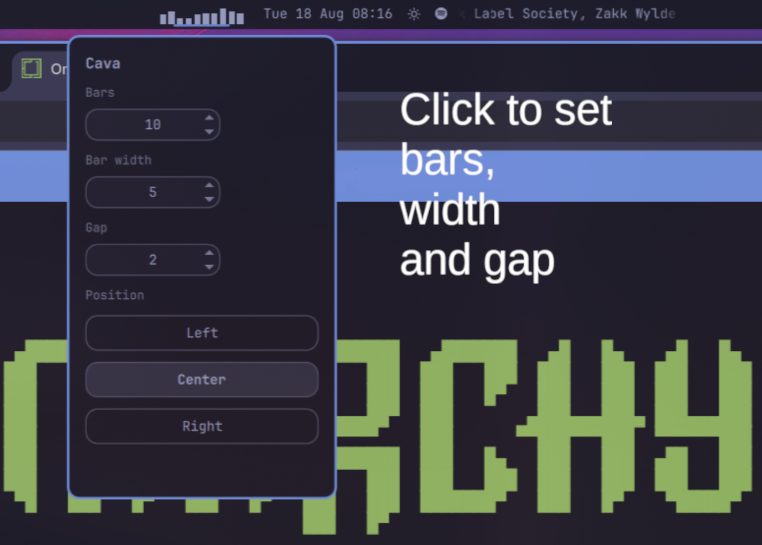
preview

Requirements

omarchy pkg add cava

Install

This repository is a marketplace plugin. Add it from git without --yes so Omarchy can ask whether to place it on the left, center, or right of the bar:

omarchy plugin add https://github.com/twodogsdave/omarchy-cava-widget.git --enable

From a local checkout:

omarchy plugin add /path/to/cava --enable

The installer prompts:

Place my.cava in which bar section?
> left
  center
  right

You can move it later:

omarchy bar move my.cava --section center
omarchy bar move my.cava --after omarchy.workspaces

Update

omarchy plugin update my.cava --yes

Settings

Click the visualizer (or its empty slot when nothing is playing) to open the menu. From there you can change bars, width, gap, and move Cava to the left, center, or right of the bar. The same values can be set from the command line:

Key Default Meaning
bars 10 Number of frequency bars
barWidth 3 Thickness of each bar, in pixels
gap 2 Space between bars, in pixels
framerate 30 Cava frames per second
omarchy bar set my.cava bars 18
omarchy bar set my.cava barWidth 3
omarchy bar set my.cava gap 2

Cava is configured for a 50 Hz–10 kHz range so bass-to-treble scales across the chosen number of bars. A single cava process is shared across monitors. It uses a private config under $XDG_RUNTIME_DIR/my-cava/ and does not touch ~/.config/cava.

Remove

omarchy plugin remove my.cava

License

MIT