
Omarchy Voyager Layouts
An unofficial Omarchy shell plugin and CLI for switching among saved Oryx layout profiles on a ZSA Voyager keyboard by flashing firmware (via Zapp).
Use the top-bar keyboard icon (dropdown), the Omarchy menu, optional Hyprland hotkeys, or the voyager-layout command.
Not the same as Omarchy’s built-in
omarchy.keyboard-layoutwidget, which only cycles OS / xkb input languages (US, SE, …). This plugin flashes keyboard firmware layouts.
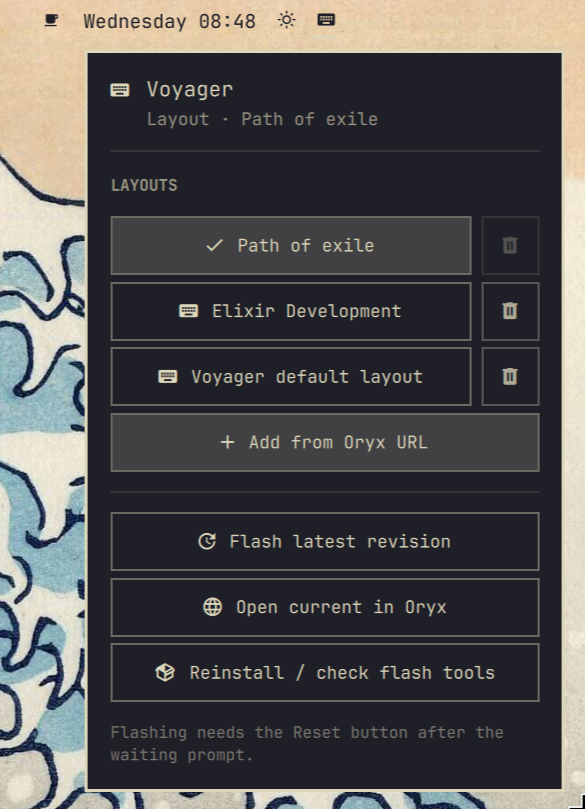
Full walkthrough: docs/guide/GUIDE.md
Developer testing: docs/guide/TESTING.md
Disclaimer — please read
No affiliation
This project is an independent, unofficial community work.
It is not created, endorsed, sponsored, affiliated with, or supported by:
- ZSA Technology Labs (Voyager, Oryx, Keymapp, Zapp, or any other ZSA product or trademark)
- Basecamp / the Omarchy project maintainers
- xAI or any other company mentioned only for interoperability
“Voyager”, “Oryx”, “ZSA”, “Keymapp”, “Zapp”, and related names are property of their respective owners and are used here only to describe compatibility.
Firmware flashing risk
Flashing firmware can make your keyboard temporarily or permanently unusable, erase or corrupt layouts, require recovery procedures, or cause other hardware or data issues. USB flashing tools interact with device bootloaders; mistakes, bad cables, power loss, incompatible firmware, interrupted flashes, or software bugs may result in a board that will not enumerate until recovered (or, in rare cases, not at all). Use this software at your own risk.
The “AS IS” warranty disclaimer and limitation of liability are in the MIT License.
Requirements
| Requirement | Notes |
|---|---|
| Omarchy (Arch-based) | Shell plugins via omarchy plugin add |
| ZSA Voyager | USB; detected as 3297:1977 (normal) / 3297:0791 (bootloader) |
| One or more compiled Oryx layouts | You need shareable layout URLs or .bin files |
Zapp (zsa-zapp on the AUR) |
Required to flash; not installed automatically by the plugin adder |
Optional: dfu-util |
Fallback flasher if Zapp hits USB errors |
AUR helpers: Omarchy’s omarchy pkg aur add, or yay.
Install
1. Add the plugin
omarchy plugin add https://github.com/fram74/omarchy-voyager.git --enable
Place the widget on the bar if prompted (default: right).
Omarchy’s plugin installer only clones and enables the plugin. It does not install system packages (no sudo / no AUR hooks). That is an Omarchy design constraint, not an oversight in this repo.
2. Install flash tools (required once)
Do this from the top-bar dropdown, not a command:
- Plug in the Voyager so the keyboard icon appears.
- Left-click the icon.
- Tap Install flash tools.
Omarchy cannot install packages when you add a plugin, so the dropdown shows this button until Zapp is present. Layout rows stay dimmed until then. A floating terminal runs the AUR install; a password prompt is normal.
Optional CLI (only if you already use the terminal): voyager-layout install-deps --with-dfu — or the copy under ~/.config/omarchy/plugins/net.moggia.voyager-layouts/bin/ if it is not on your PATH.
3. Add your layouts
From the bar (recommended): plug in the Voyager → click the keyboard icon → Add from Oryx URL (at the end of the layout list). A real text field opens in the panel — paste with Ctrl+V (or click Clipboard after copying the link). Example:
https://configure.zsa.io/voyager/layouts/xPOwx/latest
Adding pins the compiled firmware: the plugin resolves /latest to a specific Oryx revision, downloads that image, and stores its SHA-256 in ~/.config/omarchy-voyager/layouts.toml. Flash later uses only that digest — a different file is refused. Config is created if missing. In the panel, use the trash control on a row to remove a layout.
From Super+Space → Voyager → Add from Oryx URL, the same bar panel opens so you can paste with Ctrl+V.
Or from a terminal:
voyager-layout add 'https://configure.zsa.io/voyager/layouts/xPOwx/latest'
# or, after copying the URL:
voyager-layout add --clipboard
Or edit the TOML by hand (custom names, local .bin files):
mkdir -p ~/.config/omarchy-voyager
cp ~/.config/omarchy/plugins/net.moggia.voyager-layouts/config/layouts.toml.example \
   ~/.config/omarchy-voyager/layouts.toml
[settings]
default = "daily"
notify = true

[[layouts]]
id = "daily"
name = "Daily"
oryx = "https://configure.zsa.io/voyager/layouts/YOUR_ID/latest"
Then pin (downloads the compiled image and records revision + sha256):
voyager-layout pin daily
# or, if you already know the digest:
voyager-layout pin daily --sha256 0123456789abcdef0123456789abcdef0123456789abcdef0123456789abcdef
Local firmware file instead of (or as well as) an Oryx URL. Pin hashes the file:
file = "/home/YOU/.local/share/voyager/gaming.bin"
4. Optional: CLI on your PATH
ln -sfn ~/.config/omarchy/plugins/net.moggia.voyager-layouts/bin/voyager-layout ~/.local/bin/voyager-layout
ln -sfn ~/.config/omarchy/plugins/net.moggia.voyager-layouts/bin/voyager-layout ~/.local/bin/voyager-layouts
The CLI name is voyager-layout. voyager-layouts is the same binary (the plugin id is plural).
5. Optional: Omarchy menu entries
Merge the keys from
~/.config/omarchy/plugins/net.moggia.voyager-layouts/menu/voyager-menu.jsonc
into ~/.config/omarchy/extensions/omarchy-menu.jsonc (or run ./scripts/install.sh from a git checkout, which can help with a fresh setup).
6. Optional: Hyprland hotkeys
See hypr/bindings.lua.snippet. Append the bindings you want into ~/.config/hypr/bindings.lua. Suggested defaults:
| Shortcut | Action |
|---|---|
Super+Shift+V |
Layout picker, then flash |
Super+Shift+U |
Re-pin the current layout to Oryx latest, verify SHA-256, then flash |
Hotkeys stage a flash; you still must press Reset when prompted.
Using the bar
- Plug in the Voyager. The keyboard icon appears on the top bar (hidden when unplugged).
- Left-click → dropdown under the icon (same pattern as Bluetooth / Power).
- Choose a layout → a floating terminal runs the flash.
- When you see Waiting for keyboard in bootloader mode…, press the Voyager Reset button once (top edge near the
3key on the default layout, or a Reset key you mapped in Oryx). - Do not press Reset during download, and do not start a flash while the board is already in bootloader mode—unplug/replug first so keys work normally.
Other panel actions:
- Re-pin & flash latest — re-pin the current layout to Oryx’s latest compiled revision, store the new SHA-256, then flash that verified file
- Open current in Oryx — opens the layout URL in your browser
- Install flash tools / Reinstall / check flash tools — user-initiated AUR install
Flashing procedure (important)
Wrong timing is the most common cause of USB transfer error: hardware fault or protocol violation.
- Voyager in normal mode (keys type). If unsure: unplug USB → wait 5s → plug directly into the laptop (no hub/dock), both halves joined with the TRRS cable.
- Start flash (bar or CLI).
- Wait for:
Waiting for keyboard in bootloader mode... - Press Reset once.
- Wait until the process finishes before unplugging.
Keep at least one known-good pinned layout in your config so you can recover if a flash goes wrong.
Firmware pinning
Oryx /latest is mutable: a later compile can change the bytes behind the same URL. This plugin does not flash /latest. add and pin snapshot a specific revision and the SHA-256 of that file into layouts.toml. flash then:
- Downloads that pinned revision (or uses a local
file =) - Refuses to continue unless the SHA-256 matches the stored digest
- Passes only that verified local file to Zapp /
dfu-util
flash --latest (the bar’s Re-pin & flash latest button) is the explicit way to take a new snapshot, record the new digest, and flash it. Pass --sha256 to add / pin if you already know the digest and want the download rejected on mismatch.
If you already have a layouts.toml from plugin 0.1.x, run voyager-layout pin --all once before flashing.
CLI reference
voyager-layout status              # USB mode, current layout, whether Zapp is installed
voyager-layout list                # Configured layouts (unpinned ones are marked)
voyager-layout add <oryx-url>      # Add + pin firmware (name from Oryx title)
voyager-layout add <oryx-url> --sha256 <hex>  # Add only if the download matches
voyager-layout pin <id>            # Snapshot latest compiled revision + sha256
voyager-layout pin --all           # Pin every layout in the config
voyager-layout remove <id>         # Remove a layout from the config
voyager-layout sync-names          # Refresh names from Oryx titles
voyager-layout flash <id>          # Flash the pinned, verified image (then Reset)
voyager-layout flash --latest      # Re-pin current layout to Oryx latest, then flash
voyager-layout flash <id> --method dfu-util   # Fallback flasher
voyager-layout open [id]           # Open layout in Oryx
voyager-layout pick                # Omarchy menu picker, then flash
voyager-layout install-deps        # Install Zapp (AUR)
voyager-layout install-deps --with-dfu -y
Config path: ~/.config/omarchy-voyager/layouts.toml
State (last flashed id): ~/.local/state/omarchy-voyager/current
Troubleshooting
| Symptom | What to try |
|---|---|
| No bar icon | Plug in the Voyager; wait a few seconds; omarchy restart shell |
| Click does nothing / no dropdown | omarchy restart shell (rescan alone does not reload bar QML) |
| “zapp not found” | Bar icon → Install flash tools (CLI: voyager-layout install-deps) |
hardware fault or protocol violation |
Unplug/replug to normal mode; direct USB port; Reset only after the waiting line; or --method dfu-util |
| Flash starts with no waiting line | Board was already in bootloader — unplug/replug, then flash again |
| Layout URL errors | Compile the layout in Oryx first, then voyager-layout add or pin |
not pinned (missing sha256) |
Layout was added by hand without a digest — run voyager-layout pin <id> |
firmware digest mismatch |
File or Oryx image changed since it was pinned; re-pin only if you intended a new snapshot |
| Want to uninstall | See Remove |
Official ZSA flashing docs (for comparison / recovery): zsa.io/flash. This project does not replace Keymapp or ZSA support.
Remove
Disable and uninstall the shell plugin:
omarchy plugin disable net.moggia.voyager-layouts
omarchy plugin remove net.moggia.voyager-layouts
That removes the checkout under ~/.config/omarchy/plugins/net.moggia.voyager-layouts/ and takes the widget off the bar.
Optional cleanup (not deleted by plugin remove):
# Layout list and last-flashed state
rm -rf ~/.config/omarchy-voyager ~/.local/state/omarchy-voyager

# CLI symlink, if you created one
rm -f ~/.local/bin/voyager-layout ~/.local/bin/voyager-layouts
Flash tools installed via Install flash tools / voyager-layout install-deps (zsa-zapp, optional dfu-util) stay on the system until you uninstall them with your package manager (for example yay -Rns zsa-zapp).
If you merged Voyager entries into ~/.config/omarchy/extensions/omarchy-menu.jsonc or added hotkeys from hypr/bindings.lua.snippet, remove those by hand.
Developer / local checkout
Work from an existing checkout of this repository. Do not fetch remote HEAD and run the installer in one step — ./scripts/install.sh only links this checkout.
./scripts/install.sh
voyager-layout install-deps --with-dfu
omarchy plugin validate .
How to validate, hot-reload, run CLI tests, and click through the live shell: docs/guide/TESTING.md.
Repo layout:
manifest.json              # Required at git root for omarchy plugin add
BarWidget.qml / Panel.qml
bin/voyager-layout
config/layouts.toml.example
docs/guide/                # User GUIDE.md + TESTING.md
menu/  hypr/  scripts/  tests/
License
Distributed under the MIT License.
Trademarks and products of ZSA Technology Labs, Basecamp, and others remain their property. This software is unofficial and unsupported by those parties. Use at your own risk.