
EMEET PIXY for Omarchy
An EMEET PIXY webcam control panel for the Omarchy 4 bar.
Close the lens, switch AI tracking on or off, aim the camera, and recall framing presets — from a bar widget that looks and behaves like the first-party ones.

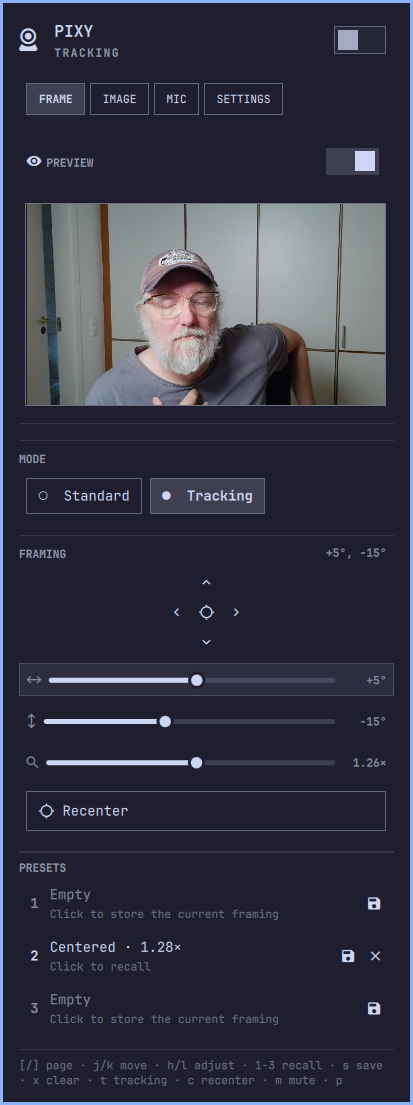
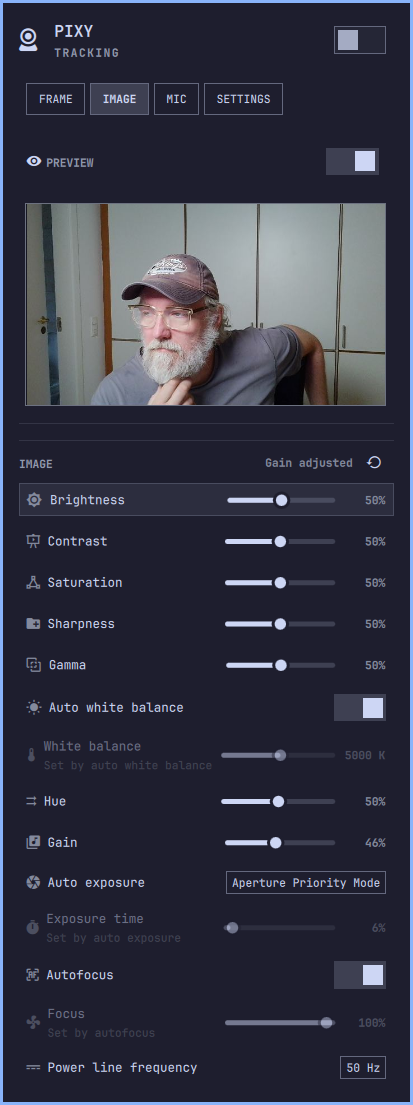
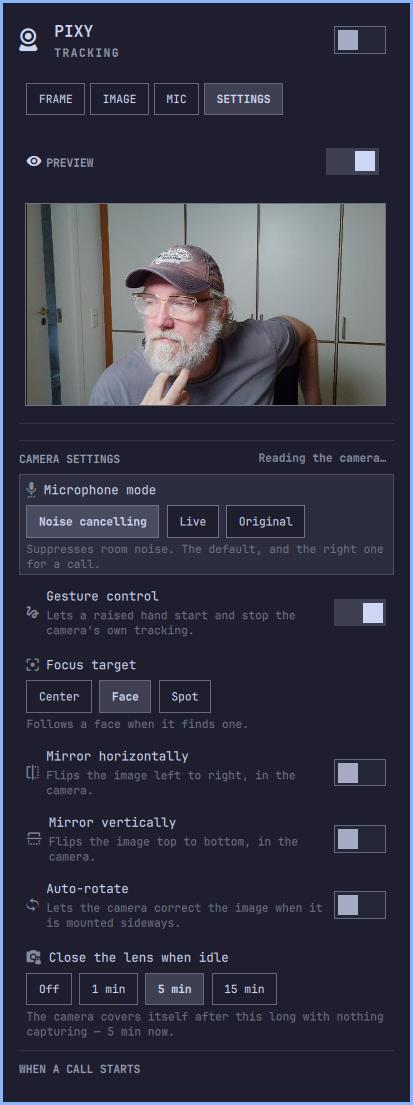
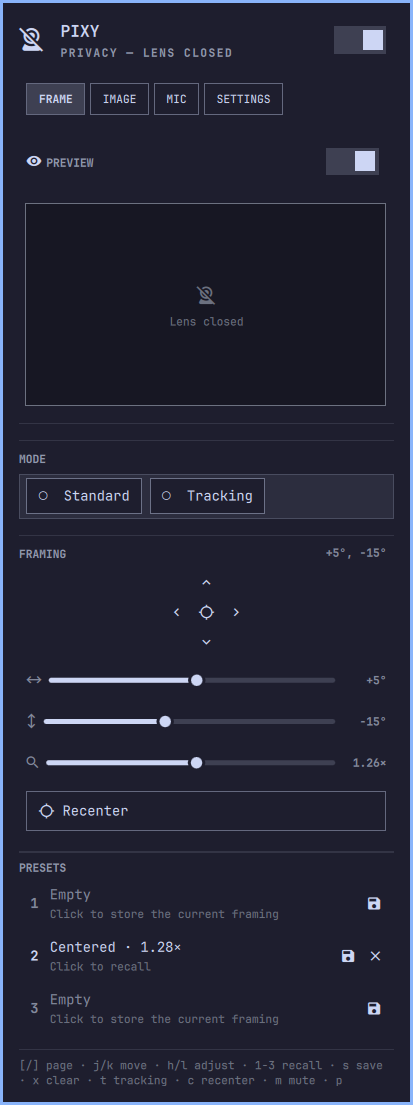
| FRAME | IMAGE | SETTINGS | Lens closed |
|---|---|---|---|
 |
 |
 |
 |
What it does
- Privacy at a glance. The bar glyph is a crossed-out webcam in the theme's alert color whenever the lens is closed, and right-click toggles it without opening anything — the one camera state with real consequences if you misread it. It is the panel's hero switch rather than a third mode chip for the same reason.
- AI tracking. Standard or Tracking, as a chip pair.
- Pan, tilt, and zoom. A jog pad for aiming by feel, plus sliders showing the actual angle, read back from the hardware — so the panel is right even after another app moved the camera. Three presets save and recall a framing.
- A live preview, pinned above everything. Full panel width, started when you open the panel and stopped when you close it or the lens, or for good from the switch pinned just above it. It sits outside the scrolling area, so no page can scroll it away — the picture is the point of half these settings, and it stays visible while you change them.
- Microphone, too. Mute, volume, and a live level meter for the camera's own mic — on a call it is usually the mic in use, so muting it belongs next to closing the lens rather than two panels away.
- Image controls that work during a call. Every control the driver reports — brightness, contrast, saturation, sharpness, gamma, white balance, hue, gain, exposure, focus and the rest — on the IMAGE tab, with named profiles recalling all of them at once. They go over UVC control ioctls rather than the capture stream, so they work while a meeting client holds the camera.
- The camera's own settings, on the SETTINGS tab: microphone noise cancelling, gesture control, mirror and flip, what the autofocus aims at, and the idle shutter timeout. All of them live in the camera's firmware, so they persist across reboots and apply to every app — not just this one.
- Snapshots. One button, or one keybinding, for a full-resolution still to
~/Pictures. - Automation for calls. Optionally open the lens, switch on tracking and unmute when any app starts using the camera, and put each one back afterwards — only the ones it actually changed.
- Honest about what it cannot know. The camera can neither report nor change Standard vs Tracking while nothing is using it, so the chips dim and say why instead of taking a press that goes nowhere. Everywhere else, a setting the camera would not report reads "not reported" rather than "off".
- Keyboard driven, and themed — colors, font, rounding and borders all come from the active
Omarchy theme, so
omarchy theme setrestyles it live.
Install
omarchy plugin add https://github.com/nille/omarchy-emeet-pixy --enable
--enable puts it straight into the bar's right section. Without it, add it later via Omarchy menu
→ Bar → Widgets, or with:
omarchy plugin enable nille.emeet-pixy --section right
Then install the udev rule, which is what makes the mode controls work as a normal user:
sudo tee /etc/udev/rules.d/70-emeet-pixy.rules >/dev/null <<'EOF'
KERNEL=="hidraw*", ATTRS{idVendor}=="328f", ATTRS{idProduct}=="00c0", MODE="0660", TAG+="uaccess"
EOF
sudo udevadm control --reload && sudo udevadm trigger
Replug the camera afterwards. Without the rule, pan/tilt/zoom still work — they go over UVC, which needs no special access — but privacy and tracking do not, and the panel says why.
No build step, no binary, no Python packages: the helper is a single standard-library script, which is
what lets omarchy plugin add — which deliberately never runs plugin code or install hooks — set this
up end to end. The udev rule is the one step needing root.
Uninstall
omarchy plugin remove nille.emeet-pixy
sudo rm -f /etc/udev/rules.d/70-emeet-pixy.rules
No daemon, no unit file. Two things live outside the plugin directory: its entry in
~/.config/omarchy/shell.json, removed by plugin remove, and your presets in
~/.local/state/omarchy-emeet-pixy/presets.json, to delete by hand. plugin remove also keeps a
timestamped copy of the plugin directory beside it as .nille.emeet-pixy.bak.<stamp>, which is
Omarchy's doing rather than this plugin's — delete it once you are sure. Privacy mode lives in the
camera, not here — uninstall with the lens closed and it stays closed.
Requirements
- Omarchy 4 (the Quickshell bar)
- Python 3.9+ (already present on Omarchy)
- An EMEET PIXY (USB
328f:00c0) - The udev rule above, for the privacy and tracking controls
qt6-multimedia-ffmpeg, for the panel's video preview (already present on Omarchy). Everything else works without it; only the thumbnail goes missing.
No v4l-utils, no libusb, nothing to compile — V4L2 controls are driven through raw ioctls from
the standard library.
Settings
| Key | Default | What it does |
|---|---|---|
refreshIntervalSec |
10 |
How often to re-read camera state while the panel is open. |
ptzStep |
5 |
How far one jog-pad press or slider step moves the camera, in degrees. |
hideWhenAbsent |
false |
Remove the bar icon when no camera is found, instead of showing a dimmed one. |
preview |
true |
Show a live video preview in the panel. The switch above the preview writes this same setting. See The preview and other apps. |
callOpenLens |
false |
Open the lens when another app starts using the camera, and close it again after. |
callTracking |
false |
Switch to AI tracking for the duration of a call, then restore the previous mode. |
callUnmute |
false |
Unmute the camera's microphone when a call starts — only if it was muted. |
The three call* settings have switches on the SETTINGS tab too; see
When a call starts.
Set them in the settings dialog, in ~/.config/omarchy/shell.json, or from the CLI:
omarchy bar set nille.emeet-pixy refreshIntervalSec 15 --json
omarchy bar set nille.emeet-pixy ptzStep 10 --json
omarchy bar set nille.emeet-pixy hideWhenAbsent true --json
omarchy bar set nille.emeet-pixy preview false --json
omarchy bar set nille.emeet-pixy callOpenLens true --json
--json is what distinguishes the number 15 and the boolean true from the strings "15" and
"true".
Using it
The four tabs
The panel is a privacy switch, a tab bar, a preview switch and the preview itself — all pinned — over one page at a time:
| Tab | What is on it |
|---|---|
| FRAME | Standard/Tracking, the jog pad, pan, tilt, zoom, recenter, and the three framing presets |
| IMAGE | Every image control the driver reports, plus named picture profiles |
| MIC | Mute, volume, and the level meter for the camera's own microphone |
| SETTINGS | The camera's own firmware settings, the focus pad, snapshots, and call automation |
A tab whose hardware is missing is not drawn: no microphone on the PipeWire graph, no MIC tab. FRAME and MIC fit the panel outright; IMAGE and SETTINGS are longer than any sensible panel height and still scroll — but the preview is pinned outside the scrolling area, so scrolling them no longer takes the picture with it. That is the reason for the split.
Mouse
| Action | Result |
|---|---|
| Left / right / middle-click the icon | Open the panel, toggle privacy, recenter |
| Scroll the icon | Zoom |
| Privacy switch | Close or open the lens |
| Click a tab | Switch pages |
| Switch above the preview | Turn the preview off or on |
| The preview | Recenter |
| Standard / Tracking chips | Set the control mode (dimmed unless the camera is in use) |
| Jog pad arrows, or its center | Pan and tilt, or recenter |
| Save on a preset row | Store the current framing |
Click a filled preset row, or its × |
Recall it, or clear it |
| Drag an image slider | Any control on the IMAGE tab |
| Auto white balance switch | Hand the temperature back to the camera |
on the IMAGE header |
Reset every image control to the driver's default |
Click a profile row, or its × |
Apply that picture, or delete it |
| Mic button, or right-click the mic slider | Mute or unmute |
| Focus pad, on SETTINGS | Aim the autofocus spot |
| Snapshot button | Save a full-resolution still to ~/Pictures |
| Scroll anywhere in the panel | Scroll the page |
| Quit (bottom right of the panel) | Disable the widget, or exit the harness |
Scrolling always scrolls: the wheel deliberately does not adjust the slider under the cursor, because a gesture aimed at the presets used to land on the pan slider and swing the camera.
Keyboard
| Key | Result |
|---|---|
[ / ] |
Previous / next tab |
f / i / d |
Jump to FRAME, IMAGE, or SETTINGS |
j / k |
Move the cursor, within the page |
h / l |
Adjust the row under the cursor |
space / Enter |
Activate the row under the cursor |
p |
Privacy on/off |
t |
Tracking ⇄ Standard (only while the camera is in use) |
m |
Mute the microphone |
v |
Turn the preview off/on |
c |
Recenter |
s |
Store the framing preset under the cursor, or start naming a picture profile |
x |
Clear the preset, profile, or camera slot under the cursor |
1 / 2 / 3 |
Recall that framing preset (FRAME only) |
r |
Re-read the camera |
Esc |
Close |
[ and ] rather than Tab, which every panel in the Omarchy bar uses to move between bar panels
and which this one leaves alone; and rather than h/l, which sweeps whatever the cursor is on and is
most of what this panel is for. The hint line at the bottom of each page names the keys that page has.
The jog pad is deliberately not a keyboard row: hjkl and the arrows are the same binding in every
Omarchy panel, so a 2D pad has no keys of its own to claim. The pan and tilt sliders are the keyboard
path instead.
Esc closes from every tab. The pages are siblings rather than levels, so there is nothing to back
out of first — which is what the two sub-pages this replaced each needed.
Two rows behave specially. On an image row h/l sweeps a slider, cycles a menu, or turns a switch
off and on — l on, h off. On the profile name row Enter both focuses the field (suggesting a name
if it is empty) and saves once there is one; while the field has focus it owns every key, and Esc
hands it back. 1–3 are inert off FRAME: profiles are named rather than numbered, and the three
numbered rows on SETTINGS are the camera's own slots.
Hyprland bindings
Everything is reachable over IPC, so the camera is controllable without opening the panel. Add to
~/.config/hypr/bindings.conf:
bind = SUPER SHIFT, C, exec, quickshell -p $OMARCHY_PATH/shell ipc call nille.emeet-pixy privacyToggle
bind = SUPER ALT,   C, exec, quickshell -p $OMARCHY_PATH/shell ipc call nille.emeet-pixy toggle
bind = SUPER SHIFT, M, exec, quickshell -p $OMARCHY_PATH/shell ipc call nille.emeet-pixy micToggle
Privacy and mute are the two worth binding: both are things you want mid-sentence, and privacy works whether or not anything is using the camera.
Available calls: open, close, show, hide, toggle, privacyToggle, privacyOn, privacyOff,
tracking, standard, pan <degrees>, tilt <degrees>, nudge <left|right|up|down>,
zoom <100-150>, home, preset <1-3>, micToggle, micOn, micOff, micVolume <0-100>,
previewToggle, previewOn, previewOff, image <key> <value>, imageReset, profile <name>,
audio <noise-cancel|live|original>, gesture <on|off>, mirror <on|off>, flip <on|off>,
autoRotate <on|off>, focus <center|face|area>, focusSpot <x> <y>, autoPrivacy <seconds>,
nativeClear <1-3>, snapshot, refresh, readDevice, state.
micOn and micOff are named for the microphone, not for muting: micOff mutes. tracking and
standard do nothing on an idle camera — the firmware discards the write, see
How it works — but work during a call; privacyOn/privacyOff have no such
restriction. The preview calls write the persistent setting, so previewOff on a key is a real off
switch rather than something that returns at the next shell restart.
image and profile are worth binding for the same reason privacy is: they work mid-call, with the
camera held by something else.
bind = SUPER SHIFT, B, exec, quickshell -p $OMARCHY_PATH/shell ipc call nille.emeet-pixy image brightness 200
bind = SUPER SHIFT, P, exec, quickshell -p $OMARCHY_PATH/shell ipc call nille.emeet-pixy profile "Evening call"
image takes the helper's own key names, so a keybinding and the CLI spell a control the same way, and
it works before the panel has ever been opened — the value goes straight to the helper, which knows the
real range and clamps.
The firmware calls are worth binding for a different reason: they persist in the camera, so a key that sets one sets it for good rather than for the session.
bind = SUPER SHIFT, S, exec, quickshell -p $OMARCHY_PATH/shell ipc call nille.emeet-pixy snapshot
bind = SUPER SHIFT, F, exec, quickshell -p $OMARCHY_PATH/shell ipc call nille.emeet-pixy mirror on
Every on/off call takes on or off; anything else means on, so gesture with no argument turns
gestures on. There is no toggle form: these are read on demand rather than polled, so a toggle would
flip whatever the last read said — which may be nothing at all. focus area re-aims at the last picked
point; focusSpot 0.5 0.5 centres it. snapshot returns immediately and the file path arrives in
state a moment later.
state adds micPresent, micMuted, micVolume, image, imageProfiles, preview and
previewActive to the camera fields. The last two differ: preview is the setting, previewActive is
whether an image is on screen, so a preview enabled but blocked by another app reads true and false.
privacy has three values, not two: true for a closed shutter, false for an open one, and null
when the control interface could not be read at all — a timeout, a missing udev rule, or no vendor HID
node. A script must test it with === true rather than for truthiness, because null is falsy and
would otherwise be read as a confirmed open lens, which is the one mistake worth avoiding here. mode
is null in the same conditions, and also on an idle camera that cannot distinguish Standard from
Tracking.
It also reports the firmware settings — audio, gesture, mirror, flip, autoRotate, focus,
focusSpot, autoPrivacy, nativePresets — plus snapshot, snapshotBusy, callActions and
callActive. Those are read on demand rather than polled, so they are null until something asks;
deviceRead says whether anyone has, and readDevice is how a script asks. Without that flag there is
no way to tell "gestures are off" from "nobody has looked yet".
Image controls
The IMAGE tab holds every control the driver reports: brightness, contrast, saturation, sharpness,
gamma and white balance behind its auto switch, then hue, gain, auto exposure and exposure time,
autofocus and focus, power line frequency, and backlight compensation. The header shows what has been
changed (Brightness, contrast, or Default) and a reset.
These work while another app has the camera — the whole reason they are here rather than left to
v4l2-ctl. Image settings travel over UVC control ioctls, unrelated to the capture stream, so unlike
the preview nothing about adjusting the picture takes anything away from a call, which is when you
discover a dark room needs fixing.
There is no fixed table of controls: the helper reads the real names, ranges, types and auto flags off the driver and the panel renders whatever comes back, so a firmware that drops a control or reports a different range needs no change here. Raw values are shown as a percentage of their range, except where the number means something on its own — white balance in kelvin.
All fifteen on one list, rather than the everyday seven with the rest behind a cog. That split existed only to keep the panel short, and the tab is short enough without it — a cog leading to "the other controls" was never something worth explaining.
Picture profiles are at the bottom of the tab — a name storing every control at once, put back with one click. They are deliberately separate from the three framing presets: recalling a framing preset must not quietly change how the picture looks.
Auto switches hold their manual partner
White balance, exposure and focus each have an auto, and while an auto is on the driver marks its manual partner inactive and refuses writes to it. The panel dims that row and names the switch holding it rather than offering a slider that silently does nothing. That interlock is why every adjustment goes out as one batched call: turning auto white balance off and setting a temperature are a single write, ordered so the switch releases before the value lands. Two separate calls race the driver and the second gets refused about half the time.
A held control also keeps whatever value you last set by hand — turn auto white balance off, set 3200 K, turn it back on, and the driver still reports 3200 against a default of 5000. So "changed from default" and "in effect" are different questions, and the header answers the second: held rows do not count towards the summary, which keeps Reset from offering to undo a setting that is doing nothing. Profiles do store held values, coming back inert until you turn that auto off. Reset returns everything to the driver's defaults with one exception — power line frequency, whose right value is a property of the room rather than the picture.
Camera settings
The SETTINGS tab — or d — holds the things that live in the camera's own firmware rather than in
the driver or in this widget:
| Setting | What it is |
|---|---|
| Microphone mode | Noise cancelling, Live, or Original — the DSP chain on the camera's own mic |
| Gesture control | Lets a raised hand start and stop the camera's tracking |
| Autofocus target | Center, Face, or Spot, with a pad for aiming the spot |
| Mirror / flip / auto-rotate | Orientation, applied in the camera |
| Auto privacy | Close the lens by itself after 1, 5, or 15 minutes idle |
| Camera preset slots | What the camera holds in its own three slots, and a way to clear one |
Because these are firmware settings they persist across reboots and apply to every app — the mirror you set here is mirrored in Zoom, and it stays that way with this widget uninstalled. That is what makes them worth carrying, and also why they are on a tab of their own instead of mixed in with the controls that only affect this session.
The page is read on demand rather than polled: reading it is ten HID queries sharing one descriptor and costs about 0.6 s, and nothing here changes unless you or EMEET Studio changes it. A setting the camera would not answer for reads "The camera did not report this" and its switch is dimmed, rather than being drawn as off — "off" and "could not read" are different facts, and drawing the second as the first is how a panel ends up lying about hardware.
Saving a framing preset also mirrors the position into the camera's slot of the same number, which is what makes them readable from EMEET Studio. Those slots hold pan and tilt only, so the framing preset keeps the zoom; the page says which slots are filled and lets you clear one, but saving happens through the framing presets above.
Snapshots
One button, or snapshot on a keybinding, saves a full-resolution JPEG to ~/Pictures. It needs the
capture stream, so the panel's own preview yields for a moment and comes back — but another app
holding the stream is a different matter and is not worked around: there is no way to grab a frame from
a stream someone else owns, so the button says so.
When a call starts
A call here is any other app holding the video stream, which needs no list of meeting apps: the panel already tracks who is capturing in order to yield the preview, and its own preview is excluded. Three optional actions, each off by default:
- Open the lens, and close it again afterwards.
- Turn tracking on, then restore the previous mode. Skipped when the camera will not say which mode it is in, since restoring to a guess is worse than not touching it.
- Unmute the microphone — only if it was muted to begin with.
Each is reversed at the end of the call, and only if this widget was what changed it: a lens you opened
by hand stays open, and a mic deliberately left on is never muted for you. The panel says what it did
rather than doing it silently. The switches on the page and the three call* settings are the same
values, so they cannot disagree.
The microphone
The PIXY's microphone is a plain PipeWire source — no vendor protocol, nothing for the helper to do — so the mic section is volume, mute, and a live level meter straight through PipeWire.
It controls this camera's microphone, not the system default. A webcam is rarely the default source,
so a mic control taking the default would quietly drive the laptop's built-in array, and muting it would
look like it had worked. Picking the node is subtler than it sounds, because the PIXY publishes two
nodes nicknamed EMEET PIXY — the audio source and the V4L2 camera. The microphone is the one with an
audio interface (isPixyMic in Model.js).
The level meter costs a real PipeWire stream, so it runs only while the panel is open and the mic
unmuted. A camera with no microphone on the graph hides the section rather than greying it out, and
j/k skips it. Mute is reported in the tooltip, the panel and over IPC, but never as a second bar
glyph — that would land the bar's open-panel underline on a button that does not open the panel.
The preview and other apps
Exactly one process at a time can hold a V4L2 capture stream. That is a kernel constraint, not a policy, and it cuts both ways: another app streaming makes the preview fail, and the preview streaming makes the other app fail. Nothing else here needs the stream — PTZ goes over UVC control ioctls, privacy and tracking over vendor HID, and none of that cares who is capturing. So the preview is the only feature that can take something away from a video call, and the only one that yields:
- An app already has the camera when you open the panel. No preview; the frame shows who has it
(
In use by zoom) and the controls work normally. - An app starts using the camera while the panel is open. The panel notices within about a second and releases it.
- The other app finishes. The preview comes back on the next refresh.
Releasing quickly matters more than resuming quickly, so the two are polled differently: a cheap pixy holders call every 1.5 s while the preview holds the camera, and a resume riding the ordinary
refreshIntervalSec.
Why the picture is pinned
Half these controls are judged by looking at the picture — mirror, focus, brightness, every image slider — and the panel used to be one list taller than the box holding it, so the picture scrolled off the top exactly when it was needed. The tabs are what fixed that: with the controls split across four pages, the preview lives outside the scrolling area entirely and nothing below it can move it.
The first attempt was a floating mini-preview that shrank into the corner as its frame left the top
edge. It worked, but a picture that follows you around the panel is a picture you are always slightly
aware of, and it was small precisely when you were using it. There is one stream and one VideoOutput
either way — only one process can hold the capture device, so a second copy would fail against the
first.
Turning the preview off
Flip the PREVIEW switch directly above the picture — it is pinned there, so it is on every tab —
and the frame collapses; every control keeps working. Or press v, or bind previewOff to a key, or
set it from the CLI — all of them write the same persistent preview setting:
omarchy bar set nille.emeet-pixy preview false --json
Persistent deliberately: a preview turned off before a call is turned off because of the call, and a session-only toggle would come back at the next shell restart.
Worth turning off if you use tools that race: yielding is reactive, so an app that opens the device and
immediately streams — ffmpeg -f v4l2 does this — gets its answer in microseconds and exits before any
event loop could react. Browsers and meeting clients negotiate with the device open and are fine. With
the preview off the panel never opens the capture device at all, so there is nothing to race.
The helper CLI
scripts/pixy is usable on its own, and prints JSON on stdout for every subcommand:
scripts/pixy state                          # mode, position, zoom, presets
scripts/pixy info                           # nodes, identity, driver ranges
scripts/pixy holders                        # who has the capture stream
scripts/pixy mode privacy                   # standard | tracking | privacy
scripts/pixy privacy                        # toggle privacy
scripts/pixy ptz --pan 30 --tilt -10        # absolute, in degrees
scripts/pixy ptz --nudge right --step 5     # relative
scripts/pixy ptz --home                     # recenter
scripts/pixy zoom 130                       # 100..150
scripts/pixy preset save 1
scripts/pixy preset load 1
scripts/pixy preset clear 1
scripts/pixy image                          # every control, with ranges and flags
scripts/pixy image --set brightness=200     # repeatable; one batch, correctly ordered
scripts/pixy image --reset                  # back to the driver's defaults
scripts/pixy profile save "Evening call"    # stores every image control
scripts/pixy profile load "Evening call"
scripts/pixy profile list
scripts/pixy profile clear "Evening call"
scripts/pixy preview --text --blocks        # live preview, in the terminal
The camera's own firmware settings, each readable by omitting the argument:
scripts/pixy vendor                         # every firmware setting at once
scripts/pixy audio noise-cancel             # noise-cancel | live | original
scripts/pixy gesture toggle                 # on | off | toggle
scripts/pixy feature flipHorizontal on      # flipHorizontal | flipVertical | autoRotate
scripts/pixy metering face                  # center | face | area
scripts/pixy metering area --x 64 --y 32    # aim the spot, 0..127 from top left
scripts/pixy autoprivacy 300                # idle shutter timeout in seconds; 0 is off
scripts/pixy native list                    # the camera's own preset slots
scripts/pixy native clear 2
scripts/pixy snapshot                       # full-resolution still to ~/Pictures
scripts/pixy formats                        # every capture format the camera offers
vendor is one call rather than seven because the queries share a descriptor; the panel uses it for the
same reason. formats is read-only on purpose: a format belongs to whichever process holds the stream,
so setting one from here would apply to this process's own capture and vanish when it exits. The list is
the useful part — it says what to ask a meeting app for.
image and profile work while another app holds the capture stream — they are control ioctls,
not the stream. See Image controls. Several --set flags in one call is not just
shorthand: the helper orders a batch so an auto switch releases before its manual partner is
written, which is what makes it land rather than getting refused.
scripts/pixy image --set whiteBalanceAuto=0 --set whiteBalance=3200   # works
scripts/pixy image --set whiteBalanceAuto=0                           # then...
scripts/pixy image --set whiteBalance=3200                            # ...races the driver
scripts/pixy image --reset --set brightness=160                       # composes
--curated limits the reply to the seven everyday controls; --force applies the
assignments that parsed instead of refusing the whole call, reporting the rest as warnings. Every
reply carries the full readback, so one round trip both writes and refreshes — necessary rather than
convenient, since the inactive flags can only be known after a write.
preview is the one streaming subcommand, printing one JSON object per line as frames arrive.
--text swaps the JSON for characters redrawn in place:
scripts/pixy preview --text --blocks --columns 80   # Ctrl-C to stop
scripts/pixy preview --text --halfblocks            # square pixels, more detail
scripts/pixy preview --frames 1 --warmup 5          # one settled frame, as JSON
It samples the YUYV luma plane directly — every second byte is brightness — which is what keeps a video preview inside the standard-library-only rule, with no JPEG decoder involved.
Every subcommand exits 0 and reports failure as {"ok": false, "error": ...}, even with the camera
unplugged, so the panel never has to tell "the helper crashed" apart from "the camera is gone". When
something stops working, pixy info is the first command to reach for.
holders is a deliberate subset of state: state costs about 780 ms, nearly all of it the HID mode
query and its settle sleeps, while scanning /proc costs about 9 ms. So this is what the panel polls,
and the fastest way to answer "what is using my webcam" by hand:
scripts/pixy holders # {"streaming": true, "streamUsers": ["firefox"], ...}
streaming and streamUsers count other processes; selfStreaming is the panel's own preview,
separate because one is a reason to yield and the other is the thing being yielded. Runs of pixy are
not counted — a control ioctl opens the video node, which would otherwise look like a video call —
matched on file contents rather than process name, so unrelated Python programs are still reported.
pixy preview is the exception, since it genuinely does hold the stream.
What it deliberately does not do
- Choosing a different microphone, which is the bar's audio panel. Mute and volume are here only because they are immediate and needed mid-call.
- Switching the capture format. The panel lists every format the camera offers, but a format belongs to whichever process holds the stream — setting one from here would apply to this process's own read and vanish when it exits. The list is the part worth having: it says what to ask a meeting app for.
- HID pan/tilt/zoom. The camera supports it; using it desynchronizes the position readback permanently. See docs/PROTOCOL.md.
- AI voice modes and anything else the firmware does not answer for. Where a setting is present in the vendor app but the camera returns nothing for it here, the page says the camera did not report it rather than guessing. See docs/PROTOCOL.md for what was and was not confirmed against hardware.
Files
manifest.json— plugin id, bar widget metadata, settings schema and defaultsPanel.qml— bar glyph, popout, cursor model, IPC. Every control is aqs.Uicomponent, so nothing about the look is hardcoded hereModel.js— pure functions: parsing, clamping, labels, argv building. No QML types, no state, no side effects, which is what makes it testablescripts/pixy— the helper CLI: V4L2 ioctls, vendor HID, preset and profile storagedocs/PROTOCOL.md— the wire protocol, what was verified against hardware, and why several of the camera's features are unusedtests/test_pixy.py— 405 unit tests over the helpertests/qml/— 299 QML tests: input routing, cursor arithmetic, and theModel.jsfunctions that need a JS engine rather than Python — including each tab's row order, which tabs a given camera earns, and the call automation's restore round triptests/harness/shell.qml— standalone window for developing the panel without a running Omarchy shell, launched bytests/harness/runpreview.png— composite of the screenshots above, at the repository root because that is where the plugin marketplace looks for a listing image
How it works
The camera answers on two unrelated interfaces. Pan, tilt and zoom go over UVC (/dev/videoN),
where they are absolute and readable — so the panel shows a real position instead of dead-reckoning
from the moves it happens to have made. The Standard / Tracking / Privacy mode has no UVC equivalent,
so it goes over the vendor HID interface (/dev/hidrawN) as 32-byte reports.
Pan and tilt travel the wire in arc-seconds (3600 to the degree) and are snapped to a step boundary before writing, because an unsnapped value gets silently rounded by the driver and the slider handle then jumps on the next refresh. Values are applied optimistically while you drag and reconciled from the hardware shortly after — twice for pan and tilt, since a reading taken mid-sweep is not where the camera ends up.
The preview is QtMultimedia opening the same /dev/videoN node the helper found, pinned to the smallest
mode at or above 360 lines — left to itself Qt picks the camera's largest mode, 3840x2160 here, and burns
real CPU decoding 4K frames to draw a thumbnail. Capture is bound to "panel open, lens open, nobody else
using it, setting on" rather than started and stopped by hand, and the Camera lives inside a Loader
because assigning cameraDevice opens the file descriptor for the object's lifetime regardless of
active.
One quirk is visible in the UI: an idle camera can neither report nor change whether tracking is on. It answers the same value for both Standard and Tracking until some app opens the video stream, and accepts a write in that state only to throw it away — verified in both directions. So the panel dims both chips and says why. Privacy is exempt in both directions: it switches on and off on an idle camera, and its state is always readable. That is what lets the hero switch and the bar's right-click work when the camera is doing nothing, and why the "needs a stream" guard deliberately skips it — gating it could leave the lens closed and unopenable.
docs/PROTOCOL.md has the full derivation, including which findings came from hardware testing rather than documentation.
Verify
omarchy plugin validate .
python3 -m unittest discover -s tests
QT_QPA_PLATFORM=offscreen /usr/lib/qt6/bin/qmltestrunner -input tests/qml
plugin validate runs the same manifest checks the shell enforces at load time, so it fails before an
install does. No test touches real hardware: device access, discovery, the microphone and PipeWire are
all substituted, so the suite runs identically with the camera unplugged.
That last path is spelled out because /usr/bin/qmltestrunner on Arch belongs to qt5-declarative and
exits silently with status 1 on Qt6 QML — no output, nothing that looks like a failure. Those tests
cover what Python cannot reach: mouse and wheel routing, the cursor arithmetic over lists sized by the
driver and the user, and the Model.js functions that need a real JS engine — tested directly, without
pulling in Node.
To work on the panel itself without installing it, the harness stands in for the bar:
tests/harness/run
The wrapper is not a convenience: quickshell -p tests/harness/shell.qml fails on its own with module "qs.Ui" is not installed, because qs.Ui and qs.Commons resolve relative to the root QML file's
directory and so only load from a file sitting beside a qs/ directory — a level no QML_IMPORT_PATH
can supply. The wrapper builds it in a temp directory and points the helper at the working tree.
Contributing
Issues and pull requests are welcome. Three things worth knowing first:
- This was reverse-engineered against one camera, on one firmware. There is no vendor specification;
everything in
docs/PROTOCOL.mdmarked (observed) is something this device actually did, repeatedly. If your PIXY behaves differently that report is the most useful thing you can send — especiallyscripts/pixy infoand whether the mode readout works on an idle camera. - Keep logic out of QML. Parsing, clamping, and argv building belong in
Model.jsas pure functions, testable without a running shell;Panel.qmlstays presentation. - The helper stays standard-library only. No pip packages, no
v4l2-ctl, no build step — that is what letsomarchy plugin addinstall this without running any code.
Run all three commands from Verify before opening a PR, and don't hardcode colors, fonts, or
spacing: every value comes from the active Omarchy theme via qs.Ui, and a literal breaks theming.
License
MIT. See LICENSE.
Not affiliated with or endorsed by EMEET. Reverse-engineered from observation of the device's own behavior, for interoperability on Linux.