
Motion Wallpaper - Omarchy
Animated video wallpapers for Omarchy 4 (Arch Linux + Hyprland + Quickshell).
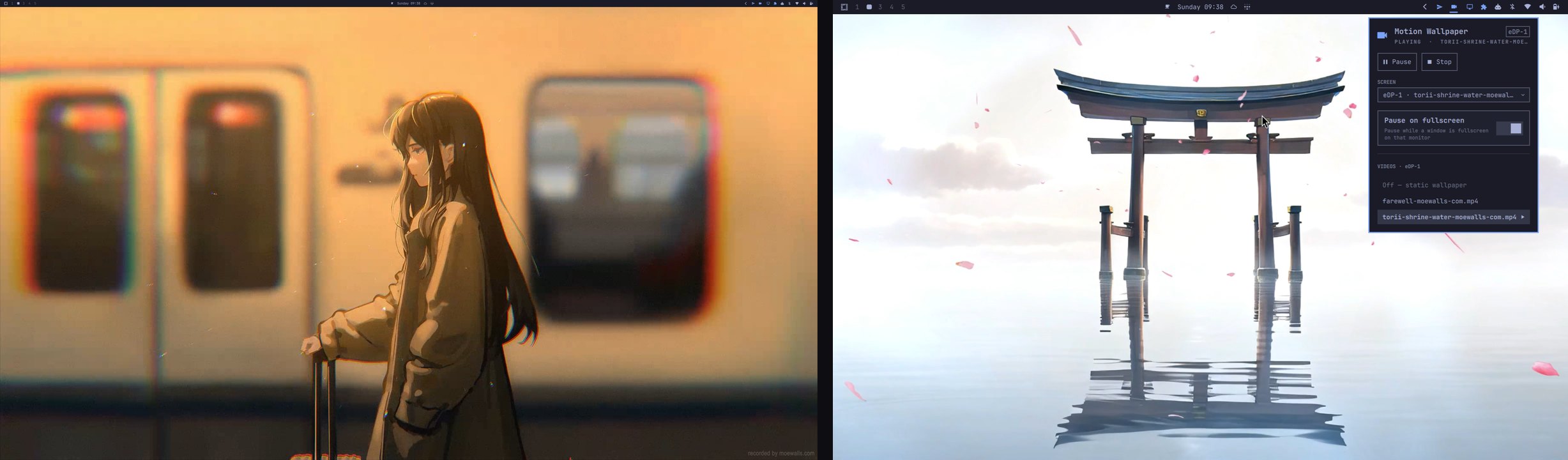
<sub>Two monitors, two different clips, panel open on the right. Clips from moewalls.com.</sub>
Drop some clips in ~/Videos, click the film icon in the bar, pick one. That's it.
- A different clip on every monitor — or one everywhere, or video on some screens and your normal wallpaper on the rest
- Native panel in the bar — play, pause, stop, pick a clip, all themed to match the rest of the shell
- Pauses itself under fullscreen windows, so games and films don't pay for a wallpaper nobody can see
- Cross-fades between clips — the desktop never flashes through mid-switch
- Comes back after a reboot, with no autostart to set up
motion-wallpaperCLI for keybinds and scripting
There's no daemon, watcher, systemd unit or terminal UI — it is one omarchy-shell plugin doing the rendering, the controls and the state.
Omarchy 4+ only. It needs the Quickshell-based
omarchy-shell; the installer checks for it and stops if it is missing.
Quick Start
This repo is an Omarchy shell plugin, so Omarchy's own plugin command installs it:
omarchy plugin add https://github.com/28allday/Motion-Wallpaper-Omarchy.git --enable
That clones it into ~/.config/omarchy/plugins/, enables it, and asks which bar section to put the film icon in — left, center or right (right is pre-selected). Click the icon and pick a video: that is the whole install.
To also get the motion-wallpaper CLI (for keybinds and scripting), run the installer script as well:
git clone https://github.com/28allday/Motion-Wallpaper-Omarchy.git
cd Motion-Wallpaper-Omarchy
./wallpaper.sh
wallpaper.sh checks dependencies, installs the plugin if it isn't already there (asking where to put the bar icon, same as above), installs the CLI and icon, and restarts the shell. If you already have the plugin, it leaves it alone and just adds the CLI.
To update later:
omarchy plugin update nosignal.motion-wallpaper
Requirements
- OS: Omarchy 4+ (Arch Linux) with omarchy-shell (Quickshell)
- Compositor: Hyprland
- Packages:
qt6-multimedia(video decode),jq,python,hyprland— installed automatically if missing (no AUR helper needed)
What It Installs
| Path | Purpose |
|---|---|
~/.config/omarchy/plugins/nosignal.motion-wallpaper/ |
the plugin (service + bar widget + panel) |
~/.local/bin/motion-wallpaper |
CLI control (keybinds / scripting) |
In your shell.json, enabling adds a single bar-widget entry in the section you chose. Out of the box the plugin starts with no video selected, so your normal static wallpaper is what you see until you pick a clip.
Setting defaults in shell.json
Optional. Add an entry for this plugin id under plugins[] to choose what it starts with:
{ "id": "nosignal.motion-wallpaper", "videoPath": "~/Videos/clip.mp4",
  "enabled": true, "output": "all", "pauseOnFullscreen": true }
To start each monitor on its own clip, add screenVideos, keyed by connector
name (hyprctl monitors lists them). An empty string keeps that screen on the
static wallpaper, and any monitor you don't list falls back to videoPath:
{ "id": "nosignal.motion-wallpaper",
  "videoPath": "~/Videos/clip.mp4",
  "screenVideos": { "DP-1": "~/Videos/rain.mp4", "DP-2": "" },
  "enabled": true, "pauseOnFullscreen": true }
Usage
The bar widget + panel
<img src="docs/panel.png" alt="The Motion Wallpaper panel" width="330" align="right">Click the film icon in the bar to open the control panel. From there you can:
- Play / Pause / Stop the video
- Pick a clip from a list of the videos in
~/Videos— clips cross-fade into each other, so the desktop never flashes through mid-switch - Choose the screen — the SCREEN dropdown (only shown when you have more than one monitor) aims everything below it: leave it on All screens to set every monitor at once, or pick a monitor to change just that one. Each option is labelled with the clip that screen is playing, so the dropdown doubles as the per-monitor readout.
- Toggle auto-pause when a fullscreen window covers the wallpaper
The bar icon reflects state at a glance: accent when playing, amber when paused, dim when stopped.
From the terminal
motion-wallpaper                 # print current state, per monitor (default)
motion-wallpaper screens         # what each monitor is showing
motion-wallpaper play ~/Videos/clip.mp4          # every monitor
motion-wallpaper play ~/Videos/rain.mp4 DP-1     # just that monitor
motion-wallpaper off DP-2        # blank one screen; the others keep playing
motion-wallpaper clear DP-1      # drop its own clip; follow the default again
motion-wallpaper stop            # stop everywhere; static wallpaper shows through
motion-wallpaper toggle          # flip on/off
motion-wallpaper pause           # pause / resume
motion-wallpaper resume
motion-wallpaper autopause off   # or: on
motion-wallpaper speed 0.5       # playback speed, 0.25-2 (e.g. 1, 0.66)
motion-wallpaper stop DP-2       # blank one monitor; the other keeps playing
motion-wallpaper play DP-2       # and start it again
motion-wallpaper speed 0.5 DP-1  # speed for just that monitor
motion-wallpaper follow DP-1     # drop its own settings, follow the default
With a keybind
Omarchy 4 keeps user keybinds in ~/.config/hypr/bindings.lua. Avoid SUPER+W — that's Close window in Omarchy:
-- flip the wallpaper on and off
o.bind("SUPER + ALT + W", "Motion wallpaper", "motion-wallpaper toggle")

-- or open the panel itself
o.bind("SUPER + ALT + V", "Motion wallpaper panel",
       "omarchy-shell shell toggle nosignal.motion-wallpaper")
Video library folder
Drop clips in ~/Videos and they appear in the panel's list (a ~/Videos/Wallpapers subfolder is picked up too). To play a file from anywhere else, use motion-wallpaper play <path>.
Multiple monitors
Every monitor is set independently, so you can run a different clip on each screen, the same clip on all of them, or video on some and the static wallpaper on the rest. It all applies live, with no shell restart.
From the panel: pick a monitor in the SCREEN dropdown, then click a clip — only that screen changes. With a monitor picked, the video list grows an Off — static wallpaper row that blanks that one screen while the others keep playing. Switch back to All screens and clicking a clip sets every monitor at once (dropping the per-screen choices).
Once your screens are set individually, the panel opens aimed at the monitor it is on rather than at All screens — so a stray click changes one screen instead of flattening the lot. The screen it is aimed at is named in the pill next to the title.
The same thing from the terminal:
motion-wallpaper play ~/Videos/rain.mp4 DP-1
motion-wallpaper play ~/Videos/city.mp4 HDMI-A-1
motion-wallpaper off DP-2
motion-wallpaper screens          # check what landed where
Connector names come from hyprctl monitors. A monitor keeps its clip while it is unplugged, so it comes back to the right one; a monitor you have never set follows the default videoPath (and the legacy motion-wallpaper screen <name|all> targeting, which only applies to monitors with no clip of their own).
Playback speed
A SPEED slider in the panel sets how fast the clip plays, anywhere from 0.25x to 2x. It is free rather than stepped — 0.66 and 0.99 are as reachable as 1 — with tick marks at the round speeds as anchors. Dragging previews live; letting go saves. The speed applies to every monitor.
motion-wallpaper speed 0.5
One profile per screen
Everything below the SCREEN dropdown follows it: the clip list, rotation, the speed slider, and Play/Stop/Pause. On All screens you are editing the shared default; on a named screen you are editing that screen alone.
A screen with no settings of its own follows the shared default, so nothing changes until you give it some. Using any control while a screen is selected gives it its own; a line in the ROTATION section always says which of the two you are editing. To hand a screen back to the shared default, use the CLI:
motion-wallpaper follow DP-1              # rotation and playback
motion-wallpaper follow DP-1 rotation     # or just one half
So one monitor can be stopped, slowed down, or rotating on its own schedule while the other carries on:
motion-wallpaper stop DP-2          # DP-1 keeps playing
motion-wallpaper speed 0.5 DP-1     # only that monitor slows down
motion-wallpaper pause DP-2         # freeze one screen
motion-wallpaper play DP-2          # start it again
motion-wallpaper follow DP-1        # back to the shared default
The global Stop still governs every screen that has no profile of its own, so the plugin behaves exactly as before for anyone not using this.
Rotation
Off by default. Left alone, the plugin behaves exactly as it always has: one clip per monitor until you change it. Turn rotation on and it cycles your library instead.
In the panel's ROTATION section:
| Setting | Options |
|---|---|
| Mode | Off · Rotate all videos · Rotate chosen videos |
| Order | Shuffle · In order |
| Change every | 1, 2, 5, 10, 15, 30 minutes, or 1 hour |
| Videos in rotation | which clips to cycle, in chosen mode |
Each monitor can rotate differently. The rotation controls follow the SCREEN dropdown, the same as the video list: on All screens you are editing the shared default, and on a named screen you are editing that screen alone. A screen with no settings of its own follows the shared default; changing anything while it is selected gives it its own, and a Follow default button hands it back.
So one monitor can shuffle every five minutes while the other sits on a single clip:
motion-wallpaper rotate all shuffle 5 DP-1   # DP-1 shuffles the whole library
motion-wallpaper rotate off "" "" DP-2       # DP-2 stays on its clip
motion-wallpaper next DP-1                   # skip ahead now
motion-wallpaper follow DP-1                 # back to the shared default
For chosen mode, pick the clips first:
motion-wallpaper playlist DP-1 ~/Videos/a.mp4 ~/Videos/b.mp4
motion-wallpaper rotate selected order 10 DP-1
Each monitor keeps its own position in the list, so two screens sharing a playlist rarely show the same clip at the same time. Rotation drives monitors that have a clip of their own too — that clip is just what is showing there now — and turning rotation off restores it untouched. A monitor blanked with off stays blank: that is how you keep one screen out of the rotation entirely.
Rotation pauses with the video, so a fullscreen window does not churn wallpapers behind it.
Persistence
A playing wallpaper resumes automatically after a reboot — the plugin persists its state to ~/.local/state/motion-wallpaper/state.json and the shell loads it on login. There's no separate autostart step: stop means it stays off next boot, play means it comes back.
How It Works
- Rendering — the plugin creates one
PanelWindowper targeted monitor on the Wayland background layer (namespaceomarchy-motion-background), using QtMultimediaMediaPlayer+VideoOutput(looped, muted,PreserveAspectCrop). Each surface resolves its own clip, which is what lets monitors differ. It loads after the first-party static-wallpaper surface, so it stacks above it. When a monitor has no video set or its file is missing, no surface is created there at all — so the static wallpaper shows through (never a black or frozen frame). - Auto-pause on fullscreen — the plugin listens to Hyprland's event stream (
Quickshell.Hyprland) and, on any fullscreen-affecting event, reads per-monitor ground truth fromhyprctlto pause the video on exactly the monitor whose visible workspace has a fullscreen window. Toggle it from the panel (ormotion-wallpaper autopause on|off). - Theme changes — nothing to do: switch themes freely, the first-party static wallpaper updates underneath. The video keeps playing until you stop it.
- Controls — the bar widget and panel talk to the plugin's service instance in-process. The
motion-wallpaperCLI is a thin client over the same shell IPC target (play/playAll/playOn/clearScreen/stop/toggle/pause/resume/status/screens/setOutput/setPauseOnFullscreen), reachable directly asomarchy-shell motion-wallpaper <fn>. State (per-screen clips, default video, enabled, auto-pause) persists to~/.local/state/motion-wallpaper/state.json.
Supported Video Formats
Anything QtMultimedia's FFmpeg backend can decode — .mp4, .mkv, .webm, .mov, .avi. H.264/H.265 MP4 is the safest bet for smooth looping.
Finding Video Wallpapers
- MoeWalls — large library of looping anime/aesthetic clips
- Any short, seamlessly-looping video works well; keep it at your display resolution to avoid needless GPU scaling.
Performance
Video wallpaper decodes continuously on the GPU, so it uses more power than a static image. The fullscreen auto-pause keeps games and full-screen video from paying that cost. For laptops on battery, consider motion-wallpaper stop or a shorter/lower-bitrate clip.
QtMultimedia picks a hardware decode backend automatically when one initialises. The plugin probes this at startup (ffmpeg hwaccels, the GPU vendor from the DRM render nodes, a VAAPI init test, plus a CUDA init test on NVIDIA) and surfaces it via motion-wallpaper hwaccel and motion-wallpaper status (plus a panel hint when software fallback is active while playing). If it reports software fallback, the hint names the usual fix for your vendor (intel-media-driver on Intel, libva-mesa-driver on AMD, the proprietary driver / nvidia-utils on NVIDIA); QT_FFMPEG_DECODING_HW_DEVICE_TYPES overrides the backend priority when set. The probe result is cached in state.json and refreshed when older than a day (or on the next motion-wallpaper hwaccel call), so repeat shell starts don't respawn the check.
Troubleshooting
- No bar icon / "plugin isn't loaded" — make sure it is enabled (
omarchy plugin enable nosignal.motion-wallpaper), then restart the shell withomarchy-restart-shell. Confirm the IPC target answers withomarchy-shell motion-wallpaper status. - No video appears — check
motion-wallpaper status:videoFileExists: falsemeans the saved path is gone; pick a new file. Watch for QML errors in the shell's journal. - Edited the plugin QML — plugin code changes need a full
omarchy-restart-shell;ipc call shell rescanPluginsonly discovers newly-added plugins, it doesn't reload edited code. Don't useomarchy-refresh-shell— it resetsshell.json. - Logs —
~/.cache/motion-wallpaper.log(CLI) and the shell's own stderr/journal (plugin).
Uninstalling
motion-wallpaper stop
omarchy plugin remove nosignal.motion-wallpaper

# The extras the plugin command doesn't own:
rm -f  ~/.local/bin/motion-wallpaper
rm -rf ~/.local/state/motion-wallpaper
Credits
Built for Omarchy by DHH and the Omarchy community. Video playback via Qt Multimedia; shell integration via Quickshell.
License
MIT