
Tableau
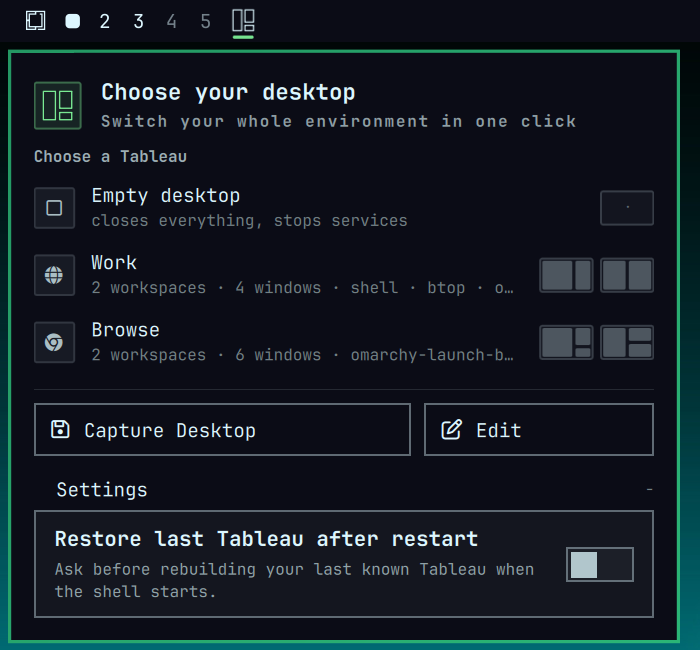
Leave a desktop. Return to it instantly.
Tableau turns your whole Omarchy desk into a choice in the bar. Your workspaces, windows, terminals, applications, services, and layout come back together — so switching from coding to browsing feels like changing rooms, not rebuilding a desk.
The first minute
- Install Tableau and open it from the bar.
- Choose Work or Browse to try a ready-made desk.
- Arrange anything you like, then choose Capture Current Desktop.
That is the entire learning curve. Your own tableaus appear beside the starters, ready for one-click switching.
Why people keep it installed
- Keep context: return to the same coding desk, terminals, and services.
- Change mode: move to a clean research and file-management environment.
- Capture the good state: save the desktop you already have without writing configuration.
- Stay in control: Tableau asks before recovery and never silently restores a desktop after a restart.
On a clean install, Work and Browse are available immediately; no setup
command is required. The cards are previews of the desk each choice builds, and
the highlighted card always means “currently loaded” — not merely “keyboard
focus”.
A tableau can open:
- workspaces
- terminal sessions
- applications
- background services
Choose a Tableau from the bar. Tableau closes the current desktop, then opens the new one. Nothing starts automatically at login.
The bar menu
- Empty desktop closes all windows and stops services started by Tableau.
- Saved tableaus load a desktop layout.
- Capture Current Desktop saves the windows that are open now.
- Rename, Duplicate, and Delete manage saved tableaus.
- Edit opens the configuration file.
Keyboard controls:
j/kor Up / Down: move- Enter or Space: activate
r: refreshx: delete the selected tableau- Escape: close the menu
Open the centered Tableau switcher at any time with SUPER + ALT + T.
Configuration
The file is:
~/.config/omarchy/tableau.toml
It is read each time the menu opens.
[options]
grace = 8

[[setups]]
name = "Work"
icon = ""
services = []

  [[setups.workspaces]]
  number = 1
  columns = [
    { width = 2, windows = [{ term = "" }] },
    { width = 1, windows = [{ term = "btop" }] },
  ]

  [[setups.workspaces]]
  number = 2
  columns = [
    { width = 1, windows = [{ app = "omarchy-launch-browser" }] },
    { width = 1, windows = [{ app = "nautilus" }] },
  ]
Windows
| Key | Meaning |
|---|---|
term |
Open the configured terminal directly into a command. Use "" for a shell prompt. |
app |
Run an application with its arguments. |
dir |
Working directory. |
class |
Window class, when it differs from the command. |
height |
Relative height inside a column. |
width |
Relative width of a column. |
float |
Keep the window floating. |
wait |
Seconds to wait for the window. Default: 20. |
Use the default Omarchy helpers when possible:
{ term = "" }
{ term = "btop" }
{ app = "omarchy-launch-browser" }
{ app = "nautilus" }
The built-in starter configuration uses these defaults, so it also works on a fresh Omarchy install without optional developer applications.
Monitors
Add monitor to a workspace to request a display:
  [[setups.workspaces]]
  number = 3
  monitor = "DP-2"
  columns = [{ width = 1, windows = [{ term = "" }] }]
If the display is not connected, Tableau uses the focused monitor.
Services
Services can be systemd user units or background commands. Commands are parsed as arguments and launched directly; shell operators and pipelines are not interpreted.
services = [
  "docker-desktop",
  { run = "python -m http.server 8000", dir = "~/Work/project" },
]
Only services started by Tableau are stopped later. System services are not supported. Review commands before loading a file from another source.
Screens and layout
Tableau adapts layouts to the connected displays. It limits columns on narrow screens and remembers an arrangement for each display setup.
Forget the remembered arrangement with:
omarchy-tableau forget
Tableau opens windows one at a time. A missing application is reported in the menu. If a window refuses to close, Tableau pauses and asks what to do.
If a load is interrupted by a crash or shell restart, Tableau marks it as recoverable and offers Restore and Start clean in the menu. It never silently replaces the current desktop.
CLI
omarchy-tableau status [--json]
omarchy-tableau load Work [--force]
omarchy-tableau capture "New tableau"
# `save` remains available as a compatibility alias.
omarchy-tableau save "New tableau"
omarchy-tableau rename "New tableau" "Renamed tableau"
omarchy-tableau duplicate Work "Work copy"
omarchy-tableau delete "Work copy"
omarchy-tableau init [--force]
omarchy-tableau edit
omarchy-tableau retry [--force]
omarchy-tableau clear
Install
The fastest path is two commands:
omarchy plugin add https://github.com/novuon/omarchy_tableau.git --enable --yes
omarchy bar move novuon.tableau --section left
Then open the Tableau icon in the bar and choose Work or Browse. Both starter tableaus are available immediately on a clean install, so you can try the workflow before editing any configuration. When you have a desk worth keeping, use Capture Current Desktop to save it.
Requirements: Omarchy with the standard omarchy-shell and Hyprland helpers.
Tableau uses the terminal and application launchers already provided by Omarchy;
there are no extra services or developer tools to install.
To remove Tableau safely:
omarchy plugin remove novuon.tableau --yes
Removing the plugin does not delete your ~/.config/omarchy/tableau.toml file
or saved Tableau state. Reinstalling the plugin can therefore restore your
previous setup selection without changing your desktop automatically.
For local development:
omarchy plugin validate ~/.config/omarchy/plugins/novuon.tableau
omarchy-shell shell rescanPlugins
Run the checks with:
test/validate.sh