
Tuxedo Todo
Your todo.txt workflow, right in the Omarchy bar.
A fast, keyboard-first task dashboard for Omarchy Quattro, powered by the Tuxedo command-line interface. Capture what is next, cut through the backlog, and see six months of momentum without leaving the desktop. Everything stays local and portable in plain-text todo.txt files.
Features
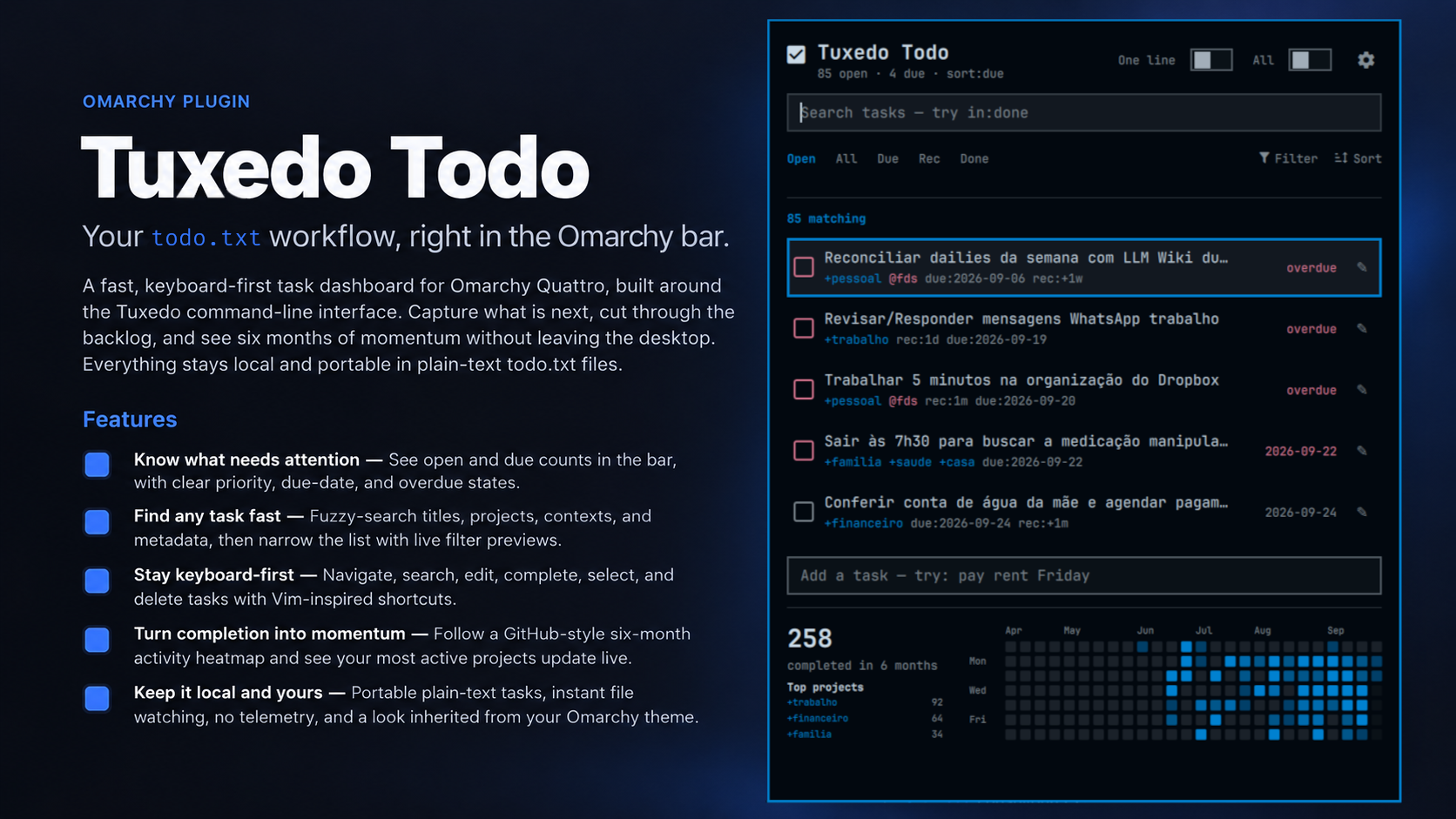
- Know what needs attention — See open and due counts in the bar, with clear priority, due-date, and overdue states.
- Find any task fast — Fuzzy-search titles, projects, contexts, and metadata, then narrow the list with live filter previews.
- Stay keyboard-first — Navigate, search, edit, complete, select, and delete tasks with Vim-inspired shortcuts.
- Turn completion into momentum — Follow a GitHub-style six-month activity heatmap and see your most active projects update live.
- Keep it local and yours — Portable plain-text tasks, instant file watching, no telemetry, and a look inherited from your Omarchy theme.
Screenshot
Requirements
- Omarchy Quattro
- Python 3 (the bundled helper uses only the standard library)
- The external
tuxedoCLI installed and available on yourPATH
Download and install the appropriate Tuxedo release for your system before using the widget.
Installation
Install the plugin from GitHub and enable it immediately:
omarchy plugin add https://github.com/lpanebr/omarchy-tuxedo-todo.git --enable
The widget is registered as Tuxedo Todo in the Productivity category. It supports one instance and defaults to the center section of the bar.
Interactive installation offers a left/center/right position selector (unless --yes is used). After installation, open Settings → Bar position to move the widget to another section.
Usage
Click the checklist icon in the bar to open the panel.
- Type in Search tasks to fuzzy-find title words, projects (
+project), and contexts (@context). Multiple terms can appear in any order and all must match. - Searches show open tasks by default. Add
in:all,in:done,in:due,in:rec, orin:opento choose a scope. Archived matches fromdone.txthave a checked checkbox and are read-only. - The scope labels below Search reflect operators typed into the query and can be clicked to switch scope without changing the other search terms.
- Use Filter to select a discovered project or context, or choose Due to show tasks due today or earlier.
- Click Sort to cycle through due-date, file-order, and priority sorting.
- Enter text in Add a task and press Enter to create a task.
- Click a task row to select it; selected tasks can be completed or deleted together.
- Use the checkbox beside a task to complete it immediately, or the pencil button to edit it.
- Open Settings with the gear button to choose a different todo.txt file.
- The count below the filters shows matching tasks; sidebar counts show all open tasks for each project or context.
- Task titles exclude metadata. Projects and contexts appear below the title, followed by
key:valuemetadata in a different color. Density controls wrapping of both lines. - Editing displays the complete original task, including priority, date, projects, contexts, and metadata, in a wrapping text field. Enter saves; Escape cancels. Pasted line breaks must be removed before saving.
Both the bar click and omarchy-shell omarchy-tuxedo open toggle the panel. Use omarchy-shell omarchy-tuxedo show when the panel should always stay open.
Completed tasks are handled by Tuxedo and use done.txt in the same directory as the configured todo file. Batch deletion is performed with Tuxedo's forced-delete option, so review the selection before deleting.
Keyboard shortcuts
Shortcuts are active when the task list has focus. Initial focus is on Search; use Tab and Shift+Tab to cycle between Search, the task list, and Add task. Multi-key sequences such as gg, dd, yy, fp, and fc are typed consecutively.
While Search has focus, Ctrl+N / Ctrl+P moves through the matching tasks and Alt+X completes the highlighted task. Focus and search text stay in Search so you can keep filtering and completing tasks. These shortcuts also work from the task list; they do not apply in Add task or the task editor.
Navigation
j/k,↓/↑, orCtrl+N/Ctrl+P— move down or upgg/G— jump to the first or last taskCtrl+D/Ctrl+U— move a page down or up
Editing and actions
e/i— edit the active taskx— complete the active task; it disappears from the open-task list and is not toggled in placedd— delete the active task, or all selected tasksyy— copy the active task's raw todo.txt lineSpace— select or deselect the active task
Warning: Deletion with
ddis irreversible and has no undo. Check the active task and selection before using it.
View and filtering
fp/fc— open the project or context sidebar/orCtrl+K— focus Search from the task listCtrl+A— activate All from the task list or sidebar (keeps the search text); in text fields, selects all text as usual- In a sidebar,
j/k,↓/↑, orCtrl+N/Ctrl+Ppreviews each filter in the task list;Spaceapplies or removes the active filter D— toggle task densityS— cycle the sort mode?— open shortcut helpEsc— contextually step back, cancel, or close the current view
todo.txt location and configuration
By default, the plugin reads:
~/todo.txt
To use another file, open the panel settings and enter its absolute path. Relative paths are rejected. Ordinary files in Dropbox work normally. If the configured path is a symbolic link, enter the real target path instead.
The chosen path, badge mode, description layout, and sort mode are saved to:
${XDG_STATE_HOME:-$HOME/.local/state}/omarchy/omarchy-tuxedo/state.json
The state directory is private, state files are limited to 1 MiB, and updates use atomic writes.
Bar placement is saved by Omarchy in its shell configuration through the official omarchy bar move command, only when you choose a position in Settings.
For every Tuxedo action, the plugin sets TODO_FILE to the configured path and DONE_FILE to done.txt beside it. Standard todo.txt metadata such as priorities, +projects, @contexts, and due:YYYY-MM-DD is recognized by the panel.
File monitoring
Tuxedo Todo uses the bundled Python 3 standard-library helper and a native Linux inotify watcher to monitor the configured todo file. Changes are reloaded when detected, making monitoring event-driven and avoiding a periodic polling loop; there is no scan interval to configure.
The file is also reloaded when the component starts, whenever the panel opens, after a Tuxedo mutation exits, and after the configured todo path changes.
Removal
Remove the plugin by its manifest ID:
omarchy plugin remove omarchy-tuxedo
This removes the plugin, not your todo.txt, sibling done.txt, or saved state file.
Security and data behavior
Tuxedo Todo works locally. The widget reads and watches the configured todo.txt file, invokes the locally installed tuxedo executable for changes, and writes its small JSON preferences file. Choosing a bar position explicitly invokes omarchy bar move with a fixed section argument; Omarchy persists that layout in its shell configuration. It does not include network requests, telemetry, account access, or cloud synchronization. Your task data is sent only to local processes started for the requested Tuxedo action. Task-supplied metadata is escaped before styled rendering, and task text is passed as process arguments without a shell.
For safety, the configured todo path must name a regular file owned by the current user. Final symbolic links, FIFOs, devices, and other non-regular files are rejected. The maximum todo file size is 8 MiB, and each line is limited to 64 KiB. Files that exceed either limit are rejected rather than silently truncated, preserving the exact line numbers used by Tuxedo operations.
License
Released under the MIT License.