
Omalog for Omarchy
A screen-time dashboard for the Omarchy bar. Click the calendar icon and a popup panel shows where your time on this computer goes — which apps, which categories, which hours of the day. Today, this week, this month. All local, no cloud.
Built as an Omarchy Quickshell plugin, powered by ActivityWatch.
What it does
The plugin reads ActivityWatch's local database directly (aw-server-rust's
SQLite file) and renders the same picture the Daylog TUI gives you, as a bar
popup:
-
Today — active time, longest focus stretch, best 3-hour window, and how today's categories compare to your usual week (pattern shift). A full-width timeline barcode of the day so far, colored by category. Top apps, categories, and domains. An hourly activity chart with the Daylog "activity spectrum" (warm at dawn, violet at midnight).
-
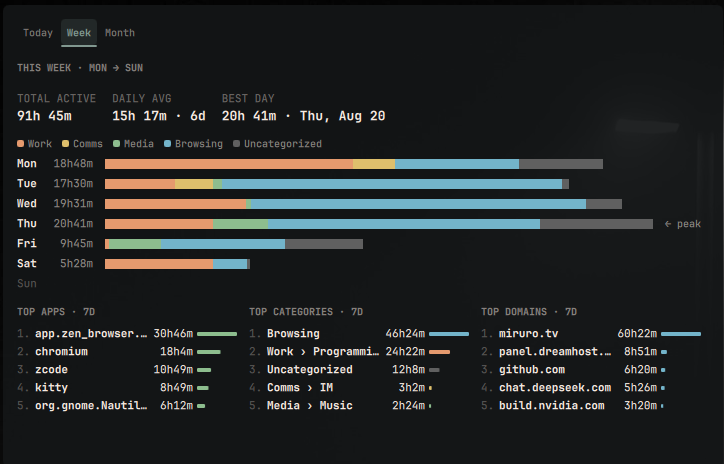
Week — total active time, daily average, and best day for the current Mon–Sun week. Seven horizontal bars stacked by category, with the peak day marked. Top apps, categories, and domains over the last 7 days.
-
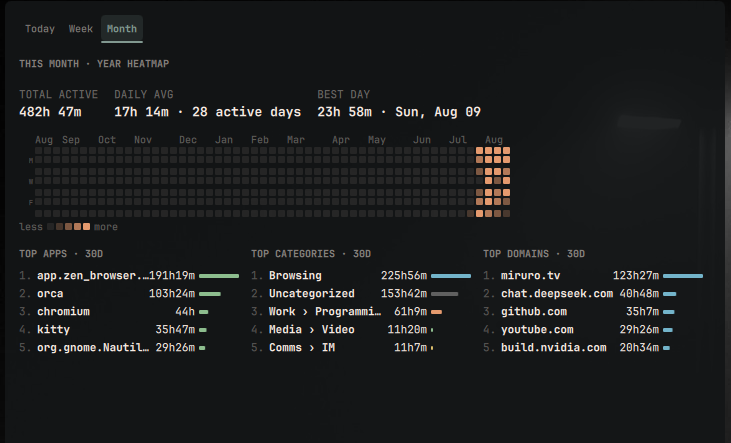
Month — total, daily average over active days, and best day of the last 30 days. A GitHub-style year heatmap of daily activity. Top apps, categories, and domains over the last 30 days.
If the tracker's window watcher wedges (a known awatcher failure mode: it keeps
running but only records unknown apps), the panel shows a "Tracking is
degraded" banner with a one-click Restart watcher button, so you can fix
tracking without touching a terminal.
Tabs are clickable, and also respond to <kbd>1</kbd>–<kbd>3</kbd> and <kbd>←</kbd>/<kbd>→</kbd>. Data refreshes live while the panel is open (today every 5 s, week/month every 30 s).
Getting started
You need Omarchy (Quickshell-based shell) and Python 3.
An AUR helper (yay/paru) is only needed for the tracking setup in step 2.
1. Install the plugin
omarchy plugin add https://github.com/Palccod/Omalog.git --enable
The calendar icon appears in your bar's center section. If it doesn't show up
right away, restart the shell once (omarchy restart shell). Move the widget
anywhere with:
omarchy bar move palccod.omalog --section right
To update to the latest version whenever the plugin is pushed to:
omarchy plugin update palccod.omalog && omarchy restart shell
(The restart reloads the QML — updates to the tracking setup aren't tied to plugin updates; the script in step 2 is safe to re-run on its own.)
2. Set up tracking
The plugin is a viewer — it reads ActivityWatch's database but doesn't run the tracker itself.
-
Already running ActivityWatch (
aw-server-rust+ a window watcher)? You're done — the plugin reads the standard database path and just works. -
Starting from scratch? Run the setup script that shipped inside the plugin install (no extra clone needed):
~/.config/omarchy/plugins/palccod.omalog/setup/setup-tracking.shIt installs
activitywatch-binfrom the AUR (asks for your sudo password) and the awatcher window/AFK watcher for Wayland — downloaded over HTTPS and verified against a pinned SHA-256 checksum — then enables their systemd user services. Tracking starts within seconds; the database lives at~/.local/share/activitywatch/aw-server-rust/sqlite.db. The script is safe to re-run and never touches existing data.One thing it handles for you: the
activitywatch-binpackage autostarts its own tray (aw-qt), whose Python watchers write garbage into the same database buckets (app: "unknown"for every window, "always afk"). The setup script stops those watchers and disables that autostart, leaving theaw-server-rust+awatcherservices as the single source of truth.
If you open the panel before tracking exists, it shows a banner with this exact command — you can't get lost.
3. Optional: browser extension
For the "Top Domains" lists to fill in, install the ActivityWatch Web Extension in your browser. It connects to the local server automatically — no config. Everything else works without it.
4. Use it
- Left-click the bar icon to open/close the panel
- 1 / 2 / 3 jump to Today / Week / Month
- ← / → cycle tabs, Esc closes, Tab hops between Omarchy panels
- Hovering the bar icon shows your active time so far today (refreshes every 30 s)
The panel can also be driven from the CLI / scripts:
omarchy shell palccod.omalog.panel toggle # or open / close
Removal
omarchy plugin remove palccod.omalog
To also stop the tracking the plugin set up (this does not delete your recorded data):
systemctl --user disable --now aw-server-rust.service aw-awatcher.service
rm ~/.config/systemd/user/aw-server-rust.service ~/.config/systemd/user/aw-awatcher.service
Optionally remove the packages and binaries
(pacman -R activitywatch-bin, rm ~/.local/bin/aw-awatcher). If you want the
bundle's tray back after removing the plugin, delete the autostart override
the setup script created:
rm ~/.config/autostart/aw-qt.desktop
Your activity history stays in ~/.local/share/activitywatch/ until you
delete it yourself.
Security, privacy, and privileges
- The plugin itself makes no network calls and needs no privileges. It runs a read-only Python (stdlib-only) query against ActivityWatch's local SQLite database on a fixed path. Nothing leaves your machine.
- No secrets, tokens, or credentials are read, stored, or logged. The data displayed (app names, window titles, domains) is your own ActivityWatch data, read from disk.
- The optional
setup/setup-tracking.shhelper is the only component that installs anything: it invokes your AUR helper (which usessudo) foractivitywatch-bin, downloads theawatcherbinary from its official GitHub release over HTTPS, verifies it against a pinned SHA-256 checksum before installing, and creates exactly two systemd user units (aw-server-rust.service,aw-awatcher.service) for the current user. It never edits unrelated services or configuration and is idempotent. - ActivityWatch's own server listens on
localhost:5600; the plugin does not talk to it (it reads the database file directly), but the browser extension does.
How it works
manifest.json            plugin manifest (service + bar-widget)
BarWidget.qml            the bar button (icon + tooltip)
Panel.qml                the popup panel: tabs, keyboard, states
Service.qml              data fetching, refresh timers, state
Model.js                 formatting + color helpers
omalog_data.py           reads the ActivityWatch SQLite DB and runs the
                         Daylog data pipeline (flood, AFK intersect,
                         categorization, KPIs, aggregation) — stdlib only;
                         also reports watcher health for the degraded banner
components/              TabBar, KpiStrip, SectionLabel, TopList,
                         TimelineBarcode, HourlyChart, StackedWeekBars,
                         YearHeatmap
setup/                   optional one-command setup of the ActivityWatch
                         tracking backend (systemd units + install script)
The data pipeline is a faithful port of Daylog's Rust one: window events are flooded with a 5-second pulse, intersected with non-AFK periods, categorized by regex rules (Work / Media / Comms / Browsing / …), and aggregated into apps, categories, and domains. Queries are read-only against the SQLite file.
Developing
Clone straight into the plugins dir and iterate — changes hot-reload:
git clone https://github.com/Palccod/Omalog.git \
  ~/.config/omarchy/plugins/palccod.omalog
omarchy plugin validate ~/.config/omarchy/plugins/palccod.omalog
omarchy-shell shell rescanPlugins
The data helper can be tested standalone:
python3 omalog_data.py status   # is ActivityWatch's DB there?
python3 omalog_data.py today    # today's full JSON payload
python3 omalog_data.py week     # current ISO week
python3 omalog_data.py month    # 30-day stats + year heatmap
Credits & license
MIT — see LICENSE.
Special thanks to Manas-Kenge for building Daylog.
Tracking itself is plain ActivityWatch (MPL-2.0), installed from your distro's packages or upstream releases — see Getting started. Nothing ActivityWatch-related is bundled with or downloaded by this plugin.