
Google Calendar Clock — parm.clock
An Omarchy bar widget: a clock whose calendar popup shows your Google Calendar events and Google Tasks — dots on the month grid, an agenda list, a task badge on the bar, and full create/edit/delete for events and tasks.
It is a clone of the built-in omarchy.clock (the same date/time label, calendar popup, month stepping, week-start toggle, and memento-mori bars), with Google Calendar + Tasks layered on top.
Repository: https://github.com/iamparmjeet/omarchy-google-calendar-clock
Plugin ID:parm.clock· Category: Time · Kind:bar-widget
Preview
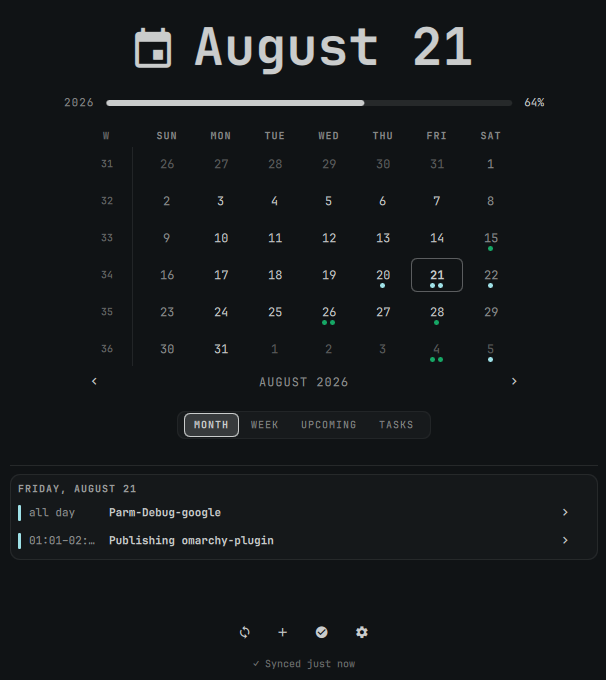
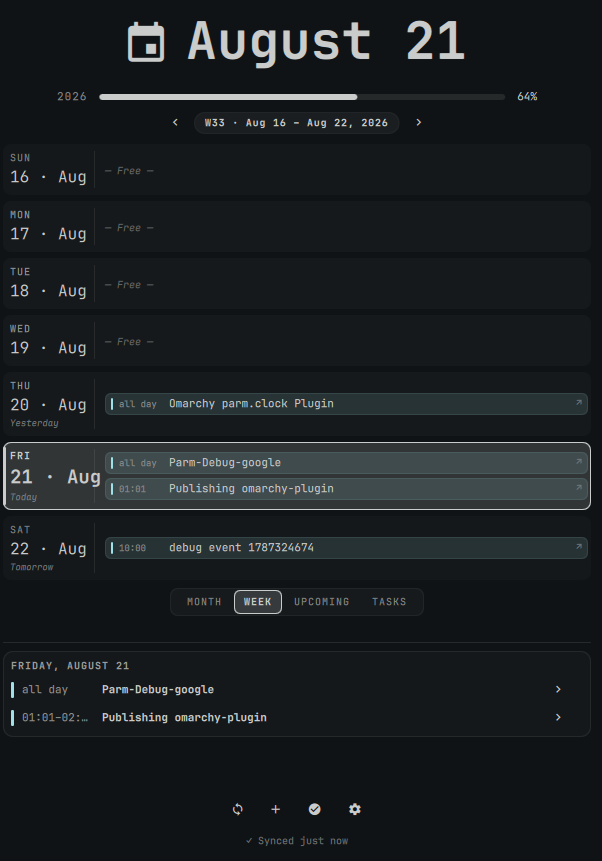
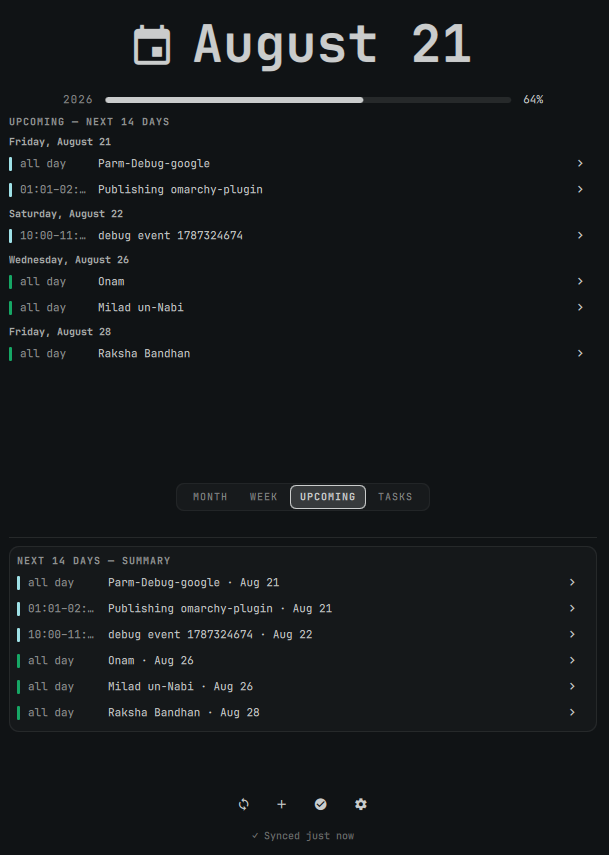
| Month — dots for every day with events | Week — 7-day vertical agenda | Upcoming — next 14 days |
|---|---|---|
 |
 |
 |
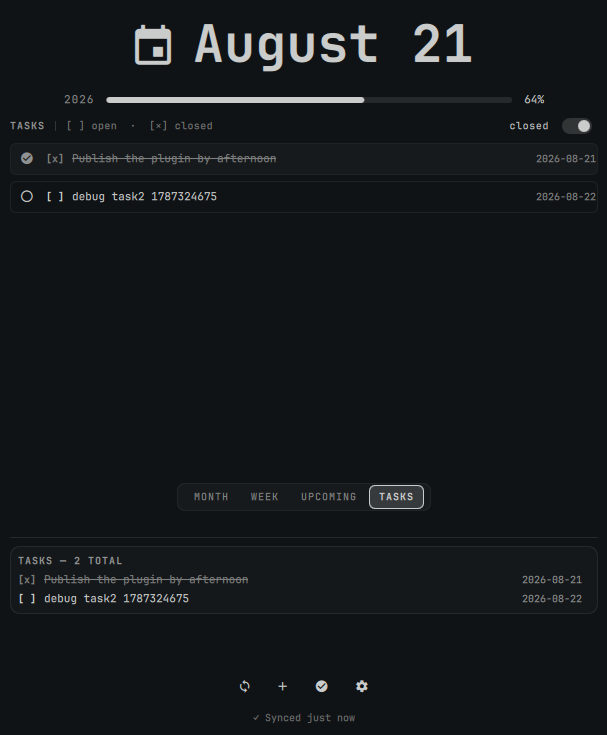
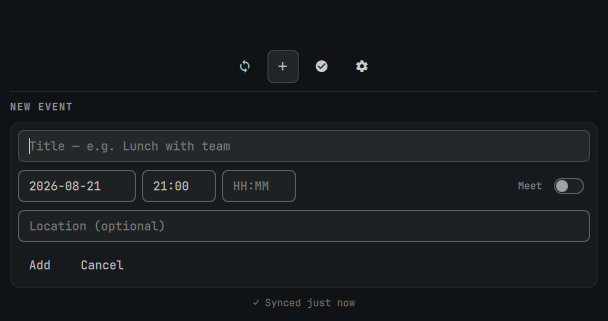
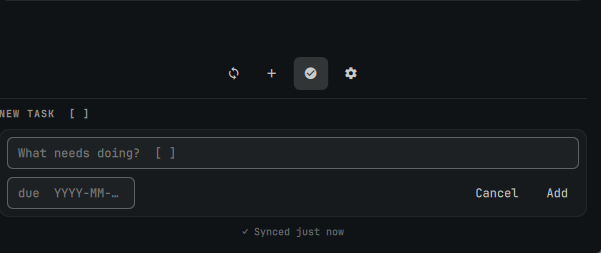
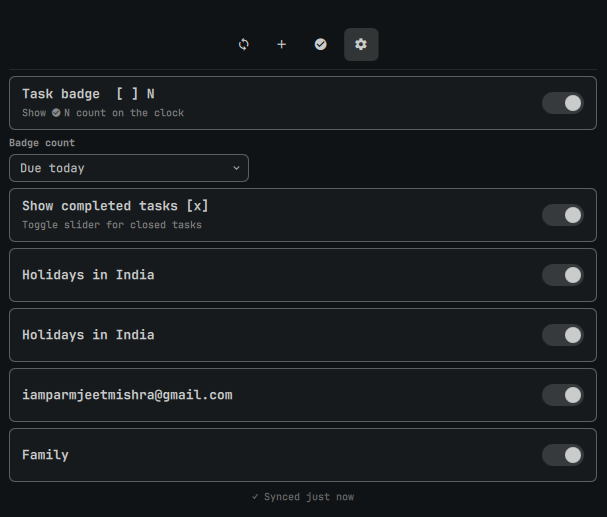
| Tasks — filter open/closed | New Event form | New Task form | Settings — calendars & badge |
|---|---|---|---|
 |
 |
 |
 |
What you see in the screenshots:
- Month (
MONTHpill): 6-row month grid with ISO week numbers (W), week-start toggle, month stepping‹ ›, and coloured dots per day (up to 4 event dots tinted by calendar colour, plus one accent dot when tasks are due). Selected day is highlighted; today has a border. Bottom card shows the agenda forFRIDAY, AUGUST 21plus any tasks due that day. - Week (
WEEKpill): HeaderW33 · Aug 16 — Aug 22, 2026with‹ ›stepping. Each day is a full-width row with date rail (16 · Aug+Today/Tomorrow/Yesterday) and up to 3 event chips (all day/HH:MM+ title). Free days show— Free —. - Upcoming (
UPCOMINGpill):UPCOMING — NEXT 14 DAYSgrouped by date, plusNEXT 14 DAYS — SUMMARYcard at the bottom. - Tasks (
TASKSpill): HeaderTASKS [ ] open · [x] closedwithclosedtoggle. Each task has[ ]/[x]checkbox, title,due YYYY-MM-DD/no due, and delete. Stale toggle is off by default (only open tasks). - New Event (
+button): FieldsTitle,YYYY-MM-DD,HH:MMstart/end,Location, andMeettoggle for a Google Meet link.Add/Cancel. - New Task (
☑button): FieldWhat needs doing? [ ]+due YYYY-MM-DDwithAdd/Cancel. - Settings (
⚙button):Task badge [ ] N,Badge count(Due today/Overdue/All),Show completed tasks [x], per-calendar toggles (Holidays in India, primary calendar,Family), andSynced just now.
How it works
No khal, no vdirsyncer, no CalDAV. Powered by gws (Google Workspace CLI), which owns OAuth and exposes Calendar + Tasks CRUD over JSON.
Google (Calendar + Tasks)  ← OAuth (gws owns tokens)
        │
        ▼
     gws CLI
        │ JSON
        ▼
  sync/sync.py  (Python sync engine — normalize/timezone/recurrence/atomic write)
        │
        ▼
  ~/.local/state/parm.clock/state.json   ← single source of truth
        │                                    (dir 0700, file 0600 — private;
        ▼                                     config.json likewise)
  Model.js + BarWidget.qml + Panel.qml + Clock*.qml  (QML reads state.json only)
The QML layer is split into components: Panel.qml is the container (state,
settings persistence, gws plumbing), rendering is delegated to Clock* files
(ClockMonthView, ClockWeekView, ClockUpcomingView, ClockTasksView,
ClockEventsCard, ClockEventForm, ClockTaskForm, ClockSettingsSection,
plus leaf rows/cells). All Google-controlled strings render with
textFormat: Text.PlainText.
The QML never talks to Google. It reads a cached JSON file; writes go through gws and trigger a re-sync. A systemd user timer runs the sync every 15 minutes by default, so the widget stays up to date and works offline from cached data.
Requirements
- Omarchy 4 (Quickshell shell)
gcloud(Google Cloud SDK) andgwsonPATH(setup script installs both on Omarchy/Arch if missing:google-cloud-cliviayayAUR +gwsvianpm@googleworkspace/cli@0.22.5— pinned, matching the cargo fallback)python3withzoneinfo/tzdata(Python 3.9+) — preinstalled on Omarchy- A GCP project for the OAuth client (the setup script creates/uses one — no manual GCP console needed for most users)
Installation
Option A — Automatic (recommended, via omarchy plugin)
This is the path the marketplace at omarchyplugins.com expects. The manifest at the repo root (manifest.json) is already validated (omarchy plugin validate passes).
# 1. Add and enable the plugin (replaces the stock omarchy.clock in the bar)
omarchy plugin add https://github.com/iamparmjeet/omarchy-google-calendar-clock.git --enable

# If the bar still shows the stock clock, place this one in the center:
omarchy plugin enable parm.clock center

# 2. One-time Google setup (browser consent is the only manual step)
~/.config/omarchy/plugins/parm.clock/scripts/setup.sh

# Optional — custom project or timezone:
# ~/.config/omarchy/plugins/parm.clock/scripts/setup.sh --project my-gcp-project --timezone America/New_York
# ~/.config/omarchy/plugins/parm.clock/scripts/setup.sh --dry-run   # preview without executing
# ~/.config/omarchy/plugins/parm.clock/scripts/setup.sh --allow-aur # explicitly permit automatic AUR build
What setup.sh does, in order:
- Verifies
gcloud+gwsare installed (the default path refuses automatic AUR build execution; use--allow-auronly after reviewing thegoogle-cloud-cliPKGBUILD, whilegwsis installed from a verified npm tarball); - Runs
gws auth setup --project omarchy-clock(enables Calendar + Tasks APIs and ensures an OAuth client); - Runs
gws auth login --services calendar,tasks— this is the one manual step: a browser opens for a single Google consent screen; - Verifies authentication (
gws auth status); - Writes
~/.config/parm.clock/config.json(timezone, sync window,gwspath) — timezone is auto-detected from/etc/timezone//etc/localtime; - Runs the first sync (
sync/sync.py); - Installs and enables the systemd user timer (
parm.clock-sync.timer— every 15 min by default).
Testing-mode OAuth note: if your GCP OAuth client is in Testing mode, add your account as a test user (GCP → APIs & Services → OAuth consent screen → Test users), otherwise consent will be rejected.
First-login consent note:
setup.shcreates a GCP project and OAuth client in your own Google Cloud account, so Google shows an "unverified app" screen naming you as the developer. This is expected for a self-hosted integration: click Advanced → Go to omarchy-clock (unsafe) → Continue. The app requests only the Calendar and Tasks scopes, tokens stay in your local keyring, and the full data story is at parmjeetmishra.com/omarchy/parm.clock/privacy. (Upstream verification of the author's reference client is pending with Google; per-user clients always consent against their own project.)
For unattended or piped setup, pass --yes explicitly. Without it, package and
privileged actions are refused when standard input is not a terminal. The npm
installer verifies the published SHA-512 integrity value for the pinned
@googleworkspace/cli@0.22.5 tarball before installing it. Setup records the
canonical absolute path and SHA-256 digest of the selected gws executable;
the runtime re-checks both before every sync or mutation. If an older config has
no gwsSha256, rerun setup.sh before syncing.
After setup, click the clock in the bar to open the popup. Use MONTH/WEEK/UPCOMING/TASKS pills to switch views, + to add an event, ☑ to add a task, ⚙ for settings, and ↻ to force a sync.
Option B — Manual (git clone)
Use this if you want to track master by hand or if omarchy plugin add is unavailable.
# 1. Clone directly into the Omarchy plugins directory
git clone https://github.com/iamparmjeet/omarchy-google-calendar-clock.git ~/.config/omarchy/plugins/parm.clock

# 2. Enable in the bar (center anchor replaces the stock clock)
omarchy plugin enable parm.clock center

# 3. Same one-time setup as above
~/.config/omarchy/plugins/parm.clock/scripts/setup.sh

# Verify the plugin is recognised:
omarchy plugin validate ~/.config/omarchy/plugins/parm.clock
systemctl --user status parm.clock-sync.timer
Updating a manual install:
git -C ~/.config/omarchy/plugins/parm.clock pull
# re-run setup to regenerate absolute paths in the systemd units (safe, idempotent)
~/.config/omarchy/plugins/parm.clock/scripts/setup.sh
Timezone handling — does it work in the USA?
Yes — the plugin is timezone-sensitive and syncs to the installer's local timezone, not the author's.
There is no hardcoded IST. Here's how it works:
| Layer | What it does | Code |
|---|---|---|
| Setup auto-detection | scripts/setup.sh:write_config() reads /etc/timezone then /etc/localtime → zoneinfo (e.g. America/New_York, America/Los_Angeles). If you pass --timezone that wins. Otherwise the detected IANA zone is written to ~/.config/parm.clock/config.json. |
scripts/setup.sh |
| Fallback without setup | sync/config.py:_detect_system_timezone() mirrors the same detection so a marketplace install that skips setup.sh still gets the correct local zone instead of a hardcoded fallback (UTC if detection fails). |
sync/config.py |
| Sync window | sync/sync.py:compute_window() builds timeMin/timeMax from today in ZoneInfo(timezone) (local days, not UTC days). |
sync/sync.py |
| Event normalization | sync/schema.py:normalize_event() converts each Google dateTime (RFC3339 with offset) to the local dateKey (YYYY-MM-DD) via dt.astimezone(ZoneInfo(timezone)). All-day events use the date directly. |
sync/schema.py |
| Display | Panel.qml/Model.js use new Date() / getFullYear() getMonth() getDate() — the system's local clock. dateKey comparisons are string YYYY-MM-DD matches, so no arithmetic drift. |
Panel.qml, Model.js |
| Never hand-rolled | All conversions use Python zoneinfo (no manual offset math). |
sync/sync.py, sync/schema.py |
Practical result:
- India laptop (
Asia/Kolkata, UTC+5:30): event2026-08-21T01:00:00Z→dateKey 2026-08-21(06:30 IST) — dots on the 21st. - New York laptop (
America/New_York, UTC-4 summer): same event →dateKey 2026-08-20(21:00 EDT the prior evening) — dots on the 20th. The same Google event appears on the correct local day for each user. - Travel / change: re-run
scripts/setup.sh --timezone America/Chicagoorsudo timedatectl set-timezone America/Chicago && scripts/setup.sh— next sync rewritesconfig.jsonandstate.json.timezone.
If you see events on the wrong day, check cat ~/.config/parm.clock/config.json → timezone and cat ~/.local/state/parm.clock/state.json | jq .timezone — they should match timedatectl show -p Timezone / readlink -f /etc/localtime.
What you get
- Task badge —
☑ Nnext to the clock, counting tasks due today (toggleable in settings). - Dots on the month grid for every day that has events or tasks.
- Four views —
MONTH(grid),WEEK(vertical 7-day stack),UPCOMING(next 14 days grouped),TASKS(open/closed toggle). - Full CRUD — create/edit/delete events, add/complete/delete tasks, all via
gws. - Everything the stock clock did: label format cycling (right-click), calendar popup, timezone picker (middle-click), month stepping, ISO week numbers, week-start toggle, and the year/life progress bars.
Settings
QML-facing keys (stored on the parm.clock entry in ~/.config/omarchy/shell.json):
showTaskBadge(bool, defaulttrue) — show the☑ Nbadge.badgeCount(dueToday|overdue|all, defaultdueToday).showCompletedTasks(bool, defaultfalse) — show[x]closed tasks in theTASKSpill.panelView(month|week|upcoming|tasks, defaultmonth).hiddenCalendars(array of calendar ids) — hide a calendar's dots (toggled in⚙).weekStartDay— first day of the week (stock key,"monday"/"sunday").format/formatAlt,birthYear,lifeExpectancy— stock clock keys (kept).
Sync-only keys (written by setup.sh to ~/.config/parm.clock/config.json):
timezone(e.g.Asia/Kolkata,America/New_York) — auto-detectedpastDays/futureDays— sync window (default 7 / 60)gwsPath— absolute path to thegwsbinarygwsSha256— SHA-256 digest recorded during setup and checked at runtimesyncIntervalMin— selected timer interval in minutes (5, 15, 30, 60, 120, or 240)tasklistIds— optional task-list filter (empty = all)
The sync engine bounds event expansion to 90 calendar days and caps total expanded index entries in the QML model. Longer events remain in the cache, but only the bounded display window is indexed.
Security And Robustness
Release 1.3.2 shows due tasks on day surfaces: the month/week day card lists
tasks due the selected day, and month-grid cells gain an accent dot on days
with due tasks (tasks previously appeared only in the TASKS pill and badge).
Release 1.3.1 surfaces sync failures in the panel: a failed run keeps the
cached events usable but stamps its status into the cache, so the footer
warns (e.g. Auth expired — run: gws auth login --services calendar,tasks)
instead of showing a stale Synced … ago. Release 1.3.0 hardens the sync and installer boundaries and adds a selectable
sync interval. Remote event data
cannot force unbounded calendar-day expansion, malformed API records are
skipped instead of crashing the worker, and sync failure text is bounded before
it reaches the cache. The generated config and timer files use private,
atomic writes, while generated systemd paths are quoted safely.
The plugin still runs as the logged-in user from a user-writable Omarchy plugin directory. Same-user malware can therefore replace plugin code or credentials; that is an inherent platform trust boundary, not a root-privilege boundary.
The Settings panel's Sync interval control supports 5, 15, 30, 60, 120, and 240 minutes. Changing it updates the user timer immediately and persists the choice for future syncs. The default is 15 minutes. The timer remains a systemd user timer and can also be inspected with:
systemctl --user status parm.clock-sync.timer
Calendar visibility is owned solely by the shell.json
hiddenCalendarssetting above — the sync fetches every calendar Google shows, so a hidden calendar can always be re-toggled from the panel's⚙settings.
Publishing checklist (omarchyplugins.com)
This repo already satisfies the publishing guide:
- Public GitHub repository — https://github.com/iamparmjeet/omarchy-google-calendar-clock
- Valid
manifest.jsonat the repository root —omarchy plugin validateexits 0. Seemanifest.json:2-11(schemaVersion,id,name,version,author,description,kinds,entryPoints) - README and LICENSE —
README.md(this file) +LICENSE(MIT, with attribution forBarWidget.qml/Panel.qml/Model.jsderived fromomarchy.clock) - Safe install and removal — install via
omarchy plugin add … --enableorgit clone+setup.sh; removal viascripts/uninstall.shoromarchy plugin remove parm.clock(never deletes Google server data;--purge-dataonly removes the local cache) - Preview (optional, optimized by the marketplace) — root
preview.png(month + week composite) + screenshots indocs/screenshots/
To submit: open the marketplace intake form with your repo URL, category Time, and tags (calendar, google, tasks, clock):
Submit your plugin → https://github.com/HANCORE-linux/omarchy-plugin-marketplace/issues/new?template=submit-plugin.yml
Automated validation checks the current commit before a maintainer approves the listing. See also the development guide and official Omarchy Quattro plugin reference.
Uninstall
Remove the systemd units, config, and cached state (keeps your Google data and the plugin itself):
~/.config/omarchy/plugins/parm.clock/scripts/uninstall.sh
Options:
uninstall.sh --purge-data         # also delete ~/.local/state/parm.clock (cached state.json)
uninstall.sh --purge-plugin       # also `omarchy plugin remove parm.clock`
uninstall.sh --purge-config       # also remove the parm.clock entry from shell.json
uninstall.sh --purge-credentials  # also delete local OAuth (~/.config/gws + gws auth logout)
                                  # online revoke still needed: myaccount.google.com/permissions
uninstall.sh --purge-packages     # also remove packages (google-cloud-cli via yay AUR,
                                  # @googleworkspace/cli via npm, cargo gws)
uninstall.sh --purge-all          # shorthand for --purge-data --purge-plugin --purge-config
                                  # --purge-credentials --purge-packages (full reset)
uninstall.sh --dry-run            # preview without executing
uninstall.sh --yes                # auto-approve [Y/n] prompts (for --purge-credentials/packages)
Or remove just the plugin with the shell:
omarchy plugin remove parm.clock
Your events and tasks always live server-side on Google — uninstalling never deletes them.
Full reset (start afresh like first install)
To revoke everything locally and force a fresh consent + fresh config.json (what you need after gcloud/gws were removed):
# 1. purge everything locally (add --dry-run first to preview)
~/.config/omarchy/plugins/parm.clock/scripts/uninstall.sh --purge-all --dry-run
~/.config/omarchy/plugins/parm.clock/scripts/uninstall.sh --purge-all

# 2. revoke online (required for fresh consent screen)
#    https://myaccount.google.com/permissions → remove 'gws CLI' / 'omarchy-clock'
#    Optional: gcloud projects delete omarchy-clock  or remove OAuth test user

# 3. reinstall like a new user (prompts show env + package sizes, respects --yes)
omarchy plugin add https://github.com/iamparmjeet/omarchy-google-calendar-clock.git --enable
~/.config/omarchy/plugins/parm.clock/scripts/setup.sh --yes
~/.config/omarchy/plugins/parm.clock/scripts/setup.sh --dry-run  # preview without side-effects
setup.sh now prompts before installing dependencies and shows the right env (node, npm, cargo, pacman, PATH). The automatic npm path downloads @googleworkspace/cli@0.22.5 once, verifies its published SHA-512 integrity value, and installs that exact local tarball. Automatic AUR and Cargo paths are opt-in (--allow-aur / --allow-cargo) because their build inputs are not independently verified by this plugin. Setup also records a SHA-256 pin for the selected gws executable and skips gws auth setup when already authenticated.
Troubleshooting
The clock shows but the panel is empty / "Auth needed".
Run the sync by hand and read the message:
python3 ~/.config/omarchy/plugins/parm.clock/sync/sync.py
gws not installed→ install gws and re-runscripts/setup.sh.not authenticated→gws auth login --services calendar,tasks.sync failed (error): …→ checkgws auth statusand network.
Footer warns "Auth expired" but old events still show. That is by design: a failed run keeps the last-good cache usable and stamps the failure into its status, so the footer tells you what broke instead of silently going stale. Re-authenticate, then force a sync — the warning clears on the next success:
gws auth login --services calendar,tasks
systemctl --user start parm.clock-sync.service
invalid_grant: Token has been expired or revoked means the grant is gone
(revoked at myaccount.google.com/permissions, or the GCP OAuth client is in
Testing mode where grants expire) — re-login is the fix, nothing is deleted.
New events go to the wrong calendar. The panel writes to the calendar Google marks primary (never a read-only holiday calendar). Verify with gws calendar calendarList list --params '{}'.
Badge shows a stale count. The timer syncs every 15 minutes by default; force one with systemctl --user start parm.clock-sync.service, or click the sync button (↻) in the panel header. Check the timer is active:
systemctl --user list-timers parm.clock-sync.timer
Manual sync from a terminal works but the timer doesn't. The service uses absolute paths resolved by scripts/setup.sh. Re-run scripts/setup.sh (safe) to regenerate them for this machine, then:
systemctl --user status parm.clock-sync.service
journalctl --user -u parm.clock-sync.service -n 30
OAuth consent is rejected. Your GCP OAuth client is in Testing mode and your account is not a test user. Add it under GCP → APIs & Services → OAuth consent screen → Test users.
gws write fails with a keyring/dbus error. gws stores tokens in the system keyring; ensure a keyring daemon is running in your session (e.g. gnome-keyring) before the first gws auth login.
Events appear on the wrong local day. Check ~/.config/parm.clock/config.json → timezone matches your system (timedatectl, readlink -f /etc/localtime). Re-run setup.sh --timezone <your IANA zone> if needed.
Running the tests
python3 -m unittest discover -s tests   # sync engine, schema, adapter, mutate
node tests/test_model.js                # QML model logic (Model.js)
License
MIT — see LICENSE. BarWidget.qml, Panel.qml, and Model.js derive from the stock omarchy.clock plugin (Omarchy, MIT).