
Omarchy VPN
A VPN widget for the Omarchy Quattro bar. One icon, one panel, all your tunnels.
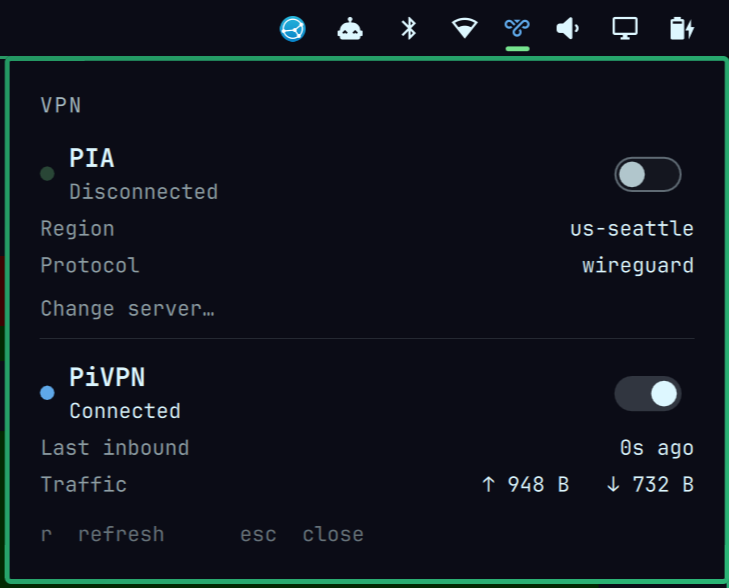
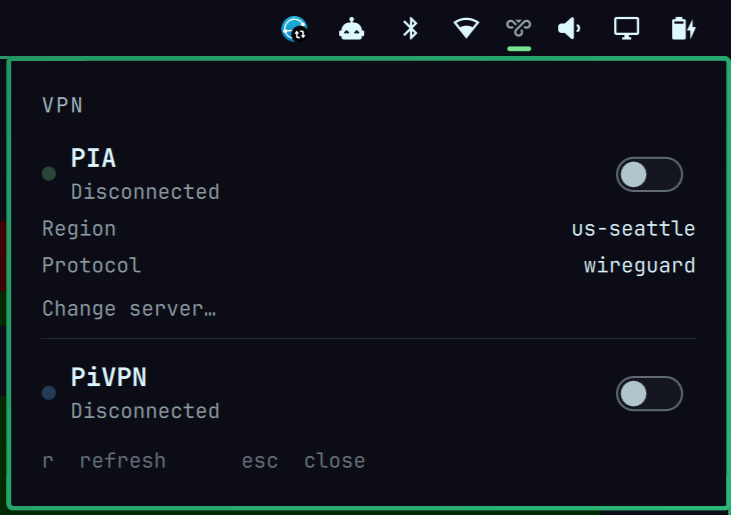
I run a homelab behind a WireGuard tunnel and PIA for everything else, and I got tired of squinting at two separate indicators that both lied to me. So: one icon. Click it, see every tunnel, flip whichever one you need.
Three providers ship with it: PIA, WireGuard, and a generic CLI provider that drives anything with a command line. Mullvad, Proton, NordVPN, IVPN, Mozilla VPN, Windscribe, AirVPN, FortiVPN, or any NetworkManager profile, all from config, no code. There's a cookbook with ready-made entries.
And you can run several at once. A homelab tunnel and a commercial VPN sit side by side in the same panel, each with its own state, traffic and switch.
Why not just cram it into the wifi menu
Because a VPN isn't a network connection, it's a policy sitting on top of one. Omarchy already agrees with me here, the built-in Tailscale widget is its own thing too.
The thing that actually matters
Here's the bug that made me write this.
wg-quick is a Type=oneshot systemd unit. It flips to "active" the second the
interface exists and the routes get added. It never talks to the peer. Not once.
So if your VPN server is powered off, systemctl is-active wg-quick@whatever
says active. Forever. Cheerfully. While absolutely nothing goes through the
tunnel. My old status script believed it, and I burned an entire afternoon at a
beach house debugging my laptop, my wifi, and eventually my own sanity, before
discovering the VM running PiVPN had simply been powered off the whole time.
My bar was green for all of it.
This widget reads rx_bytes off the interface instead. Zero bytes in means no
handshake ever happened, so the icon goes red. Bytes flowing means you're
actually connected. Groundbreaking, I know.
PIA gets the same treatment for a different reason. When your PIA token expires the daemon takes a 401, retries a few servers, gives up, and parks at "Disconnected". Then it stops logging 401s. Check five minutes later and there's no evidence anything is wrong, and "Disconnected" looks exactly like "you turned it off". This widget latches it. Once PIA rejects your login it keeps yelling LOGGED OUT until a connection actually succeeds.
Which VPN am I on
Every VPN gets its own colour, so the bar answers that without you clicking anything. One tunnel up paints the icon in that tunnel's colour. Two tunnels up splits the glyph down the middle, one colour each. Three splits it into thirds. A tunnel that's switched off takes up no space, so the everyday one-VPN case is just a normal, solid-coloured icon.
Open the panel and each VPN has a matching dot next to its name. That's the legend — it's how you learn which colour is which without memorising anything.
Colours are assigned automatically and you can override any of them with
"color", either a hex value or one of your theme's role names (accent,
urgent, foreground, muted):
"pia": { "enabled": true, "label": "PIA", "color": "#6fcf82" },
"wireguard": [{ "label": "Homelab", "interface": "wg0", "color": "#5fa8e8" }]
State still wins over identity, because knowing a tunnel is broken matters more than knowing which one it is:
| Colour | What it means |
|---|---|
| the VPN's own colour | connected, bytes moving |
| yellow | was fine, gone quiet (nothing in for 4 min) |
| red | up but no handshake, or PIA is logged out |
| dim | nothing is on |
So with two tunnels up and one of them dead, you get half your colour and half red, and you know which half to go and shout at. A broken tunnel can never hide behind a working one.
The generated palette skips red and yellow on purpose. A VPN whose identity
colour was red would be indistinguishable from a VPN that's failing, which is
the exact confusion this whole plugin exists to stop. If you override color
with something red, that's on you.
What you need
- Omarchy Quattro (4.x) with
omarchy-shell - A Nerd Font for the icon (Omarchy ships one)
- For WireGuard:
wireguard-tools, plus permission to start and stop the unit. Either add a polkit rule forwg-quick@<iface>.service, or pointconnectCommand/disconnectCommandat your own scripts. - For PIA: the official client (
/opt/piavpn/bin/piactl). Not installed? The PIA section just doesn't show up.
Nothing else. It doesn't install anything, and it never writes to your config.
Install
omarchy plugin add https://github.com/Paulie420/omarchy-vpn.git --enable
omarchy bar move paulie420.vpn --section right
Uninstall
omarchy plugin remove paulie420.vpn
That deletes the folder. If you added a paulie420.vpn block to your
shell.json, delete that too. The plugin won't touch your config, which also
means it can't clean up after itself.
Config
Everything lives in this widget's entry in ~/.config/omarchy/shell.json, and
all of it is optional.
{
  "id": "paulie420.vpn",
  "refreshIntervalSec": 5,

  "pia": { "enabled": true, "label": "PIA" },

  // one object, or a list of them
  "wireguard": [{
    "enabled": true,
    "label": "Homelab",
    "interface": "wg0",

    // Optional. Hex, or a theme role name (accent / urgent / foreground /
    // muted). Leave it out and you get an automatic colour. See "Which VPN
    // am I on".
    "color": "",

    // Leave these empty and it runs systemctl start/stop wg-quick@<interface>.
    // Set them if your VPN has its own CLI, or if connecting needs to do more
    // than raise the interface. Mine drops PIA first and puts it back after.
    "connectCommand": "",
    "disconnectCommand": "",

    // Optional. Something living behind the tunnel. The panel tells you whether
    // it's reachable while you're connected. Mine points at the NAS.
    "reachabilityHost": ""
  }]
}
Heads up: omarchy plugin disable followed by enable resets this entry to a
bare {"id": "paulie420.vpn"}. Not my doing, but it will eat your settings, so
keep a copy somewhere.
Adding your VPN
Most of them need zero code
There are two ways in, and neither involves writing QML.
If it's WireGuard underneath (Mullvad, NordLynx, Proton, plain wg-quick),
use the wireguard list. Point it at the interface, hand it the vendor's CLI:
"wireguard": [
  { "label": "Homelab", "interface": "wg0", "reachabilityHost": "192.168.1.10" },
  { "label": "Mullvad", "interface": "wg0-mullvad",
    "connectCommand": "mullvad connect", "disconnectCommand": "mullvad disconnect" }
]
If it has any CLI at all, use the custom list. This drives anything:
"custom": [
  { "label": "Proton",
    "statusCommand": "protonvpn status",
    "connectedWhen": "Connected",
    "connectCommand": "protonvpn connect -f",
    "disconnectCommand": "protonvpn disconnect",
    "interface": "proton0" }
]
interface is optional but set it if you can. It's what gives you live traffic
counters, and it's what catches your VPN's CLI claiming "connected" while the
tunnel is actually carrying nothing.
Cookbook
Drop these into custom and adjust. Check the commands and interface names on
your own box first — I've only personally run the PIA and WireGuard ones, the
rest came from reading the source of the single-vendor plugins on the
marketplace, and vendors rename things.
// Mullvad
{ "label": "Mullvad", "statusCommand": "mullvad status",
  "connectedWhen": "Connected",
  "connectCommand": "mullvad connect", "disconnectCommand": "mullvad disconnect",
  "regionListCommand": "mullvad relay list | awk '/^[a-z]{2}/ {print $1}'",
  "regionSetCommand": "mullvad relay set location {}",
  "interface": "wg0-mullvad" }

// Proton VPN
{ "label": "Proton", "statusCommand": "protonvpn status",
  "connectedWhen": "Connected",
  "connectCommand": "protonvpn connect -f", "disconnectCommand": "protonvpn disconnect",
  "regionListCommand": "protonvpn countries list",
  "regionSetCommand": "protonvpn connect --country {}",
  "interface": "proton0" }

// IVPN
{ "label": "IVPN", "statusCommand": "ivpn status",
  "connectedWhen": "Connected",
  "connectCommand": "ivpn connect -last", "disconnectCommand": "ivpn disconnect" }

// Mozilla VPN
{ "label": "Mozilla", "statusCommand": "mozillavpn status",
  "connectedWhen": "active",
  "connectCommand": "mozillavpn activate", "disconnectCommand": "mozillavpn deactivate" }

// NordVPN (NordLynx is WireGuard, so the interface gives you real liveness)
{ "label": "NordVPN", "statusCommand": "nordvpn status",
  "connectedWhen": "Connected",
  "connectCommand": "nordvpn connect", "disconnectCommand": "nordvpn disconnect",
  "regionListCommand": "nordvpn countries", "regionSetCommand": "nordvpn connect {}",
  "interface": "nordlynx" }

// Windscribe
{ "label": "Windscribe", "statusCommand": "windscribe-cli status",
  "connectedWhen": "Connected",
  "connectCommand": "windscribe-cli connect", "disconnectCommand": "windscribe-cli disconnect" }

// AirVPN (NetworkManager profile)
{ "label": "AirVPN", "statusCommand": "nmcli -t -f NAME,DEVICE con show --active",
  "connectedWhen": "AirVPN",
  "connectCommand": "nmcli con up id 'AirVPN'", "disconnectCommand": "nmcli con down id 'AirVPN'" }

// FortiVPN (SSL-VPN, usually needs sudo + 2FA, so run it in a terminal)
{ "label": "FortiVPN", "statusCommand": "pgrep -a openfortivpn",
  "connectedWhen": "openfortivpn",
  "connectCommand": "omarchy-launch-tui sudo openfortivpn",
  "disconnectCommand": "sudo pkill openfortivpn", "interface": "ppp0" }

// Anything NetworkManager knows about, by profile name
{ "label": "Work VPN", "statusCommand": "nmcli -t -f NAME con show --active",
  "connectedWhen": "work-vpn",
  "connectCommand": "nmcli con up id work-vpn", "disconnectCommand": "nmcli con down id work-vpn" }
Picking a server
Set regionListCommand (prints one option per line) and regionSetCommand
(with {} where the choice goes) and a Change server… row appears in the
panel. It hands the list to omarchy-menu-select, so you get Quattro's own
themed picker instead of something I bolted on.
PIA gets this for free, no config needed — it reads all 190 regions from
piactl get regions.
When you actually have to write code
Only if your VPN isn't WireGuard-based, or it knows things the generic provider can't see. That's why PIA has its own file. It reports a region, a protocol, and that expired-login state that otherwise looks identical to "switched off".
A provider is one QML file with this shape:
Properties  enabled  label  connected  busy  rxBytes  txBytes
            severity       "ok" | "warn" | "error" | "off"
            stateText      short line, like "Connected"
            hintText       optional, shown when something's broken
            identityColor  a `color`; BarWidget assigns it, you just declare it

Functions   connectVpn()  disconnectVpn()  toggle()  refresh()
Drop MyVpnProvider.qml next to the others, declare it in BarWidget.qml
beside PiaProvider, add it to the providers list. That's the whole job.
Or just have an AI write it
Honestly, great job to hand off. The contract is tiny and there are two working examples sitting right there. Paste this at your assistant of choice:
I'm writing a provider for the Omarchy
paulie420.vpnbar widget. ReadWireGuardProvider.qmlandPiaProvider.qmlin this repo first, they define the interface I need to implement.Write
<Name>Provider.qmlfor <your VPN>. It connects with<connect command>, disconnects with<disconnect command>, and I can check status using<status command>, which prints<paste the real output>.Rules:
- Root is
Item { visible: false }, importsQtQuickandQuickshell.Io.- Get all state in ONE
Processperrefresh(), usingstdout: StdioCollector { waitForEnd: true; onStreamFinished: ... }.- Do NOT use
FileViewon/sys/class/net/.... Those paths vanish when the tunnel drops and the watcher never recovers.- Expose exactly: enabled, label, connected, busy, rxBytes, txBytes, severity, stateText, hintText, identityColor, and connectVpn/disconnectVpn/toggle/refresh.
identityColoris a plainproperty colorthe widget writes into; just declare it.severitymust be "error" when the VPN claims it's up but nothing is coming through. Never trust systemd's "active" as proof of a live tunnel.Then show me the
shell.jsonentry to add.
That last rule is the entire reason this widget exists, so don't let it skip it.
Check whatever it hands you before trusting it:
omarchy plugin validate .
qmllint -I "$OMARCHY_PATH/shell" <Name>Provider.qml
omarchy-shell shell rescanPlugins
qs log -p "$OMARCHY_PATH/shell" --tail 100   # QML only complains at load time
Got one working? Send a PR. I'd love to ship more providers, and I only own the two VPNs I actually pay for.
Privacy
Address and traffic rows stay hidden while a tunnel is down. There's no reason to paint your address on your screen, where it lands in the first screenshot you post.
Connection state alone isn't a safe gate for that, though. Some clients keep
reporting the underlying connection's address well after they say they're
connected — piactl get pubip is one of them. So the rule here is stricter:
any address seen while not connected is remembered, and is never shown as
an exit IP afterwards. A client that honestly reports its exit gets a row; one
that's still reporting the address the tunnel is meant to hide gets no row at
all. Erring toward the blank row costs nothing.
The plugin makes no network calls of its own. It shells out to systemctl,
wg, piactl and ping, and reads local files. That's the entire attack
surface.
Who made this
I'm paulie420. I run a homelab, a BBS, and techheart.life, and I put the builds and the debugging up on YouTube at @techheart6090.
If you want to watch the kind of afternoon that produces a widget like this, that's where it lives. Come hang out.
Licence
MIT, see LICENSE. Take it, fork it, ship it, sell it, whatever.