
Flipnotes — write a new note to your Flipnotes directly from your status bar without leaving the keyboard
Write to your Flipnotes in seconds. A thought arrives while you are in a terminal, a browser, a call. Getting it down means finding a window, waiting for an app, losing the thread. This widget puts the Flipnotes compose bar in your Omarchy status bar instead. Wire up your own shortcut to focus it instantly and you can write your note without breaking the flow or using your mouse.
Voice notes, direct photo capture, image attachments, private notes and checklist items all work, just like in the real Flipnotes omnibar.
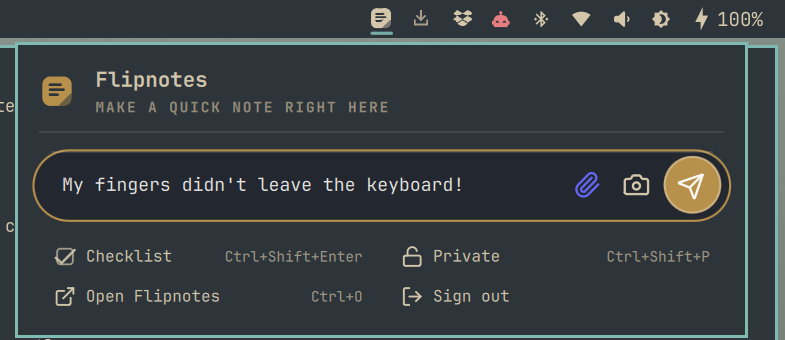
What it does
- Text notes. Type and press Enter.
- Checklists. Ctrl+Shift+Enter turns what you typed into a task item, the same chord as the app.
- Private notes. Ctrl+Shift+P, and the note lands in your private space.
- Voice notes. Hold the gold mic and talk, release to save — or Ctrl+Shift+M to start and Enter to finish, if your hands are already on the keyboard. The bar shows the app's own recording strip while it runs, and Flipnotes transcribes the recording server-side, exactly as it does for a voice note from the phone.
- Photos. The camera button opens your webcam, framed and floating; Enter takes the shot and it becomes a note. Built on mpv, the way Omarchy's own webcam overlay is, so it works on any Omarchy machine rather than only the one it was written on.
- Images from disk. The paperclip opens your desktop's file picker through the XDG portal.
- Paste an image. Ctrl+V saves whatever image is on the clipboard — a screenshot, something copied out of a browser, or a file copied in your file manager. Text still pastes as text.
- Open the app. Ctrl+O focuses the Flipnotes web app if it is already running, or opens it if it is not.
Everything is keyboard-first, and the panel closes itself the moment the note is saved, with the app's gold checkmark as the confirmation.
Signing in
The plugin never sees your password. Pressing Sign in opens your browser at the real flipnotes.life login page, through a standard OAuth 2.0 loopback flow with PKCE (RFC 8252) against Flipnotes' own authorization server — the same door the official integrations use. You sign in the way you always do, approve the consent screen, and the browser hands one credential back.
That credential is stored in your system keyring (libsecret), never in a dotfile. Sign out revokes it server-side before forgetting it, so a token that has left the machine cannot outlive the button you pressed.
Install
omarchy plugin add https://github.com/realgbbb/omarchy-flipnotes.git --enable
Then add the widget to your bar (Omarchy menu → Bar → widgets), and bind the panel to a key — this is the one in the screenshot:
-- ~/.config/hypr/bindings.lua
o.bind("SUPER + ALT + L", "Quick note", "omarchy-shell realgbb.flipnotes toggle")
To remove it:
omarchy plugin remove realgbb.flipnotes
Signing out first is worth doing — it revokes the stored credential rather than leaving it live in your keyring.
Requirements
Everything it uses ships in Omarchy's base install: python3, secret-tool
(libsecret), mpv, imagemagick, pw-record (pipewire), wl-clipboard, and
xdg-desktop-portal-gtk for the file picker. No pip packages, no daemon, nothing to configure.
A Flipnotes account. The free plan works; plan limits are enforced by the server, so the widget honours them exactly as the app does.
How it is built
The QML only draws. Everything network-shaped — the OAuth flow, the keyring,
uploads, retries, the error taxonomy — lives in bin/flipnotes-cli, a
stdlib-only Python script you can run in a terminal:
flipnotes-cli status
echo "milk" | flipnotes-cli note --checklist
Note text goes over stdin, never argv, because /proc/<pid>/cmdline is
world-readable. Nothing secret is printed or logged: not the token, not the
authorization code, not a presigned upload URL. Note contents are reported by
length only.
Settings
One, in the widget's settings: whether the compose pill wears the app's light or dark look. It follows your Omarchy theme's lightness by default.
Licence
MIT. Flipnotes is a product of its own; this plugin is a client for it.