
Omarchy Connect
Omarchy Connect brings KDE Connect directly into the Quattro shell.
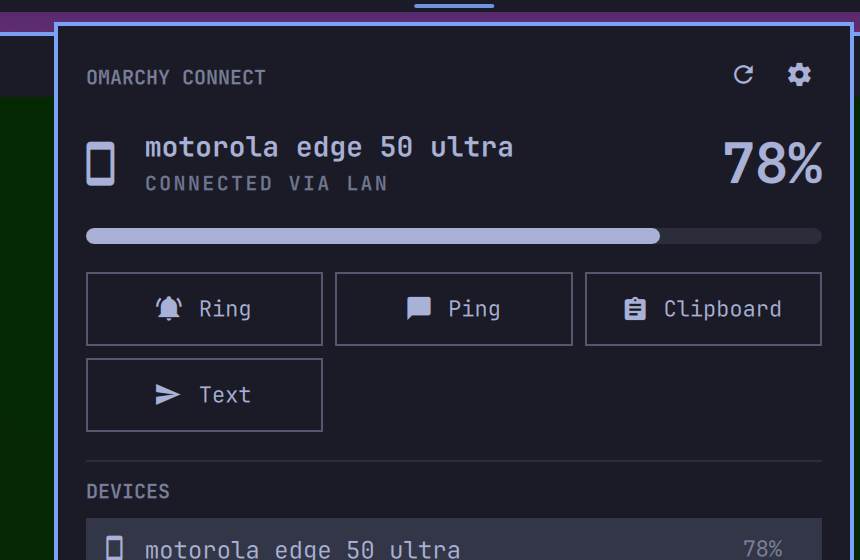
Pair devices, see live connection and battery state, find your phone, send clipboard content and share text from a native Omarchy panel — without running Plasma or a separate KDE Connect frontend.
Highlights
- Native Quickshell/Quattro UI — theme tokens, bar orientation, keyboard navigation; a screenshot should look like it shipped with Omarchy.
- Event-driven D-Bus integration — one persistent bus monitor invalidates a debounced snapshot; no polling, no idle process churn.
- Multi-device — primary-device precedence with a persisted preference, correct behaviour when devices disappear and return.
- Native pairing — incoming and outgoing requests with verification-key display, accept/reject from the panel. Can optionally suppress KDE's duplicate system pairing popup (opt-in) so the panel owns the flow.
- Battery + charging in the bar and panel when the device supports it.
- Find Device, Ping, Send Clipboard, Share Text, Browse Files —
capability-driven: actions appear only when the device's KDE Connect plugins
provide them, and each can be hidden in settings. Browse Files opens the
device's storage in your file manager; an opt-in setting additionally
registers a
kdeconnect://handler so KDE Connect's own "Explore device" button works on Omarchy too (see Remote files). - Useful failure states — distinguishes "not installed", "daemon not running", "no devices" and "device offline" instead of one "Disconnected".
- No custom daemon, no protocol reimplementation — KDE Connect keeps
ownership of networking, encryption and discovery; this plugin owns only the
shell experience. Zero build step: QML +
busctl+kdeconnect-cli.
Omarchy Connect deliberately does not duplicate notifications, clipboard sync or media controls — KDE Connect's existing plugins already flow through Omarchy's native notification, clipboard and media surfaces.
Requirements
Omarchy Connect is a frontend for KDE Connect, so KDE Connect must be installed
on this machine. kdeconnect is in the official Arch extra repo; install it
with Omarchy's package helper:
omarchy-pkg-add kdeconnect
(omarchy-pkg-add wraps pacman -S --needed with sudo handling — no AUR
needed. Plain sudo pacman -S kdeconnect works too.)
The Browse Files action additionally needs sshfs. KDE Connect lists it
only as an optional dependency, so it is not pulled in automatically — install
it once:
omarchy-pkg-add sshfs
Without it the action stays listed and reports "Install sshfs to browse files" when clicked (KDE Connect's own Explore device button tells you the same way).
busctl (from systemd) and Quattro's omarchy-shell are already part of
Omarchy — nothing else to install on the desktop.
Install the KDE Connect app on the phone/tablet you want to pair:
- Android — Google Play or F-Droid
- iOS — App Store
Both devices must be on the same local network. KDE Connect discovers devices over TCP/UDP ports 1714–1764; if a firewall is active, allow that range (Omarchy Connect will surface this in its diagnostics but never edits firewall rules itself).
The Browse Files action's kdeconnect:// handler is written with busctl
(systemd) and gio (glib) — both already present on Omarchy — and adds no
runtime dependency of its own; it drives the same sshfs mount required above.
The handler is opt-in, off by default (see Remote files);
if xdg-mime (xdg-utils) and update-desktop-database (desktop-file-utils)
are available it is registered automatically when switched on, and the action
itself works without either.
Install
omarchy plugin add https://github.com/seb-krz/omarchy-connect.git --enable
This clones the plugin into ~/.config/omarchy/plugins/seb-krz.omarchy-connect/
and adds it to the bar. If you omit --enable, enable it later from the bar's
widget picker or with:
omarchy plugin enable seb-krz.omarchy-connect
Usage
- Bar indicator — shows the primary device's glyph, plus battery percentage and a charging bolt when available. It dims when the device is offline and takes Omarchy's urgent treatment when a device is requesting pairing.
- Click the indicator to open the panel. It opens instantly from cached state — connection status, battery meter, and the available actions.
- Pair a device — a discovered device shows a Pair button; an incoming request appears as the most prominent card with a verification code to confirm on both devices.
- Actions — Ring (find your phone), Ping, Send Clipboard, Share Text, Browse Files. Only the actions your device actually supports are shown.
- Keyboard — the panel is fully keyboard navigable: arrows/
hjklmove, Enter/Space activates,xunpairs a selected device (press again to confirm), Esc closes.
Settings
Open the panel and click the gear icon. You can:
- toggle battery percentage in the bar;
- show or hide individual actions (Ring, Ping, Clipboard, Share Text);
- suppress KDE's system pairing popup (opt-in, off by default) so only the
panel shows pairing requests — enabling it writes one scoped, reversible line
to
~/.config/kdeconnect.notifyrc, removed automatically on disable; - install or remove the
kdeconnect://link handler (opt-in, off by default) so KDE Connect's own Explore device button opens the device in your default file manager — see Remote files for exactly what it writes and where; - move the widget to the left, center or right of the bar.
Settings persist in ~/.config/omarchy/shell.json under the plugin's entry.
Remote files
Browse Files mounts the device over KDE Connect's SFTP plugin on demand and
opens the directory the phone advertises. On Android that is
/storage/emulated/0: the SFTP root itself is not listable, and the daemon
maps its virtual root onto that single storage for you. This needs the sshfs
package (see Requirements) — KDE Connect's sftp plugin mounts
the device with it, and kdeconnect lists it only as an optional dependency.
The action also bundles a desktop integration so KDE Connect's own Explore device button works on Omarchy, whose default file manager has no KIO. It is opt-in — the kdeconnect:// link handler setting, off by default — because installing it writes outside the plugin folder. Switching the setting on installs it; switching it off removes it again. Manage it by hand with:
bin/kdeconnect-install install     # idempotent
bin/kdeconnect-install status
bin/kdeconnect-install uninstall
What it touches outside the plugin folder (all under $HOME):
~/.local/bin/kdeconnect-open— thebusctl+giohandler; no Python, no KIO, no Dolphin;~/.local/share/applications/kdeconnect-url-handler.desktop— registersx-scheme-handler/kdeconnect;- one default line in
~/.config/mimeapps.listforx-scheme-handler/kdeconnect— only if no other handler already owns the scheme. An existing default is left untouched, anduninstallremoves only our own line; - the
installUrlHandlerkey in the plugin's entry in~/.config/omarchy/shell.json.
Nothing else, and nothing outside $HOME.
There are no IP addresses anywhere: the daemon resolves the device, and the sshfs mount point is keyed by the stable device id, so a changing DHCP lease is a non-issue.
Removal
omarchy plugin disable seb-krz.omarchy-connect   # remove from the bar
omarchy plugin remove seb-krz.omarchy-connect    # delete the plugin
Disabling restores KDE's system pairing popup automatically, so nothing is left
behind. KDE Connect itself is untouched; remove it separately with
sudo pacman -R kdeconnect if you no longer want it.
The kdeconnect:// integration is opt-in, so nothing is written outside the
plugin folder unless you switched it on. If you did, switch the setting off
first (which uninstalls it), or run bin/kdeconnect-install uninstall after
removing the plugin. The copied handler is self-contained and keeps working
until you do.
Troubleshooting
- "KDE Connect is not installed" — run the pacman command above.
- "Daemon not running" — start it with
systemctl --user start app-org.kde.kdeconnect.daemon@autostart.service, or use the panel's start button. - No devices found — confirm both devices are on the same network with the KDE Connect app open, and that ports 1714–1764 aren't firewalled.
- Device won't connect — open
kdeconnect-cli -lin a terminal to see what KDE Connect itself reports; Omarchy Connect reflects that same state. - "Install sshfs to browse files" / Browse Files fails — install KDE
Connect's optional dependency:
omarchy-pkg-add sshfs. - Browse Files fails and kdeconnectd logs "sshfs finished with exit code 1"
— a connection that dropped after a successful mount leaves a dead
fuse.sshfsmount behind, and the daemon's next attempt fails on it. The handler detects the leftover and unmounts it before mounting again, so this heals on the next click; a stubborn point can be cleared by hand withfusermount3 -uz /run/user/<uid>/<device-id>. - KDE Connect's "Explore device" button does nothing — the
kdeconnect://handler is opt-in; enable the kdeconnect:// link handler toggle in the panel settings. The panel's own Files action needs no registration and always works.
Architecture
kdeconnectd ── session D-Bus ──┬── busctl monitor (events → debounced snapshot)
                               ├── busctl call    (structured state)
                               └── kdeconnect-cli (actions)
                                        │
                                   Service.qml (normalized state)
                                        │
                              bar indicator + panel
Dbus.qml— transport: serialbusctlcall queue, persistent filtered bus monitor with restart backoff.Model.js— pure parsing/normalization; unit-tested against capturedbusctlfixtures (node tests/model.test.js).Service.qml— state, snapshot reconciliation, actions, pairing.Panel.qml— bar indicator + panel presentation.Integration.qml— installs/removes thekdeconnect://desktop integration when the opt-in setting is toggled (best effort; never affects the panel).bin/— thekdeconnect://handler and its installer. The handler's mount handling, including the stale-mount self-heal, is covered bybash tests/open-handler.test.sh.
License
MIT © seb-krz