
Nextcloud for Omarchy
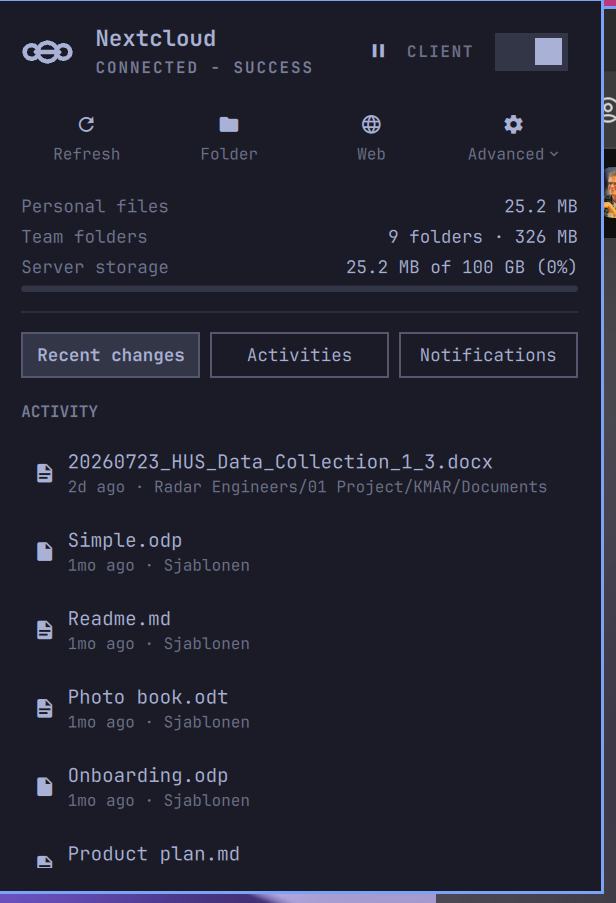
A Quattro bar widget for the Nextcloud Desktop client. It shows client and sync status, recent local activity, server activities and notifications, storage use and server quota, sync-conflict alerts, pause/resume control, and shortcuts for the local folder, settings, and the configured server.
Requirements
- Omarchy Quattro with the plugin-capable shell
- Nextcloud Desktop (
nextcloud) — the client this widget monitors and controls. It is detected at runtime: without it the widget still installs and runs, and the panel offers a one-click install of thenextcloud-clientpackage through the Omarchy package manager. - Python 3,
busctl,gdbus,secret-tool,notify-send, and Nautilus — all included in a stock Omarchy install.secret-toolandgdbusserve the native Settings action and on-demand Activity authentication;notify-senddelivers notifications through Omarchy's integrated notification daemon, history, and Do Not Disturb handling.
The plugin runs unsandboxed with the current user's permissions and does not require root access. To load Activities, its helper reads the matching Nextcloud Desktop credential from the system keyring only for the duration of the request; it does not store or print the credential.
Install
omarchy plugin add https://github.com/thefreshoffice/omarchy-nextcloud.git --enable
No further setup is required. The widget detects the Nextcloud Desktop client automatically and reflects its installed, running, and signed-in state; existing client accounts are picked up as-is.
Usage
- Left click opens the details panel.
- Middle click opens the local Nextcloud folder.
- Right click refreshes status.
- The panel toggle starts or stops Nextcloud Desktop.
- Activity notifications can be disabled in the widget settings.
- Recent changes shows recently modified local files inside the widget. Files currently being synchronized spin an accent sync icon (queried from the client's local socket, refreshed every few seconds while the panel is open); files whose sync failed show an urgent warning icon.
- Activities displays the authenticated Nextcloud server activity feed directly in the widget. The existing desktop-client credential is read from the system keyring only when this tab needs fresh data and is never stored by this plugin. Periodic local-status polling does not access the keyring.
- Notifications lists the server's pending notification-bell items and can
dismiss them on the server — unlike closing the client's popup, a dismissed
notification stays gone after the client reconnects. With the cursor on a
notification,
xdismisses it. - Pause/Resume: the small pause button beside the client toggle in the panel header pauses or resumes synchronization via the client's CloudProviders D-Bus action.
- Sync conflicts found in the local folder are listed in an alert section and announced with an urgent desktop notification when new ones appear; opening one reveals the file in Nautilus.
- Safety notices appear in the panel when the client is configured in a way that can fill the disk unattended: when new team folders and external storages are set to sync without confirmation (naming the big-folder size limit that still applies, or warning when none does), and when the sync disk drops below 5 GB free. Both read local client settings only. The advisory can be dismissed with its ✕ and stays dismissed; the urgent ones cannot.
- Advanced replaces the old Settings shortcut. One click opens a settings
page in place of the file list: account name, local folder, on-demand files,
whether new shared or large folders ask before syncing (with the size limit),
whether deleted files go to the trash, mass-deletion confirmation, and server
notifications — plus a button to open the client's own settings dialog for
anything not covered. Use the Advanced quick action, which stays highlighted
while the page is open, or press
a. The page is fully keyboard driven: the cursor walks the rows, Enter or Space flips a switch, and left and right step the large-folder limit. Settings are written straight into the client's configuration, which merges external changes, so they survive the client writing its own settings; entries read only at start-up (like on-demand files) restart the client to apply. - On-demand files can be switched on and off from Advanced when the client
ships the
xattrvirtual-files plugin. On-demand keeps files on the server until you open them, which also stops new team folders and external storages from filling the disk. Switching restarts the client, and turning it back off downloads everything that is currently online-only. Thesuffixplugin is deliberately not offered: it renames every file on disk. - Sync errors reported by the client turn the bar icon and its badge dot urgent, color the panel header, and raise a one-shot urgent notification when the account enters the error state.
- Team folders and external storage are accounted separately. They are
served inside your sync folder but belong to the team folder or storage
owner, not to your personal quota. The panel therefore reports Personal
files (what the quota counts), Team folders (count and size), and
External storage on their own lines, so the local numbers agree with the
server's. Mount types come from a
nc:mount-typePROPFIND on the account root and are cached, so the local scan needs no network. - Server storage shows the account quota with a usage meter once the Activities or Notifications tab has loaded. Capped accounts use the server quota; unlimited accounts use the server's reported free space, or the "Storage meter capacity" widget setting when the server reports neither.
- Local-file scanning runs when Recent changes needs fresh data and at most once every five minutes for notifications; the 30-second status poll does not scan the synchronized folder.
API security
Nextcloud app passwords are independently revocable, but Nextcloud does not
currently offer endpoint-level scopes for them. The plugin therefore enforces
least privilege locally: it selects only the configured account's keyring
entry, requests server data only when the Activities or Notifications tab is
opened or manually refreshed, caches successful results for five minutes,
refuses redirects, limits responses to 1 MiB of JSON, and retains only the
fields displayed by the panel. The endpoints used are fixed: GET on the
Activity API v2 and Notifications API v2 plus GET on cloud/user for the
quota, and DELETE on a single Notifications API v2 id — the only write, sent
exclusively when the user dismisses that notification. Activity and
notification links are limited to HTTP(S) URLs on the configured Nextcloud
server origin.
Credential selection and rate limiting
Keyrings often hold several app passwords for the same Nextcloud account after
re-authentication, and only the newest one still works. Trying them all would
generate failed logins and trip the server's brute-force protection, so the
helper: remembers which keyring entry last succeeded (its identity, never the
secret) and tries it first, attempts at most two credentials per run, and stops
immediately when the server answers 429, recording a ten-minute cooldown
during which no authenticated request is sent at all. While a block is active
the panel shows an explanatory banner, and the widget tells you to sign in on
the server once or wait — signing in successfully clears the server's counter.
If every stored credential is rejected, the panel says so and points at
re-adding the account and pruning obsolete keyring entries.
The helper stores only an activity timestamp, a sync-error flag, and the
identity of the working keyring entry under
~/.local/state/omarchy/thefreshoffice.nextcloud/.
Validate
omarchy plugin validate ~/.config/omarchy/plugins/thefreshoffice.nextcloud
qmllint -I /usr/share/omarchy/shell ~/.config/omarchy/plugins/thefreshoffice.nextcloud/*.qml
Remove
omarchy plugin remove thefreshoffice.nextcloud
The optional notification timestamp can then be removed from
~/.local/state/omarchy/thefreshoffice.nextcloud/.