
System Bridge for Omarchy
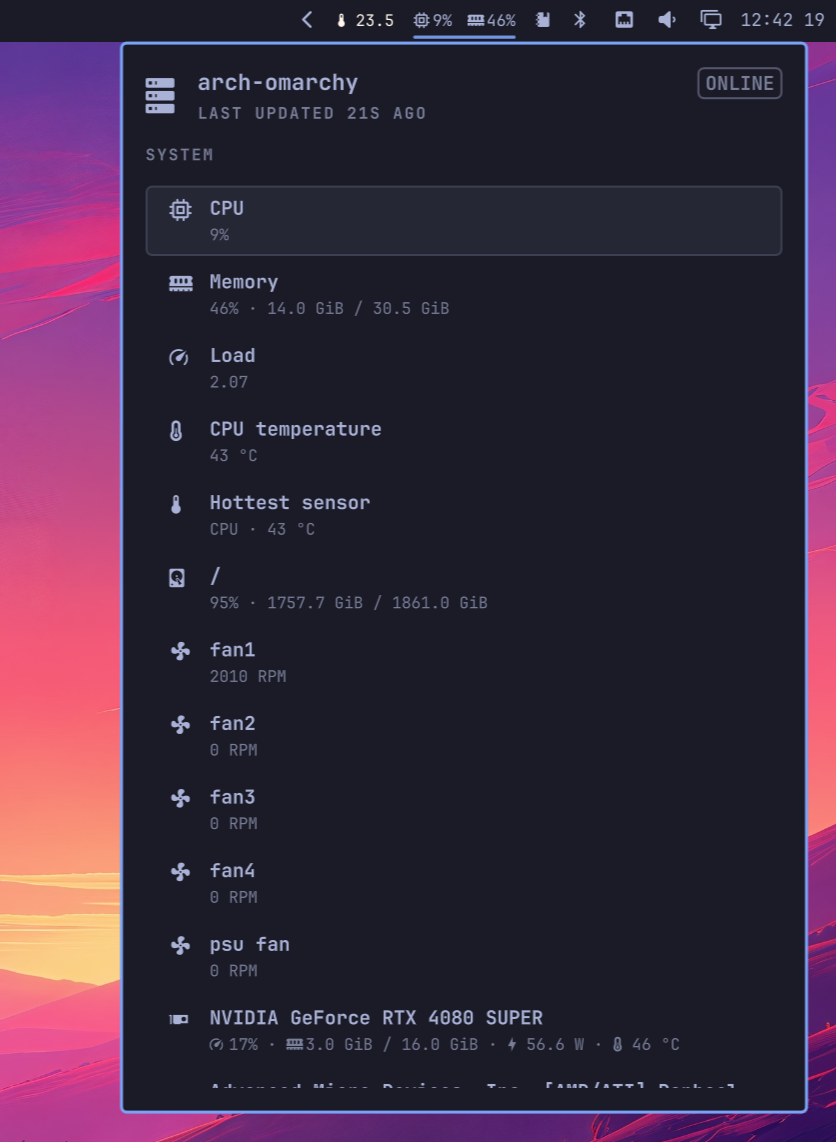
An Omarchy bar widget and panel for local System Bridge health data. It shows CPU and memory usage in the bar, with disk, fan, GPU, temperature, uptime, and reboot details in a keyboard-filterable panel.
Requirements
- Omarchy Quattro
- System Bridge installed with the
system-bridgeexecutable available onPATH - A running local System Bridge service
zenityfor the exit confirmation prompt
Install
Review the repository, then add the plugin:
omarchy plugin add https://github.com/timmo001/omarchy-system-bridge.git
Accept the prompt to enable the plugin during installation.
For an unattended install from a repository you already trust:
omarchy plugin add \
  https://github.com/timmo001/omarchy-system-bridge.git \
  --enable --yes
Use
Select the widget to open its panel. Type to filter the available readings, use Up and Down to move through the list, and press Escape to clear the filter or close the panel. Click a reading or press Enter to run its configured action. Readings without an action remain informational.
The System Bridge heading has two icons: the settings cog opens the web
client's General Settings, and the exit icon asks for confirmation before
stopping System Bridge. Both actions are also available with Up/Down and Enter.
While disconnected, the settings cog is disabled and the exit icon becomes a
start button that launches system-bridge backend.
These controls use system-bridge client open --settings and
system-bridge client quit and need a System Bridge version with those commands.
The plugin exposes the timmo.system-bridge shell IPC target with open,
close, show, hide, and toggle methods:
omarchy-shell shell toggle timmo.system-bridge
Settings
primaryOnly: show the widget only on the selected outputprimaryOutput: optional output name used whenprimaryOnlyis enabled; the first available output is used when this is empty or unavailableitemActions: map of reading keys to commands, with each command written as an array containing the executable followed by its arguments; defaults to{}
Item actions
Set actions on the timmo.system-bridge entry in shell.json, or use
omarchy bar set. This example opens CPU and memory actions in Herdr and sends
a notification when selecting uptime. Replace the repository label and absolute
directory with your chosen repository:
omarchy bar set timmo.system-bridge itemActions '{
  "cpu": [
    "dot", "herdr", "repo-open",
    "<repository-label>", "<repository-directory>", "Btop", "btop"
  ],
  "memory": [
    "dot", "herdr", "repo-open",
    "<repository-label>", "<repository-directory>", "Btop", "btop"
  ],
  "uptime": ["notify-send", "System Bridge", "Uptime selected"]
}' --json
This replaces the complete action map. Clear all actions with:
omarchy bar set timmo.system-bridge itemActions '{}' --json
Available keys:
| Key | Reading |
|---|---|
cpu |
CPU usage |
memory |
Memory usage |
load |
CPU load |
cpu-temperature |
CPU temperature |
hottest-sensor |
Hottest temperature sensor |
disk-root |
Root filesystem usage |
fan-<key> |
Individual fan, using its System Bridge key |
gpu-<id> |
Individual GPU, using its System Bridge id |
uptime |
System uptime |
pending-reboot |
Pending reboot status |
GPUs without an ID use their zero-based array index; those keys depend on device ordering. Actions apply only to readings present in the panel.
Arguments are passed literally, including spaces and shell metacharacters.
Use an absolute repository directory; ~ and environment variables are not
expanded in arguments. To use shell syntax in an action, invoke a shell
explicitly, for example ["bash", "-lc", "your shell command"].
The Herdr example uses the existing
dot herdr repo-open command. It
requires dot, a running shared Herdr server, and btop available in the target
shell. The command resolves the workspace label from the repository picker cache
when available, opens or focuses the repository workspace, and runs the final
command argument in its shell. Each activation opens a new command tab, using
the initial tab when creating a workspace.
For dotfiles-managed configuration, put the map in settings.itemActions or
the relevant host settings in the private omarchy-plugins.json, then run
dot stow. A private plugin entry replaces the matching public entry, so retain
its placement and other settings. Keep personal repository labels and paths in
that private configuration.
An omitted key, null, or an empty array leaves the reading without an action.
Malformed maps and commands, non-string arguments, and blank executable names
are ignored. A valid action closes the panel before launching. Actions run
detached; the panel does not report their completion or exit status.
Update
Review and apply the next fast-forward update:
omarchy plugin update timmo.system-bridge
Remove
omarchy plugin remove timmo.system-bridge
Validate from source
omarchy plugin validate .
Security
This plugin runs unsandboxed inside omarchy-shell when enabled. Review its
source before installing it.
The plugin starts one long-running local data process:
system-bridge client data watch \
  --module cpu --module memory --module disks --module sensors \
  --module gpus --module system --module battery
It reads System Bridge settings and its local authentication token through the System Bridge client. Configured item actions launch additional local processes with the user's permissions. What those commands do depends on the actions you configure.