
TorBox Downloader
A compact TorBox download client for the Omarchy bar. It lists files that are ready in TorBox, manages them through a persistent concurrency-limited local queue, tracks progress, retries temporary failures, and lets you remove finished entries without opening the dashboard.
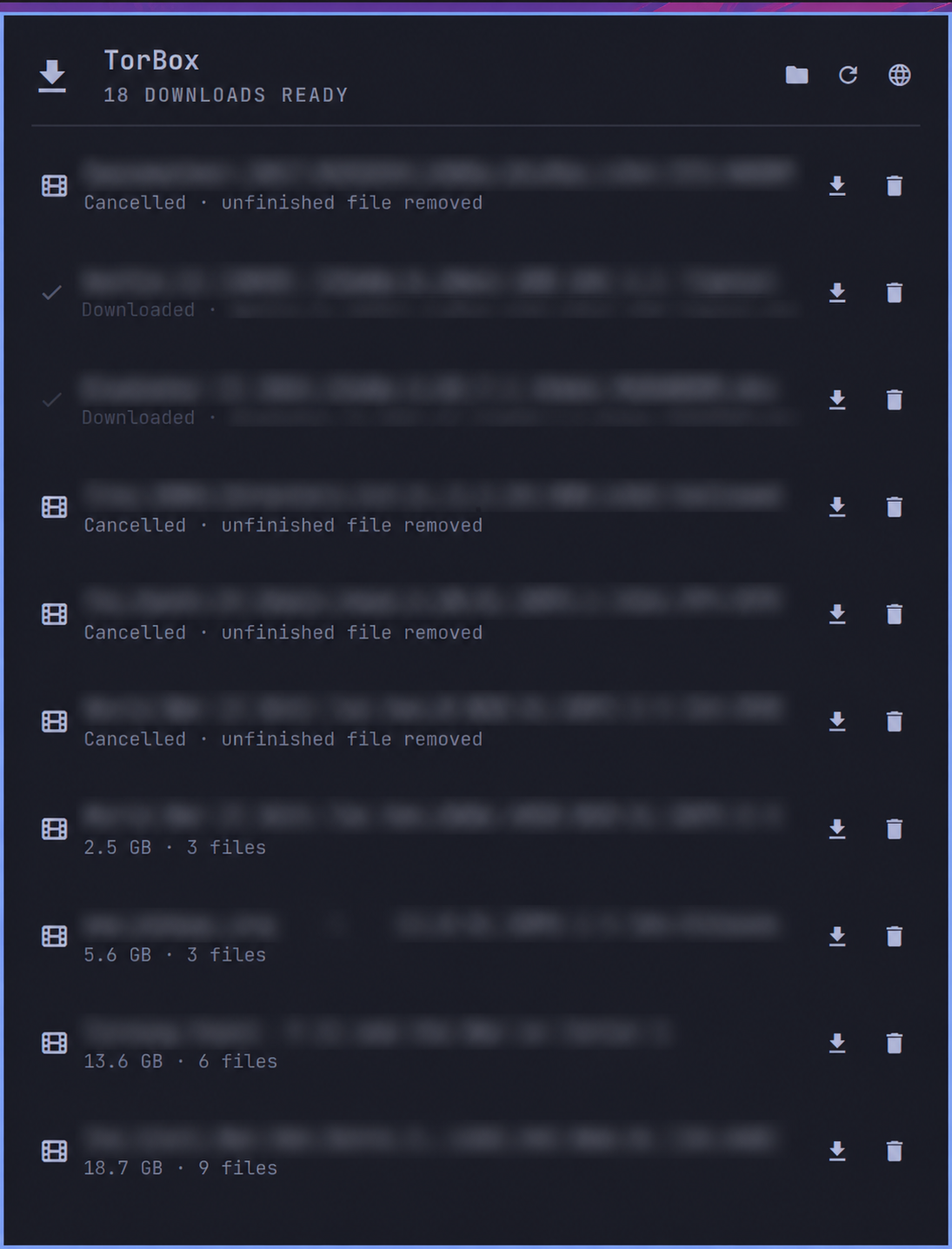
The panel is intentionally focused on downloads. It does not manage torrent seeding or the torrent queue: torrent, Usenet, and web-download sources are combined into one ready-download list once TorBox has prepared their files.
How it works
Open the TB bar widget to see every ready TorBox entry. Active transfers stay at the top, followed by queued and interrupted transfers. Long names show their complete value on hover, and the list scrolls when it is taller than the panel.
Each entry has one download button. It opens a compact menu instead of placing three permanent buttons on every row:
| Mode | Behavior | Best for |
|---|---|---|
| Main file | Downloads the largest file in the entry. | A typical movie release. This is the recommended option. |
| All files | Downloads every file sequentially into a release-named folder. | Keeping video, subtitles, samples, and metadata as separate files. |
| ZIP archive | Requests and downloads one ZIP generated by TorBox. | Moving or storing the complete release as one archive. |
An All files transfer reports the current filename, its queue position, and aggregate progress, for example All files · 2 of 7 · subtitles.srt · 38%. Duplicate basenames are flattened safely and receive numbered suffixes instead of overwriting one another.
Choosing a mode adds the item to a persistent FIFO queue. The configurable concurrency limit controls how many workers run at once; additional entries display their queue position and start automatically when a slot becomes available. While an item is queued or running, its other row actions are disabled and Cancel remains available. Cancelling removes the current unfinished .part file. For an All files transfer, files that already completed are kept.
The header pauses or resumes the entire local queue. A paused transfer keeps its partial file and queue state. After a reboot or shell restart, an orphaned transfer is shown as interrupted and can either rejoin the queue from the same partial file or be cancelled cleanly.
Temporary network, timeout, rate-limit, server, and not-ready failures retry automatically with increasing delays. Expired download links are requested again on each attempt. Disk-space, permission, authentication, and unavailable-file errors stop immediately with a more specific explanation. Failed rows have a manual Retry action that reuses the previous mode, destination, and partial data. The helper checks available disk space before writing a response with a known size.
Desktop notifications report completed downloads and final failures. Notifications and automatic retry counts can be changed in the settings screen.
Scheduled and active-transfer refreshes run silently: they do not replace the header status with a loading message. If a download-mode menu, delete confirmation, settings screen, or settings text field is active, any new refresh result is held until that interaction closes, so updates cannot close a menu or discard an in-progress choice. Refresh requests that overlap an in-flight API request are coalesced into a follow-up request, ensuring a panel-open or manual refresh cannot be lost behind an older snapshot. The interval is configurable from 0 to 600 seconds; 0 disables all automatic refreshes. Manual refresh remains available in the header and with R.
Deleting an entry is a separate, two-step action. It removes the entry from TorBox and immediately hides it from the panel; it never deletes files that were already downloaded locally.
The header's settings button opens the built-in settings screen. From there you can change the download folder, concurrency limit, automatic retry count, silent-refresh interval, desktop notifications, API key, and whether a successfully downloaded entry should be deleted from TorBox automatically. Preferences are persisted as soon as their controls change; the download folder is saved when you press Enter or leave its field, so there is no separate Save action. Automatic cleanup only runs after the local download has completed and been renamed out of its .part file. If TorBox cleanup fails, the local download remains successful and the panel reports the cleanup warning.
Requirements
- Omarchy Quattro (4.x) with the shell plugin system.
- Python 3.11 or newer. The helper uses only the Python standard library.
- A TorBox account and API key.
Installing
Once the repository is published:
omarchy plugin add https://github.com/vip32/omarchy-torbox-downloader
omarchy plugin enable vip32.torbox.downloader
omarchy bar move vip32.torbox.downloader --section right
For local development, clone or copy the repository to:
~/.config/omarchy/plugins/vip32.torbox.downloader
Then enable it with the final two commands above. Omarchy hot-reloads changes made inside the installed plugin folder.
API-key setup
Open the panel, select the settings button, and choose Set key or Change, or run:
~/.config/omarchy/plugins/vip32.torbox.downloader/bin/torboxctl.py configure
The helper validates the key with TorBox and writes it to ~/.config/torbox/api-key with mode 0600. The key is never embedded in QML, the manifest, shell.json, command arguments, or download-state files.
For scripted or temporary use, set TORBOX_API_KEY. To use a different key file, set TORBOX_API_KEY_FILE.
Controls
| Control | Action |
|---|---|
Left-click TB |
Open or close the panel. |
Middle-click TB |
Refresh the TorBox list. |
Right-click TB |
Open the TorBox dashboard. |
| Download icon | Choose Main file, All files, or ZIP archive. |
| Retry icon | Requeue a failed item with its previous mode and destination. |
| Header pause/play | Pause or resume the complete local queue. |
| Header folder | Open the configured local download folder. |
| Header settings | Manage the download folder, API key, and automatic TorBox cleanup. |
| Trash icon | Ask for confirmation, then delete the entry from TorBox. |
R, O, F |
Refresh, open the dashboard, or open the local folder while the panel is focused. |
The default destination is ~/Downloads/Torbox. Change it directly in the panel's settings screen, where the refresh interval is also configured. The maximum displayed-item count remains available in the Omarchy bar-widget settings.
Settings and privacy
Panel preferences are stored in ~/.config/torbox/settings.json with mode 0600:
{
  "downloadDirectory": "~/Downloads/Torbox",
  "deleteAfterDownload": false,
  "maxConcurrent": 2,
  "retryCount": 3,
  "notificationsEnabled": true,
  "autoRefreshSec": 30
}
The API key is deliberately excluded from this JSON file. It remains in the separate protected ~/.config/torbox/api-key file, and the settings screen only reports whether a key is configured. Selecting Remove stored API key requires a second confirmation and does not remove preferences, job history, or local downloads. Set autoRefreshSec to 0 to disable all automatic refreshes; manual refresh remains available.
Files and state
| Path | Purpose |
|---|---|
~/Downloads/Torbox |
Default completed-download location. |
~/.config/torbox/api-key |
TorBox API key, stored with mode 0600. |
~/.config/torbox/settings.json |
Queue, retry, notification, download-folder, and cleanup preferences, stored with mode 0600. |
~/.cache/omarchy/torbox/jobs |
Atomic JSON records for queue order, progress, retries, pause, recovery, and downloaded state. |
~/.cache/omarchy/torbox/locks |
Per-entry locks that prevent duplicate local workers. |
Downloads are streamed to <filename>.part, flushed to disk, and atomically renamed only after completion. HTTP range requests resume a partial file when the TorBox download endpoint supports them. Job records are also written atomically so a power loss cannot leave a half-written JSON file.
Removing it
omarchy plugin remove vip32.torbox.downloader
Removing the plugin leaves the API key, download history, and downloaded files alone. If you also want to remove the key and cached state, move ~/.config/torbox and ~/.cache/omarchy/torbox to Trash. Local downloads remain in the configured download directory.
The helper on its own
The standard-library helper can be used independently of the panel and prints machine-readable JSON:
bin/torboxctl.py status
bin/torboxctl.py enqueue torrent 123456 largest ~/Downloads/Torbox
bin/torboxctl.py enqueue torrent 123456 all ~/Downloads/Torbox
bin/torboxctl.py enqueue torrent 123456 zip ~/Downloads/Torbox
bin/torboxctl.py retry torrent 123456
bin/torboxctl.py dispatch
bin/torboxctl.py pause-all
bin/torboxctl.py resume-all
bin/torboxctl.py cancel torrent 123456
bin/torboxctl.py settings-set downloadDirectory ~/Videos/TorBox
bin/torboxctl.py settings-set deleteAfterDownload true
bin/torboxctl.py settings-set maxConcurrent 2
bin/torboxctl.py settings-set retryCount 3
bin/torboxctl.py settings-set notificationsEnabled true
bin/torboxctl.py settings-set autoRefreshSec 30
bin/torboxctl.py remove-api-key
Run bin/torboxctl.py --help for the complete command list. Source IDs are obtained from status.
Development
Validate the manifest and run the dependency-free test suite before publishing:
omarchy plugin validate .
python3 -m unittest discover -s tests -v
The release consists of Panel.qml, bin/torboxctl.py, manifest.json, the README, screenshots, tests, and the MIT license. No generated cache files or credentials belong in the repository.
License
MIT. See LICENSE.