
NetBird for Omarchy
A native Omarchy bar plugin for NetBird.
Community project. Not affiliated with or endorsed by NetBird GmbH.
Features
- NetBird connection state in the bar
- Connect/disconnect from the panel or with a right click
- Guided SSO login, with the verification code and URL in the panel
- Distinct handling for daemon down, login required, and expired sessions
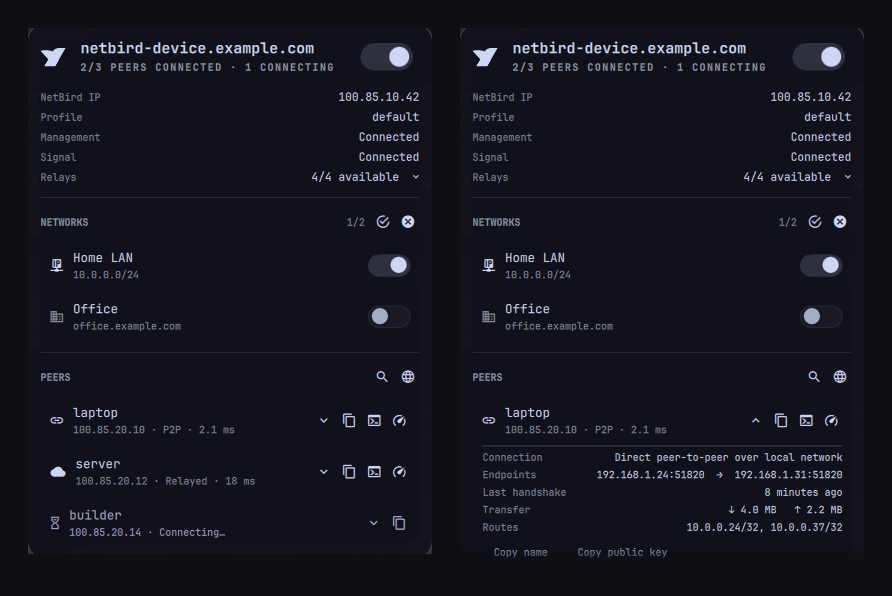
- NetBird IP, profile, management, signal, and relay status
- Select and deselect networks and resources (routes)
- Connected, connecting, and disconnected peer list
- Peer search by name, IP, connection type, or routed subnet
- Per-peer detail: why a peer is relayed, handshake age, traffic, and routes
- Copy peer IP addresses or names
- Open SSH and ping sessions in the configured Omarchy terminal
- Open the NetBird admin console
- Bar icon in the theme color, or the NetBird brand colors if you prefer
- Bar icon turns urgent when connected but degraded, with a hover tooltip
- Mouse and keyboard friendly
Requirements and permissions
- A recent Omarchy release with shell plugin support
netbirdinstalled, configured, and available onPATHwl-copyfor clipboard actions (included with Omarchy)
The plugin does not install packages, create services, request elevated privileges, or overwrite user configuration. It runs netbird status --json, netbird up, and netbird down as the logged-in user. SSH and ping actions open in Omarchy's configured terminal.
Pre-authentication is optional. If NetBird needs credentials, open the panel and choose Log in; the plugin starts the device login, opens the verification page, and shows the code. You can still authenticate manually if preferred:
netbird up
Install
omarchy plugin add https://github.com/vstoms/omarchy-netbird.git --enable
The widget defaults to the right side of the bar. Move it if desired:
omarchy bar move vstoms.netbird --section right
Update later with:
omarchy plugin update vstoms.netbird
Remove
omarchy plugin remove vstoms.netbird
Removal deletes only the installed plugin copy and its bar entry. It does not uninstall NetBird or change your NetBird configuration.
Usage
Mouse
- Left click bar icon: open/close the panel
- Right click bar icon: connect/disconnect
- Middle click bar icon: refresh
- Click peer row: copy its NetBird IP
- Click network row: select or deselect that network
- Click the relay count: expand the per-relay list
- Peer action buttons: details, copy IP, SSH, or ping
- Network section buttons: select all or deselect all
Keyboard
With the panel open:
j/kor arrows: moveenter/space: toggle NetBird, toggle the selected network, or copy the selected peer IPw: select/deselect the highlighted networkd: show or hide details for the selected peer/: search peers (escclears and leaves the field)e: expand or collapse the relay listc: copy selected peer IPn: copy selected peer names: SSH to selected peerp: ping selected peert: connect/disconnectr: refresha: open admin consoleesc: close
Settings
Omarchy has no settings UI for bar widgets yet, so set these from the command line. Values other than strings need --json:
omarchy bar set vstoms.netbird refreshIntervalSec 15 --json      # 5-3600 seconds
omarchy bar set vstoms.netbird showDisconnectedPeers false --json
omarchy bar set vstoms.netbird showNetworks false --json
omarchy bar set vstoms.netbird monochromeIcon false --json       # brand colors
omarchy bar set vstoms.netbird adminConsoleUrl https://netbird.example.com/
| Setting | Default | Effect |
|---|---|---|
refreshIntervalSec |
30 |
How often status is polled, in seconds |
showDisconnectedPeers |
true |
Include offline peers in the list |
showNetworks |
true |
Show the networks and resources section |
monochromeIcon |
true |
Draw the bar icon in the bar color instead of the brand colors |
adminConsoleUrl |
https://app.netbird.io/ |
Opened by the admin console button and a |
The plugin also declares these in manifest.json as a settings schema, so they will appear automatically if Omarchy grows a settings UI.
Bar icon
The NetBird mark is drawn as vector paths and painted in the bar's foreground color, so it matches the other bar icons instead of standing out in brand orange. Set monochromeIcon to false (see Settings) to get the orange mark back.
The icon is dimmed and crossed when NetBird is off, and switches to the theme's urgent color when NetBird is connected but something underneath is not: management down, signal down, or relays unavailable. Hovering the icon reports the same thing in words, so the common questions do not need the panel open.
icons/netbird.svg is kept as the source artwork; the QML no longer loads it at runtime.
Connection states
The daemon reports Idle, Connecting, Connected, NeedsLogin, LoginFailed, and SessionExpired, and each one needs a different fix. The panel shows the state, an explanation, and the action that resolves it:
| State | What the panel offers |
|---|---|
| Login required / session expired | Log in, which runs netbird up --no-browser, opens the verification URL in your Omarchy browser, and shows the code |
| Daemon not running | The sudo systemctl start netbird command with a copy button, plus Retry |
| Not installed | An explanation that netbird is not on PATH |
The plugin never runs privileged commands itself; starting the service is left to you.
When the daemon socket is unavailable, netbird status does not fail — it retries the socket indefinitely. Status calls are therefore bounded with timeout, and the poll interval backs off exponentially (up to five minutes) while the daemon stays unreachable, so a stopped service costs one short probe every few minutes.
If the CLI and daemon report different versions, the panel says so; that mismatch is a common cause of odd behaviour after an update.
Peer detail
Press d (or use the row's chevron) to expand a peer. The detail block explains the connection rather than just naming it:
Connection      Relayed via relay-1.relay.netbird.io (STUN reflexive → TURN relay)
Endpoints       10.0.0.1:51820  →  10.0.0.2:51820
Last handshake  2 minutes ago
Transfer        ↓ 129 KB   ↑ 88.2 KB
Routes          10.0.0.24/32, 10.0.0.37/32
The ICE candidate pair is what answers "why is this peer relayed instead of direct?" — a TURN relay candidate on either side means direct traversal failed. All of it comes from the status call the plugin already makes; no extra commands are run.
Search (/) matches peer names, FQDNs, IP addresses, connection types, and advertised subnets, so searching 10.0.0.24 finds the peer that routes it. Multiple terms must all match.
Networks
The panel lists the networks and resources this peer may route through, mirroring netbird networks list. Toggling a row appends to or removes from the current selection (netbird networks select -a <id> / netbird networks deselect <id>), and the header buttons map to select all / deselect all.
Relay reachability comes from the same netbird status --json call as everything else. The count turns red when any relay is unavailable; expand it to see which one and why.
Peers that are mid-handshake are shown in a distinct "connecting" state rather than being grouped with offline peers.
IPC
omarchy-shell vstoms.netbird status
omarchy-shell vstoms.netbird refresh
omarchy-shell vstoms.netbird up
omarchy-shell vstoms.netbird down
omarchy-shell vstoms.netbird toggleNetbird
omarchy-shell vstoms.netbird state
omarchy-shell vstoms.netbird login
omarchy-shell vstoms.netbird relays
omarchy-shell vstoms.netbird networks
omarchy-shell vstoms.netbird selectNetwork <id>
omarchy-shell vstoms.netbird deselectNetwork <id>
Development
node test/model.test.js
omarchy plugin validate .
QML linting needs Qt 6's qmllint. On many systems /usr/bin/qmllint is Qt 5's, which cannot parse Qt 6 QML and exits non-zero with no message on any modern Omarchy plugin, including the built-in ones. Use the Qt 6 binary, and make the shell reachable under a directory named qs so import qs.Ui resolves:
mkdir -p /tmp/lintroot && ln -sfn "$OMARCHY_PATH/shell" /tmp/lintroot/qs
/usr/lib/qt6/bin/qmllint -I /tmp/lintroot -I "$OMARCHY_PATH/shell" \
  Panel.qml Service.qml NetbirdIcon.qml
Remaining warnings are unqualified-access and Style.* property lookups, at parity with Omarchy's own bundled panels.
Changes are recorded in CHANGELOG.md.
Credits
Inspired by Dadangdut33's NetbirdStatus plugin for DMS, itself ported from the Noctalia NetBird plugin. This implementation is written for Omarchy's native plugin API.
The NetBird logo is an official brand asset used according to the NetBird press-kit guidelines. NetBird and its logo are trademarks of NetBird GmbH and are not covered by this project's MIT license.
License
Plugin source and documentation are MIT licensed — see LICENSE. The NetBird logo remains the property of NetBird GmbH.