
TouchSynth
TouchSynth turns a Linux precision touchpad into a scale-locked, polyphonic instrument inside Omarchy. It borrows the approachable idea behind the AUUG Motion Synth—touches choose safe notes while continuous movement shapes the sound—and translates it to laptop hardware.
Install
TouchSynth requires Omarchy with shell plugin support, PipeWire's pw-cat,
and a Linux touchpad that exposes raw multi-touch events. Its acoustic
instruments work offline, so installing downloads about 92 MB of packed
history and uses roughly 210 MB on disk: a 116 MB checkout plus its .git.
omarchy plugin add https://github.com/yamz8/omarchy-touchsynth.git --enable
The installer asks where to place the bar widget. TouchSynth defaults to the right side. To update or remove it later:
omarchy plugin update yamz8.touchsynth
omarchy plugin remove yamz8.touchsynth
Touchpad access
TouchSynth reads raw multi-touch events straight from the touchpad's
/dev/input/eventN node, which is not readable by ordinary users by default.
If the overlay shows cannot read /dev/input/eventN, grant that access with a
udev rule:
sudo tee /etc/udev/rules.d/70-touchsynth-touchpad.rules >/dev/null <<'RULE'
SUBSYSTEM=="input", KERNEL=="event*", ENV{ID_INPUT_TOUCHPAD}=="1", TAG+="uaccess"
RULE
sudo udevadm control --reload-rules
sudo udevadm trigger --subsystem-match=input --action=change
The uaccess tag makes systemd-logind grant a read ACL to whoever is logged in
at the local seat, and it applies immediately — no logout required. Confirm it
with getfacl /dev/input/eventN, which should list your user, and check that
the backend sees the device:
python3 touchsynth.py --probe
Adding your user to the input group also works, but prefer the rule above.
Group membership grants read access to every input device, including your
keyboards, so any process running as you could log keystrokes; the rule is
scoped to touchpads only. The rule must sort before 73-seat-late.rules,
where udev acts on the tag, so keep a prefix below 73.
Play
- Click the music icon in the Omarchy bar.
- Put one or more fingers on the touchpad.
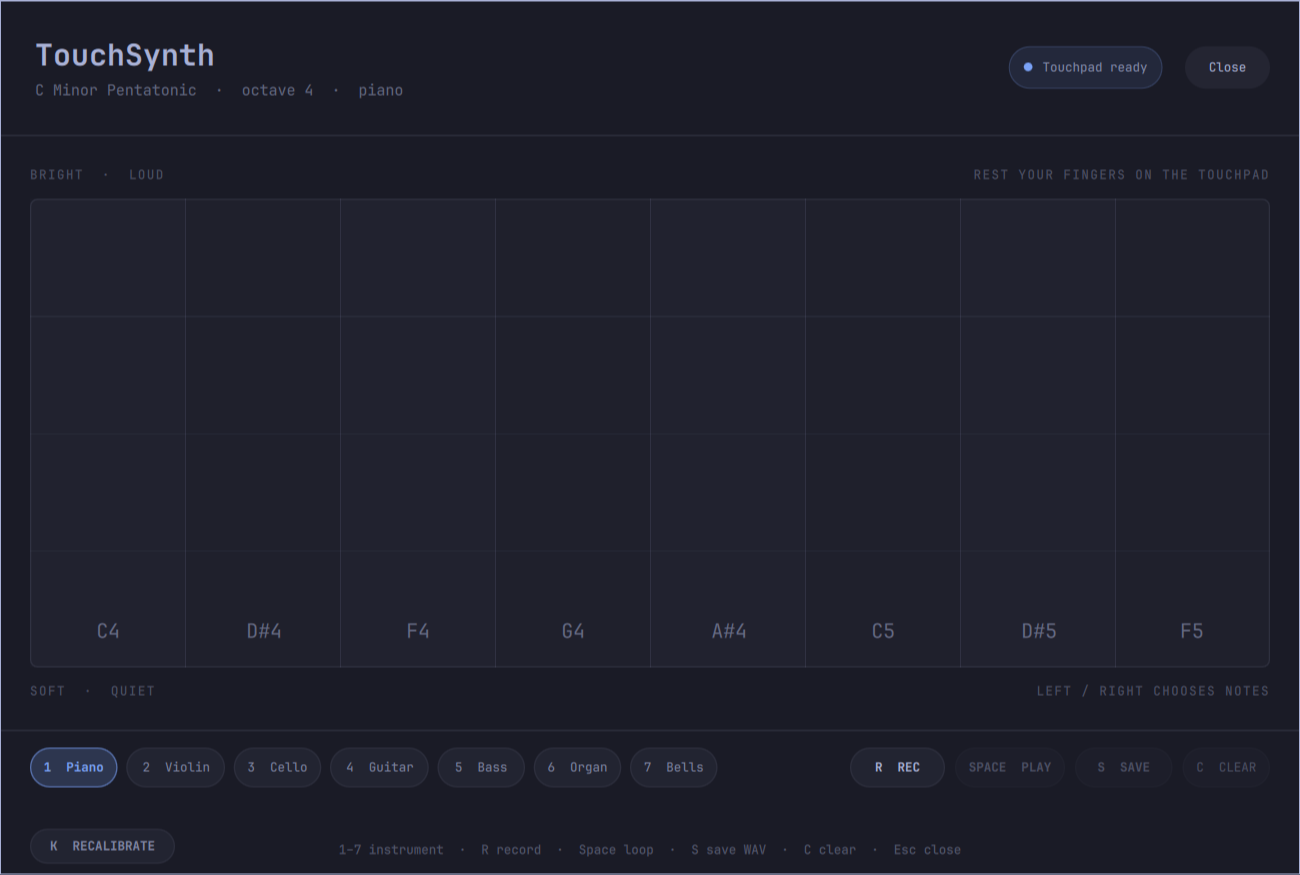
- Move left/right to choose one of eight notes in the selected scale.
- Move toward the top for a brighter, louder tone; move down for a softer one.
- Lift slowly or tap sharply—the release envelope keeps both expressive.
- Press
Escor clickCloseto stop the synth and leave the overlay.
The cursor is hidden only while it is over the performance overlay, leaving just the finger markers on screen. It returns automatically during calibration and whenever TouchSynth closes, reloads, or stops unexpectedly. The performance controls therefore have direct keyboard shortcuts as well as buttons.
Multiple contacts produce chords. Sliding horizontally moves each voice between scale notes with a short glide instead of a hard pitch jump.
Calibrate the touchpad
Press K or choose CALIBRATE at the bottom-left of the overlay. The guided
screen temporarily mutes TouchSynth and asks you to hold one finger at your
comfortable left, right, top, and bottom playing edges. Each point is captured
automatically after the finger is held still; lift the finger before moving to
the next edge. The regular pointer is visible throughout calibration so its
buttons remain easy to use. Pressing Esc closes TouchSynth and restores the
pointer immediately.
After the four edges, choose a vertical touch response with the left/right
arrow keys: Low gives more travel, Balanced keeps the natural mapping,
and High reaches loud and bright tones with less travel. Press Enter to
save. The result is applied immediately and remembered separately for each
touchpad in ~/.local/state/touchsynth/calibration.json
($XDG_STATE_HOME is honoured when set). Press K again at any time to
recalibrate.
Instruments and looper
Seven instrument engines are available from the control strip or number keys:
1Piano — stereo Kawai grand samples with soft/loud strike layers2Violin — stereo solo violin with soft/loud layers and smooth sustain3Cello — a true solo cello, automatically voiced one octave lower4Guitar — a Karplus-Strong physical model of a plucked string5Bass — a filtered synth bass with a sub oscillator, one octave lower6Organ — sustained drawbar harmonics with restrained tonewheel vibrato7Bells — inharmonic FM bells with a metallic strike and long decay
Piano, violin, and cello use a 118-file, 115 MB sample bank bundled with the plugin. Every root has soft and loud recordings, selected by the initial vertical touch position. Samples are spaced every two to four semitones, so the engine never needs the extreme pitch stretching of the earlier compact bank. Sliding changes to the closest recording with a short equal-power crossfade, preserving a continuous gesture without clicks or retriggered bow attacks. Piano and violin keep their source stereo image, and all three use a subtle built-in room effect.
Guitar, bass, organ, and bells remain separate synthesis algorithms. Everything is self-contained: no DAW, sampler application, plugin host, or additional hardware is required. Moving vertically changes loudness and tone, so every instrument responds expressively to the touchpad.
Press R to start a fresh recording and R again to finish it. Press
Space to start or stop repeating the recorded loop, and C to clear it.
The looper captures chords, note slides, stereo position, and vertical
expression. You can continue playing live over the repeating loop and change
the instrument at any time.
Press S or click SAVE to render the current loop once as a standard
48 kHz stereo WAV file. Recordings are stored in ~/Music/TouchSynth/ with
timestamped names such as touchsynth-20260825-063000.wav. Saving while a
recording is active stops that recording first, and saved files include the
natural release of the final notes.
To create another file, press R to begin a fresh recording, press R again
to finish, then press S. Each save gets a new filename, and earlier WAV files
remain untouched.
Configure
Open Setup > Plugins > TouchSynth to choose the root note, scale, octave,
instrument, volume, and release time. device normally stays auto; set it to a
touchpad name fragment or /dev/input/eventN only when more than one touchpad
is attached.
The backend uses only Python's standard library and the pw-cat command that
ships with PipeWire. It reads Linux evdev multi-touch events directly, so the
user running Omarchy must be able to read the chosen /dev/input/event*
device (Omarchy commonly grants this through the input group).
Privacy and security
TouchSynth reads raw position, contact-size, and pressure events from the selected touchpad only while its overlay is open. It does not record keyboard input, contact the network, or send touch data anywhere. The optional sample build script downloads the documented CC0 sources only when run manually; it is never run during installation or normal use.
Calibration is stored locally in
~/.local/state/touchsynth/calibration.json. The file contains a touchpad
identifier and the calibrated bounds. TouchSynth keeps no state in
~/.config/omarchy/, which belongs to the Omarchy shell; a calibration left
there by TouchSynth 3.1.5 or earlier is moved to the new path on first run and
the old file removed. TouchSynth accepts only a regular file
owned by the current user, never follows a symlink at that path, and limits the
file to 64 KiB. Calibration saves use private 0600 permissions and atomic
replacement. Loop exports are written only when the user presses S, under
~/Music/TouchSynth/.
Like every third-party Omarchy shell plugin, TouchSynth runs as unsandboxed user code. Review the repository before enabling it.
Architecture
BarWidget.qmlopens the instrument with the widget's current settings.TouchSynth.qmlrenders the native Omarchy overlay and live contact display.touchsynth.pyreads raw multi-touch frames and streams sampled/synthesized stereo PCM to PipeWire at 48 kHz.samples/contains the acoustic bank and its source/license record.tools/build_sample_bank.shcan reproducibly rebuild the acoustic bank from its original CC0 sources.
Probe the current hardware without opening audio:
./touchsynth.py --probe
Run the backend tests:
python -m unittest discover -s tests -v
Run the complete release check, including sample hashes and the Omarchy manifest validator when it is available:
./tools/validate_release.sh
TouchSynth is an independent project inspired by AUUG's interaction concept; it is not affiliated with or endorsed by AUUG.
The bundled acoustic recordings come from the CC0-licensed Versilian Community
Sample Library and VSCO 2 Community Edition. See samples/LICENSE.md for the
exact source files and processing notes.